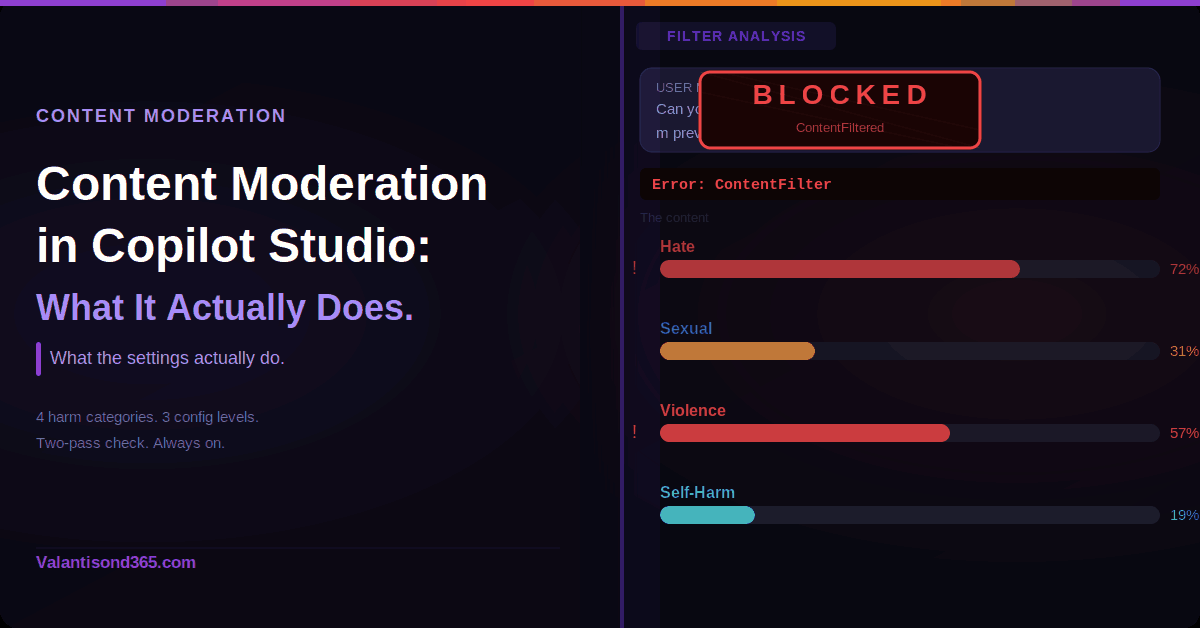
Content Moderation in Copilot Studio: What the Settings Actually Do and How to Use Them
Who this is for: Makers and consultants building agents in Copilot Studio who are hitting content moderation blocks, or who need to understand what the moderation settings actually control before designing a solution.
What the Filter Actually Checks
The Copilot Studio content moderation is built on Azure AI Content Safety. It checks four categories:
| Category | What it covers |
| Hate and Fairness | Content that attacks or uses discriminatory language based on race, ethnicity, gender identity, sexual orientation, religion, disability status, and similar attributes. |
| Sexual | Language related to sexual acts, romantic content in erotic terms, nudity, pornography, prostitution, and child exploitation. |
| Violence | Language related to physical actions intended to hurt or kill, weapons, bullying, intimidation, terrorism, and stalking. |
| Self-Harm | Language related to actions intended to injure or kill oneself, including eating disorders and bullying that promotes self-harm. |
Each category has a severity scale from 0 to 7. Level 0 is safe. Level 7 is the most extreme. When you change the moderation level in Copilot Studio, you shift the severity threshold at which these categories trigger a block. You do not change which categories are checked. All four are always evaluated. A piece of content can also be flagged across more than one category at the same time.
The Two-Pass Check: Always On
All content is checked twice: once when the user sends a message, and again before the agent sends its response. If harmful, offensive, or malicious content is detected at either point, the agent is blocked from responding.
The policies also cover jailbreaking, prompt injection, prompt exfiltration, and copyright infringement, not just the four harm categories.
There is no setting that turns the two-pass check completely off. The moderation level controls the threshold, not whether the check runs.
Error shown to the user when content is blocked:
Error Message: The content was filtered due to Responsible AI restrictions.
Error Code: ContentFiltered
The Three Levels You Can Configure
There are three places to configure content moderation in Copilot Studio. They operate independently and do not all behave the same way at runtime.
1. Agent Level
This is the default baseline for the whole agent. Before the content moderation level control is available, generative orchestration must be turned on. Go to Settings > Generative AI > Orchestration and confirm that Use generative AI orchestration for your agent’s responses? is set to Yes.

Once generative orchestration is on, the steps to set the moderation level are:
- Go to Settings for your agent.
- Select Generative AI.
- Select the content moderation level you want.
- Select Save.

The levels range from Lowest to Highest. Lowest generates the most answers but they may contain harmful content. Highest applies a stricter filter and generates fewer answers. The out-of-the-box default is High.
2. Topic Level (Generative Answers Node)
This level overrides the agent-level setting at runtime. If a moderation level is set here, the agent-level setting is ignored for that specific topic. If no level is set at the topic level, the agent-level setting applies as the fallback.
This is configured inside the topic canvas in the Properties pane of a generative answers node, not in the Settings area. To reach it:
- Open the topic in the Topics page.
- Find the generative answers node (Create generative answers).
- Select the three dots (…) on that node, then select Properties. The Properties pane opens on the right.
- Select the desired moderation level.
- Select Save at the top of the page.
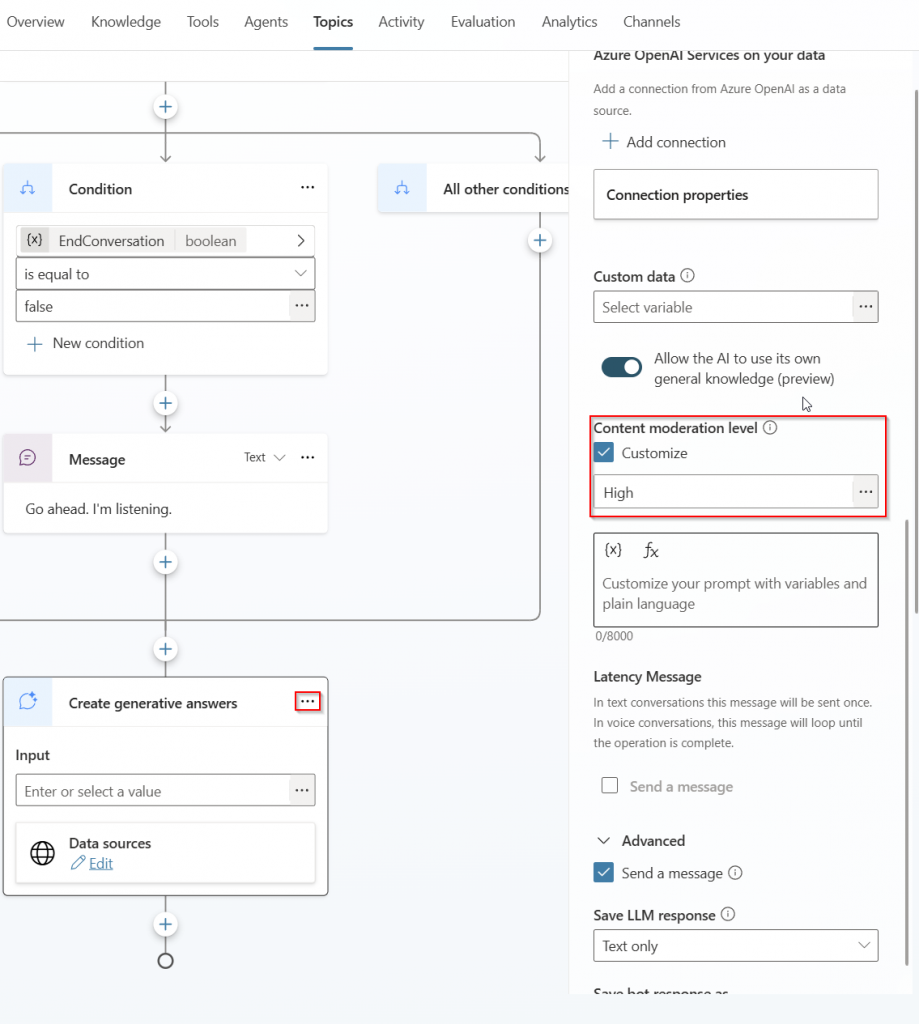
| Documented note from Microsoft Learn: If you set your generative answers node to moderate content, it might not return answers. This is different from a ContentFiltered error. High moderation at the topic level can cause the node to return no answer at all. |
3. Prompt Tool Level
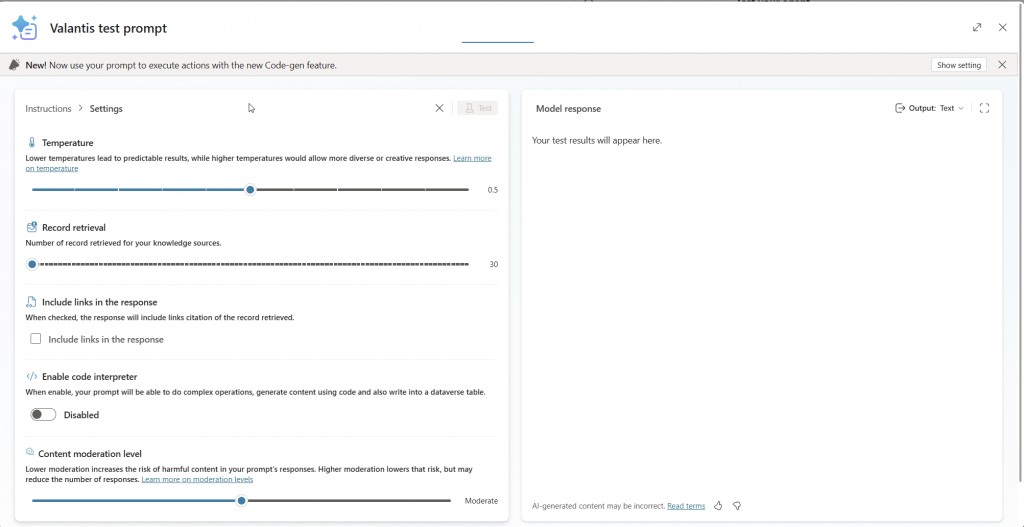
This is configured inside the prompt builder. Select the three dots (…) at the top of the prompt builder and select Settings. The Content moderation level control is listed alongside other settings such as temperature and record retrieval.
To override agent or topic moderation for a specific prompt tool, configure the Completion setting of the prompt tool to send a specific response, rather than relying only on the moderation level slider.
When Content Gets Blocked: How to Investigate
Application Insights
To use Application Insights, your tenant needs an active Azure subscription and the necessary roles to create Azure resources. Once connected, use these KQL queries to find ContentFiltered events.
Find all ContentFiltered exceptions across your agent:
customEvents
| where customDimensions contains “ContentFiltered”
| project timestamp, name, itemType, customDimensions, session_Id, user_Id, cloud_RoleInstance
Narrow down to a specific conversation ID:
customEvents
| where customDimensions contains “***conversationID***”
| where customDimensions contains “ContentFiltered”
| project timestamp, name, itemType, customDimensions, session_Id, user_Id, cloud_RoleInstance
Conversation Transcripts
Download conversation transcripts directly from within your agent. Go to Analytics in the top menu bar, then select Download Sessions. You need the Transcript Viewer security role to access this, and only admins can assign it. Transcripts cover the last 29 days only. Note that agent responses using SharePoint as a knowledge source are not included in transcripts.
File Uploads: Same Rules Apply
If a file upload triggers content moderation filtering, restart the conversation. The agent uses the current conversation history to generate answers and continues to return ContentFiltered errors if the flagged content remains in that history. Note: this behavior is confirmed by Microsoft docs specifically for file upload scenarios.
What to Know Before You Design
- Check which level is actually causing the block. The topic level overrides the agent level at runtime. Always check whether the generative answers node in that topic has its own moderation setting before changing the agent-level setting.
- High moderation at the topic level can cause the node to return no answer, not just a ContentFiltered error. If a topic stops returning answers after configuring moderation, this is the first thing to check.
- Generative orchestration must be on before the agent-level moderation control is available. Go to Settings > Generative AI > Orchestration and confirm it is set to Yes.
- The four harm categories are always checked. The moderation level shifts the severity threshold, not which categories are evaluated.
- For prompt tools, use the Completion setting if you need output behavior that differs from the topic or agent-level setting.
- A content-filtered message stays in conversation history. Once a message triggers the filter, the agent may keep returning errors for that session. Restarting the conversation clears it.
- Connect Application Insights early. Diagnosing ContentFiltered errors without telemetry is significantly slower.
References
- Three-level hierarchy, runtime precedence, default High, level descriptions.
Knowledge sources: Content moderation
2. Exact path to turn on generative orchestration, required before agent-level moderation is available.
Orchestrate agent behavior with generative AI
3. Topic-level moderation steps and documented note that high moderation may return no answers.
4. Prompt tool content moderation setting and Completion override option.
Change the model version and settings
5. Error message text, error code ContentFiltered, KQL queries, and transcript investigation approach.
Resolve responsible AI content filter errors
6. Confirms the two-pass check on user input and agent output.
Use public websites to improve generative answers
7. File upload moderation behavior and the conversation restart note.
8. The four harm categories and severity levels 0 to 7 that the filter evaluates against.
Harm categories in Azure AI Content Safety
9. Responsible AI policies scope for generative answers.