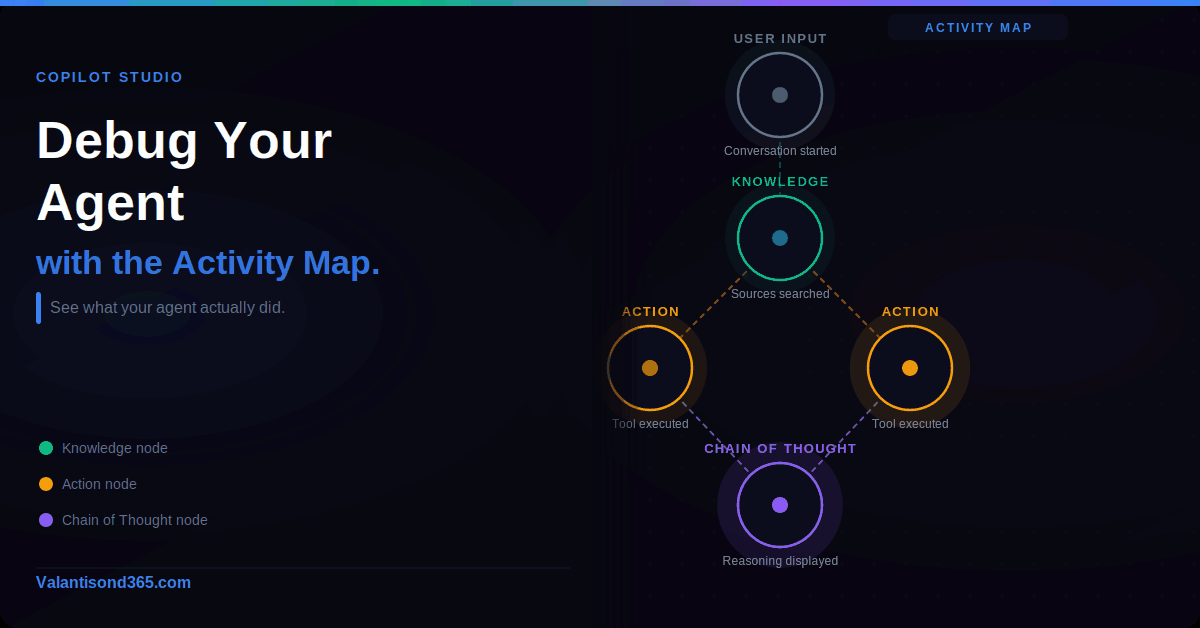
Real-time tracing, historical activity, Chain of Thought, and what the status states actually mean
Why this matters
When an agent does not behave as expected, the first instinct is usually to go back into the topic and start changing things. That is the wrong move if you do not first understand what the agent actually did. The Activity map in Copilot Studio gives you that picture. It shows exactly what the agent decided, in what order, with what inputs and outputs, and where it failed.
This post covers how to use activity tracking during testing and how to read historical activity after something has gone wrong in a live agent. The goal is to get from “my agent is not working” to “I know exactly why and where” before making any changes.
Audience: Makers and consultants building agents in Copilot Studio.
| Requirement. Activity tracking is only available for agents with generative orchestration enabled. If you do not see the Activity map in testing, check that generative orchestration is turned on in your agent settings. |
Real-Time Activity Map During Testing
What it shows
When you send a message in the test pane, the activity map opens alongside it and builds in real time as the agent works through its plan. You can see which action the agent selected, what inputs it passed, what it got back, and how long each step took.
This is the fastest way to catch problems. If an action is failing because of a missing parameter, you see it immediately in the map. If the agent is picking the wrong tool for a query, the map shows you which tool it chose and why.
Enable the activity map in the test pane
- Open your agent in Copilot Studio.
- In the test pane, select the three dots (…).
- Turn on Show activity map when testing.
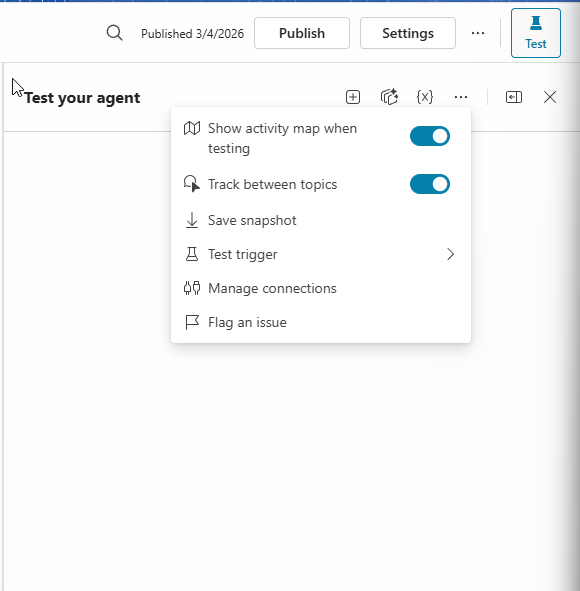
Once enabled, the map appears automatically every time you send a message in the test pane. You do not need to enable it again for that session.
Test event triggers
When you test an event trigger, the test chat shows the trigger payload as a message. This payload is only visible to you inside Copilot Studio.
Your agent users cannot see it. Use it to confirm the trigger is firing correctly and that the payload contains the data your agent expects.
Track between topics
When tracking is enabled during testing, the activity map shows the nodes inside a topic as they execute when that topic triggers as part of a plan.
This lets you follow the full conversation flow across multiple topics.
| Note on generative orchestration within topics. Generative orchestration activities that happen inside a topic do not appear in the activity map. Only the topic-level nodes are shown. |
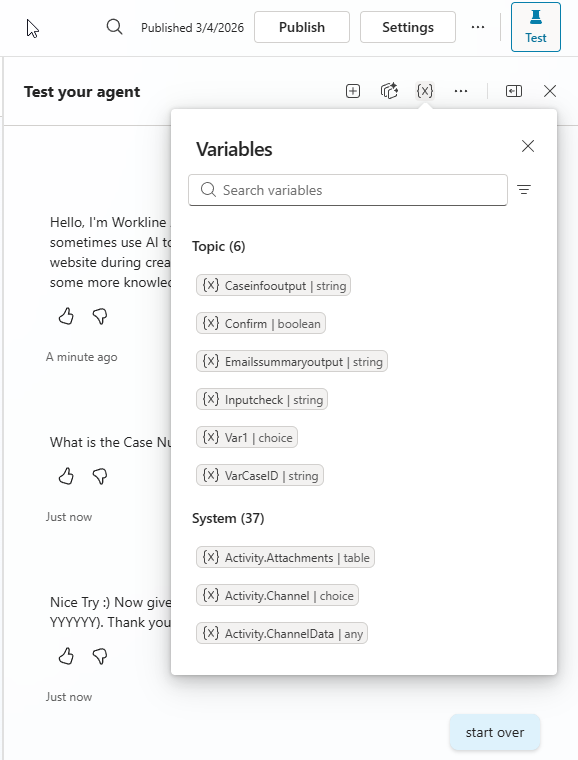
View variables during testing
- Go to the Activity page of your agent.
- Select Test, then select Variables.
- The Variables pane opens showing all variables used during the test, including global, environment, and system variables.
Chain of Thought in the test pane
Chain of Thought shows the agent reasoning as it processes your query, before it sends a response. This is useful when the agent gives an unexpected answer and you want to understand how it got there.
- Open your agent in Copilot Studio.
- Select Test to open the test pane.
- Send a query or prompt.
- Before the agent responds, the reasoning appears in the test pane.
| Model requirement. Chain of Thought is only available for specific models: GPT-5 Reasoning, Claude Sonnet, and Claude Opus. If you are using a different model, this feature does not appear. |
Historical Activity
What the Activity page records
Every time your agent starts an activity, including tests you run inside Copilot Studio, the Activity page records it in real time. Historical activity is available for test chat sessions, agents published to Microsoft Teams and Microsoft 365 Copilot, agents published to SharePoint, and activities started by an autonomous trigger.
On the Activity page you can see what the agent decided during each conversation, where the behaviour did not match what you expected, how long each step took, and the full error details when something failed.
| Exchange licence required. You need a Microsoft Exchange licence and an inbox to access historical agent activity. The data is stored via Microsoft 365 services and governed by Microsoft 365 terms and data residency commitments, not Azure data terms. If you need to prevent Microsoft 365 from storing this data, use the Power Platform admin center to turn off the setting. Existing data is deleted according to the Microsoft 365 data retention policy. |
Reading the activity list
Each row in the activity list shows: the name of the user who interacted with the agent (or Automated if no user was involved), the channel where the interaction happened, the date the activity started, the number of steps completed, the final step, and the status.
You can customise the columns shown in the activity list. Select Edit columns, choose which columns to show or hide, drag them into the order you want, and select Save.
Viewing a conversation within an activity
Select any activity from the list to open it. Two views are available. Transcript and Map view shows the full conversation alongside the visual activity map. Map view shows only the activity map.
- Select an activity from the Activity page.
- Select View and choose Transcript and Map view or Map view.
- In the map, select any node to see the inputs, decisions, and outputs for that step.
- To go back to the activity list, select the Back icon.
When you select a knowledge node, you can see the query the agent used to search knowledge sources, the response it generated, which sources it referenced, and which sources it searched but did not use.
Chain of Thought in historical activity
Chain of Thought is also available for historical activities, but only in Map view. It shows the agent reasoning for that specific activity.
- In the Activity tab, select the activity you want to review.
- Switch to Map view.
- Under the activity map, select the Reasoning chevron.
- The agent chain of thought appears.
| Model requirement. Same as testing. Chain of Thought only appears for GPT-5 Reasoning, Claude Sonnet, and Claude Opus. |
Pinning activities
You can pin important activities to the top of the list so you do not have to search for them. Hover over the activity and select the Pin icon. To unpin, hover over the pinned activity and select the Unpin icon.
Rationale
Rationale is an AI-generated explanation of why the agent chose to call a particular tool. It appears for knowledge sources and connectors that have a Completed status. Select Show rationale inside the activity map to display it.
Use Rationale when you cannot tell from the inputs and outputs alone why the agent picked a specific tool. It helps when troubleshooting unexpected tool selection or incorrect parameter values.
| Important limitation. Rationale is generated by AI on demand. It may not always be accurate. Use it as a starting point for investigation, not as a definitive answer. |
Agent Status States
Every activity has a status. The status tells you what state the agent is in at the end of the activity or at the point you are viewing it.
| Status | What it means | Applies to |
| Complete | No errors. The last message is not a Manage Connections dialog. For autonomous agents, the conversation initiator defined plan of steps are all in a completed state. A conversation can move in and out of Complete. | Autonomous agents and conversational agents with an action |
| Incomplete | An error occurred in one of the steps, or all steps are in a terminal state but not all are Complete. | Autonomous agents and conversational agents with an action |
| Failed | All activities failed. | Autonomous agents and conversational agents with an action |
| In Progress | At least one defined step is not complete and is still running. | Autonomous agents and conversational agents with an action |
| Waiting for User | The agent responded and is waiting for the user to continue. The last step requires human input. | Autonomous agents and conversational agents with an action |
| Created | Conversation just started. | Autonomous agents and conversational agents with an action |
| Canceled | Cancels any remaining dynamic plans and empties the dialog stack. | Not specified in docs |
What to Check First When Something Goes Wrong
These come from working through agent issues in real Copilot Studio environments.
- Start with the Activity page, not the topic canvas. The map tells you what actually happened. The topic canvas tells you what should happen. If you go straight to editing topics without reading the activity, you are guessing.
- Check the status first. If the status is Incomplete rather than Failed, the issue is likely a partial failure in one step, not a complete breakdown. That narrows down where to look.
- Use Chain of Thought before changing the prompt. If the agent reasoned its way to the wrong answer, Chain of Thought shows you where the reasoning broke down. Change the knowledge source or the action configuration before touching the system prompt.
- Pin activities that show the failure pattern you are investigating. You will want to compare them against a successful activity once you make a change.
- Check what the agent sent to the knowledge source, not just what it received back. The query the agent sends can be different from the query the user typed. If the agent is searching the wrong thing, the knowledge node details show you exactly what it sent.
- Rationale helps but verify it. The AI-generated rationale is a starting point. Cross-check it against the actual inputs and outputs in the node before acting on it.
References
1. Review agent activity – Microsoft Copilot Studio documentation. Full documentation for the Activity map, real-time testing, historical activity, status states, Rationale, and Chain of Thought.
https://learn.microsoft.com/en-us/microsoft-copilot-studio/authoring-review-activity
2. Test your agent – Microsoft Copilot Studio documentation. Covers the test pane, how to send queries, and how to read test results.
https://learn.microsoft.com/en-us/microsoft-copilot-studio/authoring-test-bot
3. Test event triggers – Microsoft Copilot Studio documentation. Covers how trigger payloads appear in the test chat and what they contain.
https://learn.microsoft.com/en-us/microsoft-copilot-studio/authoring-trigger-event#test-a-trigger
4. Publish to Microsoft Teams and Microsoft 365 Copilot – Microsoft Copilot Studio documentation. Covers the channels where historical activity is recorded.
https://learn.microsoft.com/en-us/microsoft-copilot-studio/publication-add-bot-to-microsoft-teams
5. Publish to SharePoint – Microsoft Copilot Studio documentation.
https://learn.microsoft.com/en-us/microsoft-copilot-studio/publication-add-bot-to-sharepoint
6. Autonomous triggers – Microsoft Copilot Studio documentation. Covers activities started by triggers without user input.
https://learn.microsoft.com/en-us/microsoft-copilot-studio/authoring-triggers-about
7. Manage activity data powered by Microsoft 365 services – Microsoft Copilot Studio documentation. Covers data storage, Exchange licence requirement, and how to disable storage via the Power Platform admin center.
https://learn.microsoft.com/en-us/microsoft-copilot-studio/manage-activity-data-m365
8. Microsoft 365 terms and data residency commitments – Governs how historical activity data is stored and retained.
9. Integrated Microsoft authentication – Microsoft Copilot Studio documentation. Required for the agent to identify your interactions in the activity map.
10. Turn on data movement and Bing search – Power Platform admin center. Used to control whether Microsoft 365 stores historical activity data.
Conclusion
The Activity map is the fastest way to understand what your agent actually did, as opposed to what you expected it to do. Without it, debugging is guesswork. With it, you can go from a failed activity to the exact node, the exact input, and the exact reason within a few minutes.
Use real-time testing to catch problems during development. Use historical activity to investigate issues in live agents. Use Chain of Thought when the agent reasoning is unclear. Use Rationale when the tool selection does not make sense. And always read the activity before changing anything in the topic canvas.