Microsoft has introduced a significant capability for enterprise AI governance: custom Model Context Protocol (MCP) connector management directly within the Microsoft 365 Admin Center. This feature, tracked under Roadmap ID 501585, represents the first admin-native interface for extending Copilot with real-time organizational data while maintaining enterprise-grade security and compliance controls.
Understanding MCP Connectors: Architecture and Core Differences
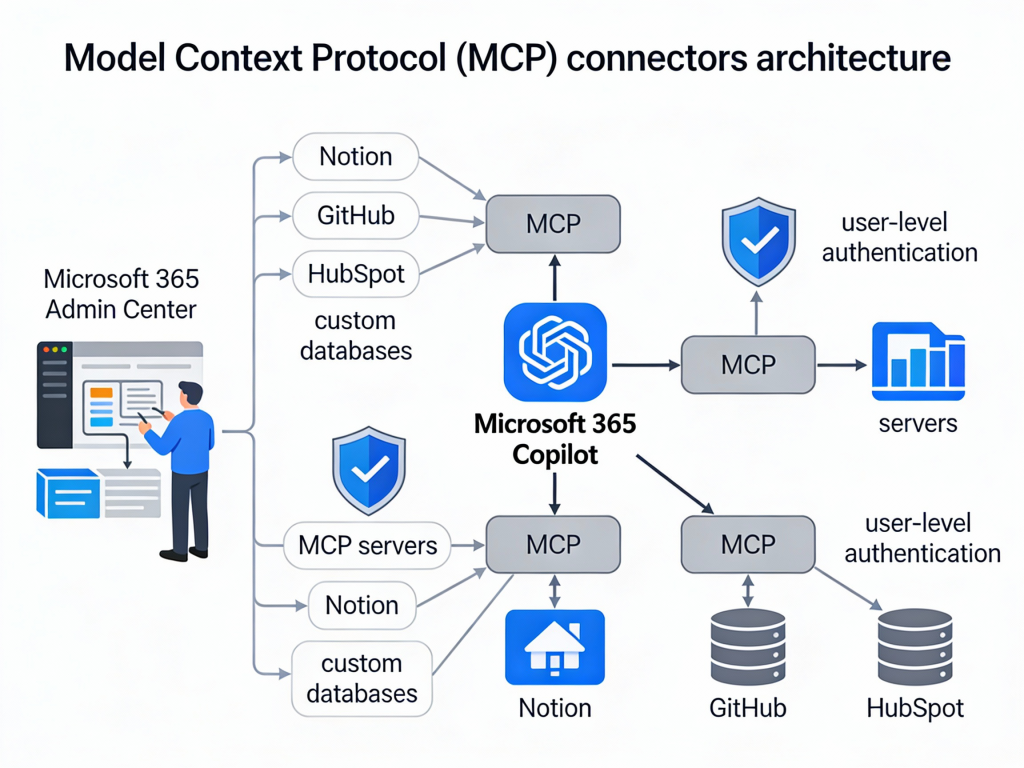
MCP connectors operate fundamentally differently from traditional Microsoft Graph connectors. While Graph connectors crawl and index content into Microsoft 365, MCP connectors use a federated architecture that fetches data at query time without duplication.
Key Architectural Distinctions
Traditional Graph Connectors:
- Crawl and index external content into Microsoft Graph
- Store copies of data within Microsoft 365 infrastructure
- Require periodic synchronization to maintain freshness
- Data becomes searchable across Microsoft 365 experiences
MCP Federated Connectors:
- Fetch data in real-time when users query Copilot
- No data duplication or indexing into Microsoft 365
- Use individual user credentials for each request
- Respect source system permissions dynamically
This architectural difference addresses critical compliance requirements for organizations that cannot permit external data indexing due to regulatory constraints, data residency requirements, or the highly dynamic nature of their data sources.
The Model Context Protocol Foundation
MCP serves as a universal integration standard that enables AI models to access and utilize data from diverse sources. Microsoft positions this protocol as “the USB-C of AI apps”—a standardized approach that eliminates the need for custom integration patterns for each data source.
The protocol enables:
- Tool discovery: MCP servers expose available tools that Copilot can discover and invoke dynamically
- Real-time orchestration: Agents can chain operations across multiple systems within a single user interaction
- User-context authentication: All data access occurs using the requesting user’s identity and permissions
Admin Center Capabilities: Deployment and Governance
The Microsoft 365 Admin Center now provides comprehensive controls for MCP connector management under Copilot > Connectors > Your Connections. These capabilities enable IT administrators to balance innovation with governance requirements.
Connector Visibility and Control
Administrators can view two categories of connectors:
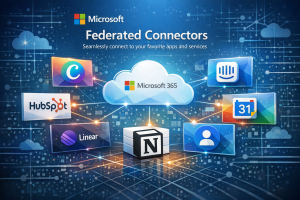
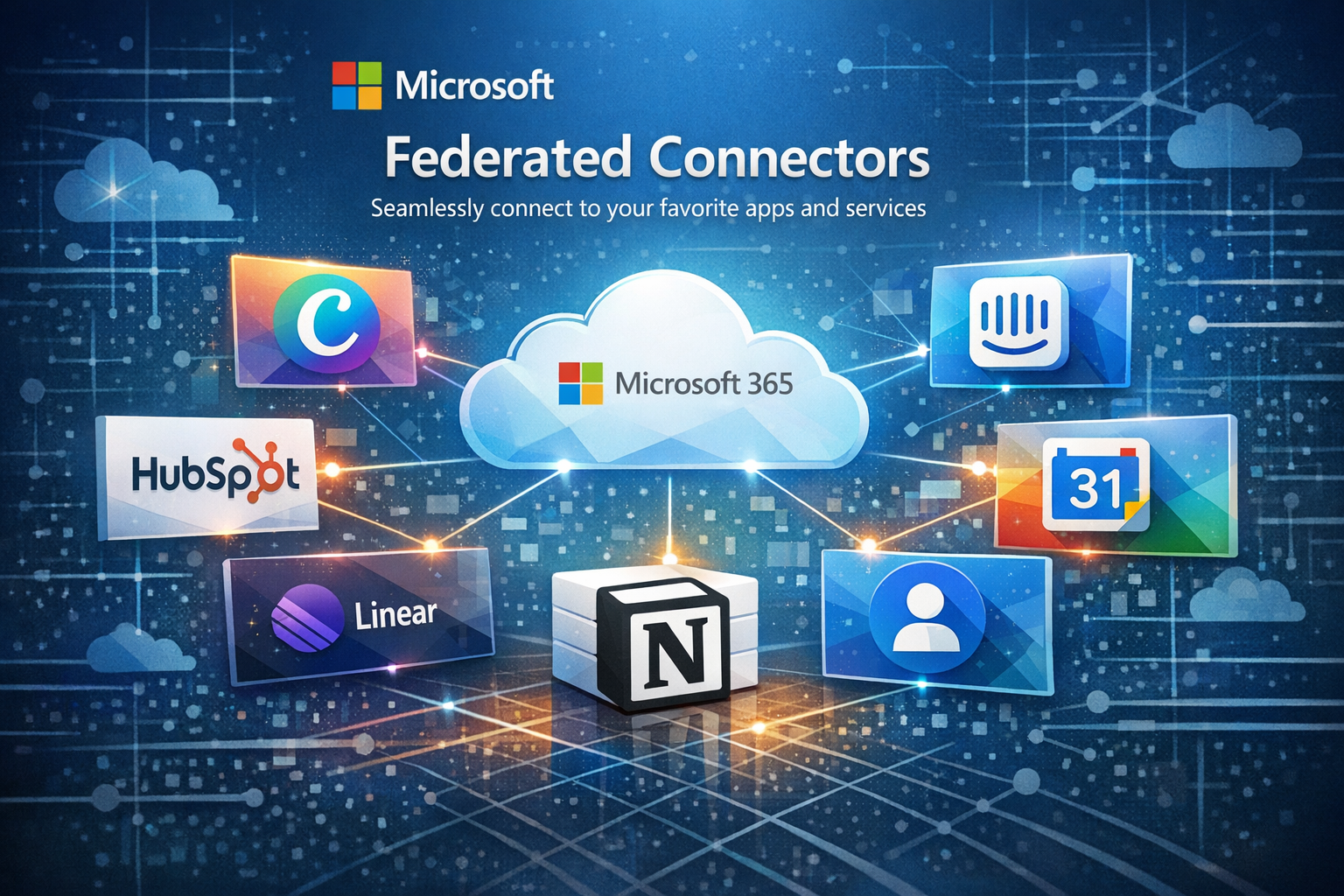
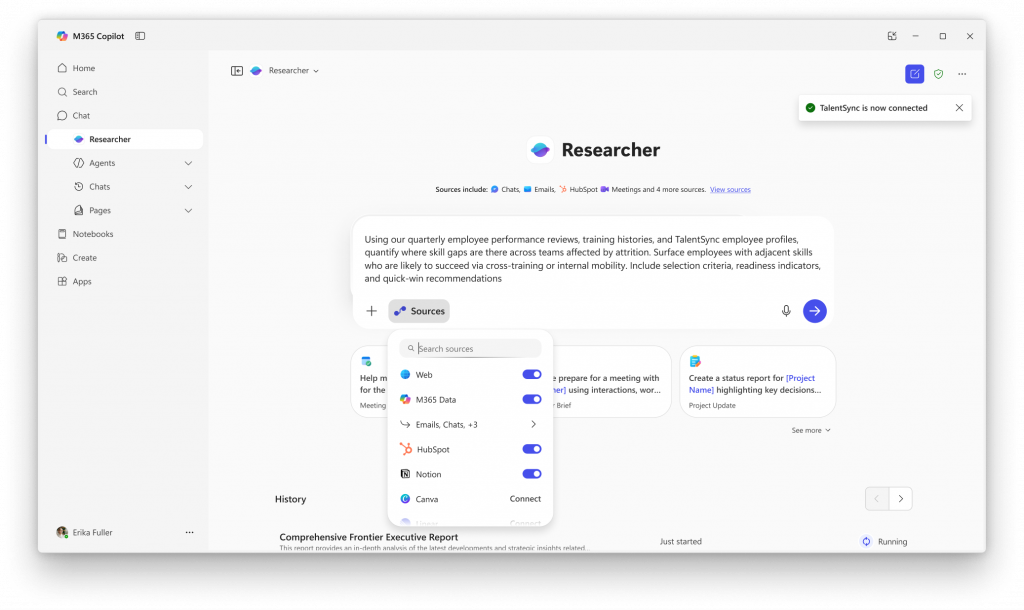
Microsoft-Published Federated Connectors: Currently available integrations include Notion, Canva, HubSpot, Intercom, Figma, GitHub, and Gmail. These connectors are enabled by default at the tenant level, allowing users to authenticate and connect to these services within Copilot experiences.
Custom Organization Connectors: IT teams can create and deploy proprietary MCP connectors for internal systems, including line-of-business applications, ERP platforms, proprietary databases, and legacy systems that store critical business data.
Staged Rollout Capabilities
The admin center supports phased deployment strategies essential for enterprise change management:
Tenant-Level Controls:
- Enable or disable individual connectors organization-wide
- Override default settings for Microsoft-published connectors
- Implement blanket policies across all users
Group-Based Targeting: Using the Add staging feature, administrators can limit connector availability to specific Microsoft Entra ID groups. This enables pilot programs where IT can validate functionality, performance, and compliance with a subset of users before broader deployment.
Deployment Timeline: The public preview rollout began November 15, 2025, and continues through early 2026, providing organizations time to evaluate the technology during the preview period.
Implementation Requirements and Configuration
Technical Prerequisites
Administrators implementing custom MCP connectors must satisfy several requirements:
Administrative Permissions:
- Application Administrator or Cloud Application Administrator role
- Required Microsoft Graph API permissions for connector management
- PowerShell access with Microsoft.Entra.Beta module installed
MCP Endpoint Configuration:
- Server endpoints must implement required MCP tools (minimally search and fetch capabilities)
- TLS 1.2 or higher encryption for all connections
- OAuth2 or API key authentication configured
- Valid Entra ID app registration for client authentication when using external tools
Connector Manifest Structure
Custom connectors are defined in the Microsoft 365 app manifest using the agentConnectors array. This JSON structure specifies the connector’s identity, capabilities, and authentication:
{
  "agentConnectors": [
    {
      "id": "erp-connector",
      "displayName": "Enterprise ERP System",
      "description": "Real-time access to inventory and order data",
      "toolSource": {
        "remoteMcpServer": {
          "endpoint": "https://erp-mcp.company.com",
          "authorization": {
            "type": "OAuthPluginVault",
            "referenceId": "erp-oauth-config"
          }
        }
      }
    }
  ]
}
The authorization configuration references credentials stored in Microsoft’s secure plugin vault, ensuring sensitive authentication details remain protected.
End-User Experience and Interaction Model
Users access MCP connectors through existing Microsoft 365 Copilot experiences, including Researcher, Teams, and Outlook.
Connection Workflow
- Discovery: Available connectors appear within Copilot interfaces where users can initiate connections
- Authentication: Users authenticate to external services using their own credentials
- Data Access: Copilot submits queries through the MCP connector using the user’s authentication context
- Permission Enforcement: Results are filtered based on the user’s actual permissions in the source system
- Real-Time Results: Copilot receives and processes current data without accessing cached or indexed content
Supported Integration Scenarios
External SaaS Applications: Pre-built connectors enable integration with common business tools where organizations already maintain user accounts and permissions.
Internal Line-of-Business Systems: Custom connectors extend Copilot capabilities to proprietary applications, including:
- Enterprise Resource Planning (ERP) platforms
- Customer Relationship Management (CRM) systems beyond Dynamics 365
- Custom databases and data warehouses
- Industry-specific applications with specialized data models
- Legacy systems requiring modern AI interfaces
Multi-System Orchestration: MCP’s tool-based architecture enables complex workflows spanning multiple systems. For example, an agent could research information in Dataverse, draft a document in Word with relevant data, and schedule follow-up meetings via Outlook—all within a single user request.
Compliance and Security Framework
The introduction of federated connectors requires organizations to evaluate new compliance considerations distinct from traditional connector models.
Governance Evaluation Matrix
| Consideration | Impact | Admin Control |
|---|---|---|
| AI/ML Data Interaction | Copilot processes live external data through user queries | Connector enable/disable, staged rollout |
| Third-Party Data Processing | External services receive user queries and return data | Connector approval workflow, audit logging |
| User Authentication | Users provide credentials directly to external services | Entra ID conditional access policies |
| Permission Inheritance | External system ACLs control data visibility | User-level authentication, no override capability |
| Data Residency | Data remains in source systems, not copied to Microsoft 365 | Source system controls apply |
| User Self-Service | Users can connect/disconnect approved connectors independently | Connector availability controls via staging |
Security Implementation Best Practices
Credential Management: OAuth tokens and API keys are stored in Microsoft’s secure credential vault, isolated from user access. Administrators should implement token rotation policies and monitor authentication patterns for anomalies.
Network Security: All MCP endpoints must support TLS 1.2 or higher. Organizations should implement certificate pinning where possible and monitor for certificate expiration.
Permission Validation: Since MCP connectors respect source system permissions through user authentication, organizations must ensure:
- External system ACLs accurately reflect business requirements
- User provisioning and deprovisioning processes are current
- Permission audits include external systems accessed via MCP connectors
Audit and Monitoring: The admin center provides visibility into connector usage and active connections. Organizations should incorporate MCP connector activity into existing security monitoring frameworks, particularly for sensitive systems.
Integration with Power Platform and Dynamics 365
Dataverse as Agent Foundation
The Microsoft Dataverse MCP server enables CRUD operations and domain-specific actions on Dataverse and Dynamics 365 data. This positions Dataverse as a central component in agent ecosystems, aligning with Microsoft’s 2025 wave 2 release plan that frames Dataverse as an “operating system for AI agents.”
Key capabilities include:
- Direct table operations without custom connector development
- Support for complex Dataverse features including relationships and calculated fields
- Integration with Dynamics 365 business logic and workflows
- Multi-agent orchestration scenarios spanning Dataverse and external systems
Licensing Consideration: As of December 2025, Dataverse MCP tools incur charges when accessed by AI agents created outside of Copilot Studio. Organizations should evaluate usage patterns and budget accordingly.
Copilot Studio Integration
Custom MCP connectors complement Copilot Studio by:
Expanding Tool Catalogs: Connectors registered in the admin center appear as invokable tools within Copilot Studio agent builders, enabling low-code makers to leverage enterprise data sources without custom connector development.
Bridging Development Approaches: Administrators manage connector governance and deployment while makers focus on building agent experiences, creating a separation of concerns that supports both innovation and control.
Multi-Agent Workflows: MCP enables agents to delegate subtasks across systems, including coordination between Dynamics 365, SharePoint, Teams, and external platforms—all orchestrated through natural language interactions.
Dynamics 365 Use Cases
For Dynamics 365 customers, custom MCP connectors enable several high-value scenarios:
Real-Time ERP Data Access: Connect Copilot to external financial systems, supply chain platforms, or industry-specific databases without replicating data into Dynamics 365 or Microsoft 365.
Extended Agent Capabilities: Build agents that orchestrate workflows across Dynamics 365 and non-Microsoft systems using MCP as the integration layer, enabling end-to-end business process automation.
Regulatory Compliance: Maintain data in systems of record while providing AI-powered access that respects existing security boundaries and audit requirements.
Implementation Roadmap for Organizations
Phase 1: Assessment and Planning
Inventory Existing Integrations: Audit current Microsoft Graph connectors and identify candidates for migration to MCP architecture based on data sensitivity, update frequency, and compliance requirements.
Compliance Review: Engage legal, compliance, and security teams to evaluate federated connector implications for:
- Data processing agreements with third-party services
- Regulatory reporting requirements
- Data residency and sovereignty constraints
- User consent and privacy considerations
Skills Assessment: Determine whether internal teams possess required expertise in:
- MCP server development and configuration
- OAuth2 authentication implementation
- Microsoft Entra ID app registration
- PowerShell-based connector management
Phase 2: Pilot Implementation
Select Pilot System: Choose an internal system for initial MCP connector development with these characteristics:
- Well-understood authentication model
- Clear business value from Copilot integration
- Limited user population for controlled rollout
- Lower compliance sensitivity than production-critical systems
Configure Staged Rollout: Use Entra ID groups to limit connector availability to 10-20 pilot users who can provide detailed feedback on functionality and performance.
Establish Success Metrics: Define measurable outcomes including:
- User adoption rate within pilot group
- Query success rate and data accuracy
- Average response time for federated queries
- User satisfaction with results quality
Phase 3: Governance Framework
Document Approval Process: Establish procedures for evaluating and approving new MCP connector requests, including:
- Business justification requirements
- Security and compliance review checkpoints
- Technical feasibility assessment
- Cost-benefit analysis for custom development
Create Connector Standards: Define organizational requirements for:
- Authentication methods and credential management
- Error handling and user messaging
- Performance benchmarks and timeout policies
- Logging and monitoring expectations
Training and Documentation: Develop materials for:
- Help desk support of federated connector issues
- End users connecting to and using approved connectors
- IT administrators managing connector lifecycle
Phase 4: Production Rollout
Graduated Deployment: Expand connector availability using Entra ID group membership, progressing through defined user segments while monitoring for issues.
Monitoring and Optimization: Track connector performance, user feedback, and error rates to identify optimization opportunities and inform future connector development priorities.
Continuous Governance: Regularly review connector inventory to ensure:
- Active connectors continue to deliver business value
- Authentication credentials remain current
- Compliance requirements are satisfied
- Usage patterns align with business expectations
Conclusion
Custom MCP connectors in the Microsoft 365 Admin Center represent a significant evolution in enterprise AI governance. By enabling secure, user-authenticated connections to both external SaaS platforms and internal line-of-business systems without data indexing, Microsoft has created a foundation for enterprise-scale agent ecosystems that respect existing security boundaries while unlocking AI-powered orchestration across diverse business applications.
For organizations investing in Dynamics 365 and Power Platform, this capability is particularly strategic: it positions Dataverse as a central hub for agent-driven workflows while providing administrators the governance controls necessary for responsible enterprise adoption. Organizations that establish MCP connector governance frameworks now will be positioned to accelerate AI-powered automation as the technology matures and additional use cases emerge.
Resources and Documentation: