Post 2: Make Sharing Safer Before You Scale Copilot
Reduce oversharing in SharePoint and OneDrive in three admin steps
Why this post matters
Copilot does not create new access problems. It surfaces existing ones faster. If a file in SharePoint was already accessible to everyone in the organisation because of a broad sharing default, Copilot can now surface it in anyone’s response, instantly, at scale. That is why sharing defaults matter more once Copilot is in the picture.
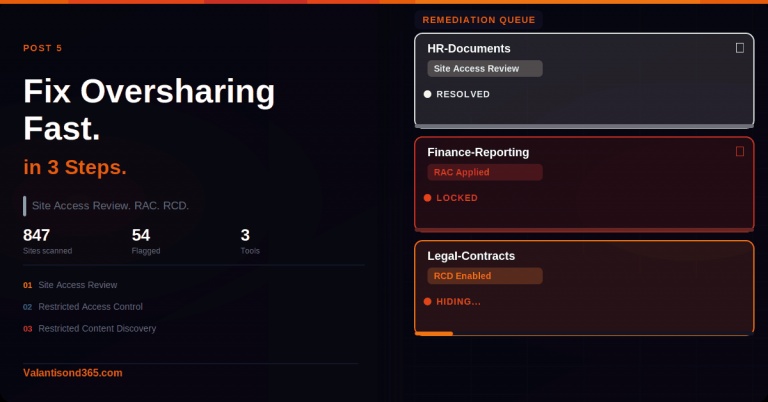
The three steps in this post take less than 30 minutes to execute and immediately reduce the blast radius of accidental oversharing across the entire tenant. They are not a complete governance solution. High-risk sites like HR, Legal, Finance, and M&A get additional protection via Restricted Access Control and Restricted Content Discovery in Post 5. But these defaults need to be in place first.
Audience: SharePoint admins, Microsoft 365 admins, and consultants setting up Copilot governance for a client tenant.
Prerequisites
- SharePoint Administrator or Global Administrator role in the tenant.
- SharePoint Online Management Shell installed and up to date.
Update-Module -Name Microsoft.Online.SharePoint.PowerShell
- Access to the SharePoint admin centre: https://admin.microsoft.com > Admin centers > SharePoint.
- No SharePoint Advanced Management (SAM) licence required for the three steps in this post. SAM is needed for Post 5 (RAC/RCD).
What you will have after this post
- Default sharing link set to Specific people across the tenant.
- External sharing boundary set to the intended level.
- ‘Everyone except external users’ removed from the People Picker so it cannot be selected accidentally.
- Site-level access requests routed to actual site owners, not a shared mailbox no one monitors.
TL;DR
| Step | What it does |
| 1. Org-wide sharing defaults | Changes the default link type from ‘Anyone with the link’ or ‘People in your organisation’ to ‘Specific people’. Applies to all new shares across SharePoint and OneDrive. |
| 2. Hide EEEU in People Picker | Removes ‘Everyone except external users’ from appearing as an option when people are added to sites or files. Prevents accidental broad grants. |
| 3. Site-level access requests | Locks down member resharing and routes access requests to site owners rather than letting members handle them directly. |
| What these steps do NOT do | They do not remove existing broad sharing. Files already shared broadly stay that way until you act on the oversharing reports in Post 5. These steps prevent new oversharing from accumulating. |
| Last verified | March 2026 in a commercial M365 tenant. |
| These steps change defaults, not existing shares. If a file was shared with ‘Anyone with the link’ before you run Step 1, it stays that way. Existing shares are not retroactively changed. To find and remediate existing oversharing, you need the Data Access Governance reports in SharePoint Advanced Management, covered in Post 5. |
Step 1: Set Safer Org-Wide Sharing Defaults
Why the default link type matters for Copilot
When a user clicks Share in SharePoint or OneDrive, the default link type is what they see first. In many tenants this is set to ‘Anyone with the link’ or ‘People in [organisation]’. Both of those make content accessible far beyond the intended recipient the moment someone clicks Send without changing the default.
Changing the default to ‘Specific people’ does not prevent users from choosing a broader option if they need to. It just means they have to make that choice consciously instead of by accident. For Copilot governance, this is one of the highest-leverage settings you can change in the least amount of time.
Admin path
Microsoft 365 admin centre > Admin centers > SharePoint > Policies > Sharing
Actions
- Sign in to the Microsoft 365 admin centre at https://admin.microsoft.com.
- In the left navigation, select Admin centers > SharePoint.
- In the SharePoint admin centre, select Policies > Sharing.
- Under ‘File and folder links’, set the default link type to Specific people (only the people the user specifies).
- Under ‘External sharing’, set both the SharePoint and OneDrive sliders to the level appropriate for the organisation. For most clients this is ‘New and existing guests’. For more restrictive organisations, ‘Only people in your organisation’.
- Select Save.
| Confirmed as: supported admin setting. Source: ‘Change the default sharing link for a site’ and ‘Manage sharing settings’ on Microsoft Learn (linked in References). |
What changes and what does not
| What changes immediately | What does not change |
| The default link type shown when a user clicks Share. | Existing shared links. Files already shared broadly remain accessible. |
| The external sharing boundary for new shares at the org level. | Site-level overrides that are more restrictive than the new org default. Note: if a site was previously set more permissively than the new org default, it will be automatically capped down to the org level. |
| The options available in the sharing dialog for new shares. | User ability to choose a broader link type manually if they need to. |
| Note on site-level overrides: Individual sites can have sharing settings that are more restrictive than the org default but not more permissive. If a site was previously set to allow ‘Anyone with the link’ sharing and the org default is now ‘New and existing guests’, the site setting will be capped at the org level. Verify any sites that had explicit overrides after saving. |
Step 2: Hide ‘Everyone Except External Users’ from People Picker
Why this setting exists and why it is risky
‘Everyone except external users’ (EEEU) is a built-in SharePoint claim group that represents every internal user in the tenant. When it appears in the People Picker, a SharePoint site owner or a well-meaning user can type ‘Everyone’ and accidentally grant the entire organisation access to a site or document library in a single click.
Hiding EEEU from the People Picker does not delete it or prevent it from being used via PowerShell or other admin tools. It just stops it from surfacing as a selectable option in the SharePoint and OneDrive sharing UI, which is where accidental use happens.
Admin path
SharePoint Online Management Shell (PowerShell)
| You cannot do this from the SharePoint admin centre UI. This setting is only configurable via the SharePoint Online PowerShell module. There is no toggle for it in the SharePoint admin centre as of March 2026. |
Actions
- Open SharePoint Online Management Shell as an administrator.
- Connect to your tenant’s SharePoint admin endpoint:
Connect-SPOService -Url https://<tenantname>-admin.sharepoint.com
Replace <tenantname> with your actual tenant name. You will be prompted to authenticate with an account that has SharePoint Administrator or Global Administrator rights.
- Run the following command to hide EEEU from the People Picker:
Set-SPOTenant -ShowEveryoneExceptExternalUsersClaim $false
- Verify the setting was applied:
Get-SPOTenant | Select ShowEveryoneExceptExternalUsersClaim
The output should return False.
| Confirmed as: supported tenant setting. Source: Set-SPOTenant PowerShell reference on Microsoft Learn (linked in References). |
What to check after running the command
- Ask a user without admin rights to open a SharePoint site and click the gear icon > Site permissions > Share site. Have them type ‘Everyone’ in the search field. The ‘Everyone except external users’ option should no longer appear.
- Allow up to 15 minutes for the change to propagate across the tenant before testing.
- The setting is tenant-wide. There is no per-site toggle for this behaviour.
Step 3: Strengthen Site-Level Sharing and Access Requests
The problem with default site permissions
By default in SharePoint, site members can share content with people outside the current membership. That means a member can invite anyone with access to a file, effectively growing the audience without the site owner knowing. For Copilot governance this matters because every person added to a site’s access expands what Copilot can surface to them.
Separately, when someone who does not have access requests it, that request can go to a generic email alias or get lost entirely if it is not configured. The result is that either requests are ignored or they are approved by someone who does not have enough context to make a good decision.
Admin path
SharePoint site > Gear icon > Site permissions > Change how members can share
Action A: Restrict members from resharing
- Navigate to the SharePoint site you want to configure (open it in a browser).
- Select the gear icon (Settings) in the top-right corner of the site and select Site permissions.
- In the Site permissions panel, select Change how members can share.
- Select ‘Only site owners can share files, folders, and the site’.
- Select Save.
This needs to be done for each site you want to lock down. If you have a large number of sites, use PowerShell to apply it at scale:
Set-SPOSite -Identity https://<tenant>.sharepoint.com/sites/<sitename> -DisableSharingForNonOwners
| Prioritise your highest-risk sites first. Run this across all sites if possible, but if you are working through a phased approach, start with sites that contain HR, Legal, Finance, M&A, or executive content. Those are the ones where accidental Copilot exposure causes the most harm. |
Action B: Route access requests to site owners
- Navigate to the site in question.
- On the same site, select the gear icon > Site permissions > Advanced permissions settings (this opens the classic permissions page in a new tab).
- In the Permissions ribbon at the top of the page, select Access Request Settings.
- Confirm ‘Allow access requests’ is checked and set the email address to a named site owner or a monitored distribution list. Do not leave this as a generic shared mailbox no one checks.
- Select OK.
| Confirmed as: supported site-level settings. Source: ‘Turn external sharing on or off for a site’ and ‘Set up and manage access requests’ on Microsoft Learn (linked in References). |
Validate All Three Steps
Test 1: Default link type
- Sign in as a regular user (not an admin) in a browser where you are not already authenticated to SharePoint admin.
- Navigate to a SharePoint document library.
- Right-click a file and select Share.
- Confirm the default link shown is ‘Specific people’ and not ‘Anyone with the link’ or ‘People in [organisation]’.
| Expected result: The sharing dialog opens with ‘Specific people (only the people you specify)’ already selected as the link type. |
Test 2: People Picker no longer shows EEEU
- As a regular user, go to a SharePoint site and open the Share site panel.
- Type ‘Everyone’ in the search field.
- Confirm ‘Everyone except external users’ does not appear in the results.
| Expected result: No ‘Everyone except external users’ option appears. Allow up to 15 minutes after running the PowerShell command before testing, as propagation takes time. |
Test 3: Member resharing blocked and access request routing
- Sign in as a site member (not an owner or admin).
- Open a document and click Share.
- Confirm the member cannot share beyond the current site membership. They should see a message that only owners can share.
- Test the access request flow: sign in as a user who does not have access to the site, navigate to the site URL, and submit an access request.
- Confirm the request email arrives at the site owner’s address you configured, not at a generic alias.
| Expected result: Members cannot share beyond existing membership. Access requests route to the named site owner email. |
Troubleshooting
| Symptom | Most likely cause | Fix |
| Default link still shows ‘Anyone’ or ‘People in org’ after saving. | Propagation delay. Changes to org-wide defaults can take up to 24 hours to appear for all users. | Wait and retest. Check the Sharing page in the admin centre to confirm the setting was saved correctly. |
| EEEU still appears in People Picker after running PowerShell. | Propagation delay, or the command ran against the wrong tenant URL. | Run Get-SPOTenant | Select ShowEveryoneExceptExternalUsersClaim to verify the value is False. Confirm the -Url in Connect-SPOService matches the correct tenant admin URL. |
| Connect-SPOService fails with authentication error. | Account does not have SharePoint Administrator or Global Administrator role, or MFA prompt was not completed. | Verify the role in Microsoft 365 admin centre > Users > Active users > [user] > Roles. Re-run Connect-SPOService and complete any MFA prompt. |
| Members can still share after setting ‘Only owners can share’. | The setting was applied to the wrong site, or a site-level override was in place before and was not overwritten. | Verify by going to the site > Gear icon > Site permissions > Change how members can share. Confirm ‘Only site owners can share files, folders, and the site’ is selected. |
| Access requests are not arriving at the owner’s email. | Access Request Settings were saved with a typo in the email address, or the mailbox is full or has rules filtering the messages. | Return to Site settings > Site permissions > Access Request Settings and verify the email address. Send a test request to confirm delivery. |
Lessons Learned
These come from working through these settings in real client tenants.
- Changing the default link type is the single fastest governance improvement you can make before Copilot goes live. It takes under five minutes and the risk reduction is immediate for all new shares.
- Always run Get-SPOTenant after Set-SPOTenant to confirm the value changed. Do not assume the command succeeded without checking.
- EEEU propagation takes time. If a client tests immediately after you run the PowerShell command and still sees EEEU in the People Picker, they will assume it did not work. Set the expectation before they test: allow 15 minutes, sometimes up to an hour.
- The ‘Only owners can share’ setting at site level needs to be applied site by site unless you script it. In large tenants with hundreds of sites, this is a conversation to have with the client early. Prioritise by data sensitivity, not alphabetical order.
- Access request routing is easy to overlook because it requires navigating to each site rather than a central admin page. It is also the setting most likely to be wrong in a tenant that was set up quickly. Check it on your top 10 highest-risk sites as a minimum.
- These three steps reduce new oversharing. They do not surface or remediate existing oversharing. If a client asks ‘what about files that are already broadly shared?’, the answer is Post 5: Data Access Governance reports and Restricted Content Discovery via SharePoint Advanced Management.
References
All links verified March 2026.
1. Get ready for Copilot with SharePoint Advanced Management – Overview of SAM capabilities including DAG reports, RAC, and RCD. Provides context for why sharing defaults matter before Copilot is deployed.
https://learn.microsoft.com/en-us/sharepoint/advanced-management
2. Data, Privacy, and Security for Microsoft 365 Copilot – Confirms that Copilot respects existing permissions and only surfaces content the user can already access.
https://learn.microsoft.com/en-us/copilot/microsoft-365/microsoft-365-copilot-privacy
3. Manage sharing settings for SharePoint and OneDrive – Official documentation for the org-wide sharing settings in the SharePoint admin centre.
https://learn.microsoft.com/en-us/sharepoint/turn-external-sharing-on-or-off
4. Set-SPOTenant PowerShell reference – Full parameter list for Set-SPOTenant including ShowEveryoneExceptExternalUsersClaim.
https://learn.microsoft.com/en-us/powershell/module/sharepoint-online/set-spotenant
5. Connect-SPOService PowerShell reference – Connects a SharePoint Administrator to the SharePoint admin centre. Required before running any other SharePoint Online cmdlets.
6. Set-SPOSite PowerShell reference – Full parameter list for Set-SPOSite including DisableSharingForNonOwners and SharingCapability.
7. Turn external sharing on or off for a site – Site-level sharing control documentation.
https://learn.microsoft.com/en-us/sharepoint/change-external-sharing-site
8. Set up and manage access requests – How to configure access request routing to site owners.
9. Audit logs for Copilot and AI apps – Referenced for context: Copilot activity is logged and permissions are enforced at the time of each interaction.
https://learn.microsoft.com/en-us/purview/audit-copilot
Conclusion
Copilot is a permissions amplifier. It makes whatever your users can already access more reachable, faster. These three steps narrow what is reachable by default, without removing functionality for users who genuinely need broader access.
What you have after this post: new shares default to specific people, the EEEU broad claim is out of the People Picker, and access requests are routed to someone who can make an informed decision. That is a meaningful risk reduction in under 30 minutes.
What is still left: existing oversharing across sites and files that were already broadly shared before these settings changed. That is the subject of Post 5, where the Data Access Governance reports in SharePoint Advanced Management give you visibility into what is already overshared so you can act on it.