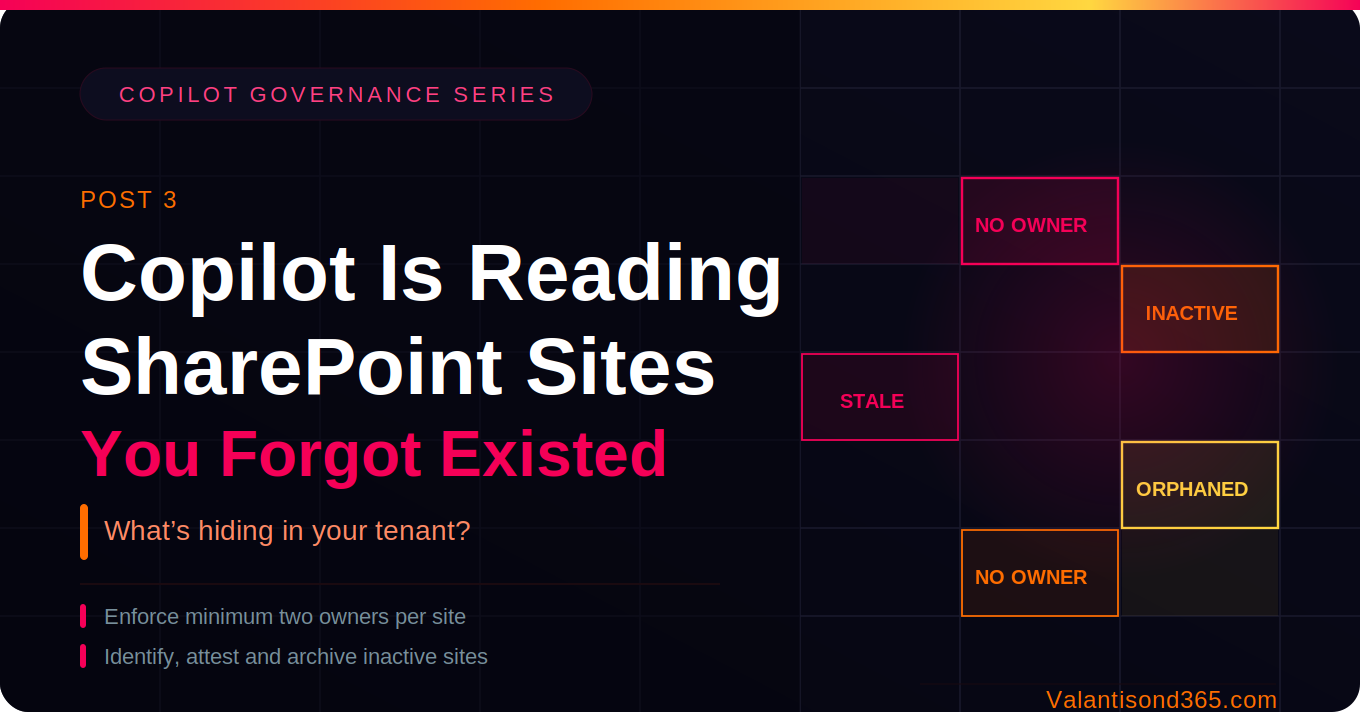
Post 3: Copilot Is Reading Sites You Forgot Existed
Fix site ownership and archive stale sites before they corrupt your Copilot results
Why this post matters
An ownerless site is a governance gap. There is no one accountable for its permissions, its content, or whether it should still exist. At scale, tenants accumulate dozens or hundreds of these. Stale sites are a related problem: they contain outdated content that has not been touched in months or years but is still accessible and still indexed by Copilot.
Microsoft’s own documentation states that inactive sites often contain obsolete content that can negatively impact Copilot’s responses, leading to less relevant or incorrect results. Fixing ownership and archiving stale sites directly improves what Copilot returns.
The two SharePoint Advanced Management policies covered in this post are the Site Ownership policy and the Inactive Site policy. Both live under Policies > Site lifecycle management in the SharePoint admin centre and follow the same Simulation-to-Active workflow.
Audience: SharePoint admins and Microsoft 365 consultants running Copilot readiness work for a client tenant.
Prerequisites
- SharePoint Administrator or Global Administrator role.
- SharePoint Advanced Management (SAM) licence. Included with Microsoft 365 Copilot licences when at least one user in the tenant is assigned a Copilot licence, under current licensing terms. Also available as a standalone SAM Plan 1 add-on. Verify at Microsoft 365 admin centre > Billing > Licences.
- Run the Site User ID Mismatch diagnostic before activating the Site Ownership policy. Tenants with deleted and recreated users may have ownership references pointing to non-existent PUIDs, causing inaccurate policy outcomes. Path: Microsoft 365 admin centre > Support > Help & Support, search ‘Site User ID Mismatch’.
| Note on excluded site types. OneDrive sites, sites created by system users, app catalog sites, root sites, home sites, and tenant admin sites are excluded from both policies by design. Sites associated with Shared and Private Teams channels are additionally excluded from the Inactive Site policy. Source: Microsoft Learn (References 2 and 3). This cannot be overridden. |
What you will have after this post
- A clear picture of every site in the tenant with fewer than two active owners.
- An active ownership policy running monthly, notifying owner candidates automatically.
- Inactive sites identified and owners notified to attest whether each site is still needed.
- Sites confirmed as no longer needed set to read-only, then moved to Microsoft 365 Archive.
- Archived sites no longer accessible to end users (outside Purview or admin search). Microsoft confirms Copilot does not include content from archived sites.
TL;DR
| Topic | The short version |
| Site Ownership policy | Simulation mode runs once, generates a report, sends no notifications. Active mode runs monthly, notifies owner candidates by email. Minimum owner count: set to 2. |
| Inactive Site policy | Simulation mode runs once, no notifications. Active mode runs monthly, notifies owners to attest whether the site is still needed. Once certified, a site is not re-evaluated for one year. |
| AI insights | Available on any completed report via the Get AI insights button. Generates up to five actionable recommendations per report. |
| Archive outcome | Sites set to read-only move to Microsoft 365 Archive after a configurable delay of 3, 6, 9, or 12 months. Archived sites are no longer accessible to end users (outside Purview or admin search). Microsoft confirms Copilot does not include content from archived sites. |
| Both policies require SAM | SAM licence is required. Included with Microsoft 365 Copilot licences (at least one Copilot user in tenant), under current licensing terms. Also available as a SAM Plan 1 standalone add-on. |
| Last verified | March 2026 against Microsoft Learn documentation listed in References. |
Step 1: Enforce Site Ownership
Why ownerless sites are a governance problem
When a site has no active owner, there is no one to approve access requests, review permissions, or decide the site’s future. Ownership is the prerequisite. Steps 2 and 5 both depend on sites having an accountable owner before you can act on them.
Microsoft recommends a minimum of two owners per site. A single owner creates a single point of failure. If that person leaves the organisation or has their account disabled, the site becomes effectively ownerless even if it has not been flagged yet.
Admin path
SharePoint admin centre > Policies > Site lifecycle management > Site ownership policies > Open
Phase 1: Run Simulation to find ownerless sites
- Sign in to the SharePoint admin centre at https://admin.sharepoint.com.
- In the left navigation, select Policies > Site lifecycle management.
- Under Site ownership policies, select Open.
- Select + Create policy.
- Review the policy information and select Next.
- On the Set policy scope step, choose your scope. Start with all sites. You can narrow by site template, sensitivity label, or a CSV of up to 10,000 specific site URLs.
- Set the minimum owner count to 2.
- Select Simulation mode.
- Name the policy and select Finish.
The simulation runs once and generates a report of all sites that do not meet the ownership criteria. No notifications are sent. The report is downloadable as a CSV and includes site names, URLs, current owner counts, and suggested owner candidates based on site membership and activity.
| Confirmed as: documented feature. Simulation mode generates a one-off report. No notifications are sent in Simulation mode. Source: ‘Create a SharePoint site ownership policy’ on Microsoft Learn (linked in References). Last verified March 2026. |
Phase 2: Switch to Active to notify owner candidates
Once you have reviewed the simulation report and agreed the scope and minimum owner threshold with the client, switch the policy to Active. Before doing this, agree on who the fallback owner candidates are for sites with no identifiable owner. Active mode sends email notifications to those candidates.
- Open the simulation policy.
- Select Convert to active policy from the simulation policy results view.
- Change the mode from Simulation to Active.
- Configure the notification settings, including who receives notifications for sites with no identifiable owner.
- Save the policy.
Once active, the policy runs monthly. It identifies sites still out of compliance, sends email notifications to owner candidates, and generates updated reports. Sites where an owner has been assigned and the minimum count is met will no longer appear in subsequent reports.
| Confirmed as: documented behaviour. Active policy runs monthly. If the run fails in a given month it retries on the next schedule. Source: ‘Create a SharePoint site ownership policy’ on Microsoft Learn (linked in References). |
| Run the Site User ID Mismatch diagnostic before activating. If the tenant has users who were deleted and recreated, ownership records may point to non-existent PUIDs. This causes sites to remain flagged as ownerless even after an owner is assigned. Fix mismatches first or notifications will go to the wrong place. Path: Microsoft 365 admin centre > Support > Help & Support > search ‘Site User ID Mismatch’. |
Step 2: Handle Inactive Sites
Why inactive sites affect Copilot quality
Inactive sites often contain obsolete content that clutters Copilot’s data source and leads to less accurate responses.
The Inactive Site policy detects sites based on lack of activity across SharePoint and connected platforms including Teams, Viva Engage, and Exchange. It does not count app-token activity without a user agent. A site receiving automated writes but no human interaction will still be flagged. Check simulation results for any automated systems writing to sites before you set enforcement actions.
Admin path
SharePoint admin centre > Policies > Site lifecycle management > Inactive site policies > Open
Phase 1: Run Simulation to identify inactive sites
- In the SharePoint admin centre, go to Policies > Site lifecycle management.
- Under Inactive site policies, select Open.
- Select + Create policy.
- Set the inactivity window. This is the period of no qualifying activity that causes a site to be flagged. Common starting points are 180 days or 1 year depending on the client’s content lifecycle expectations.
- Set the policy scope. You can scope by site template or upload a CSV of specific URLs.
- Select Simulation mode.
- Name the policy and select Finish.
The simulation runs once. No site owners are notified. Review the report for volume and storage footprint before committing to an inactivity threshold for Active mode.
Phase 2: Get AI insights on the simulation report
Once the simulation report is generated, select the Get AI insights button on the report page. This produces AI-powered recommendations for the flagged sites, such as which to archive, which may need a sensitivity label, or which have other governance issues. You can generate up to five insights per report.
Do this before switching to Active mode. The insights often surface patterns that are not obvious from scrolling a CSV, such as a cluster of project sites from a completed programme that should all be archived together rather than handled site by site.
| Confirmed as: documented feature. Get AI insights is available on inactive site policy reports and other SAM reports. Generates up to five insights per report. Source: ‘Get ready for Microsoft 365 Copilot with SharePoint Advanced Management’ on Microsoft Learn (linked in References). Last verified March 2026. |
Phase 3: Switch to Active for owner attestation
Switch to Active once you have agreed the inactivity window and scope with the client. In Active mode the policy runs monthly, sends email notifications to site owners, and asks them to attest whether the site is still needed. If an owner certifies the site as active, it is not re-evaluated for one year.
- Open the simulation policy.
- Switch the mode to Active.
- Configure the enforcement action for sites that remain unattested after three monthly notifications. Three options are available: Do nothing (policy pauses for 3 months then resumes notifications), Read-only access (site goes read-only after 3 unanswered notifications), or Archive sites after mandatory read-only period (read-only first, then archived after 3, 6, 9, or 12 months). If no enforcement action is configured, the policy defaults to Do nothing.
- Save the policy.
Phase 4: Set to read-only and archive
For sites where the owner does not attest after three monthly notifications, or confirms the site is no longer needed, the policy sets the site to read-only and then moves it to Microsoft 365 Archive after a configurable delay of 3, 6, 9, or 12 months.
Once moved to Microsoft 365 Archive, a site is no longer accessible to end users outside of Purview or admin search. Admins and compliance officers can still query archived content via Purview. Microsoft confirms Copilot does not include content from archived sites.
| Confirmed as: documented behaviour. Archive delay configurable at 3, 6, 9, or 12 months. Archived sites no longer accessible to end users outside Purview or admin search, and excluded from Microsoft Graph. Source: ‘Get ready for Microsoft 365 Copilot with SharePoint Advanced Management’ and ‘Manage inactive sites using inactive site policies’ on Microsoft Learn (linked in References). |
| App-token activity is not counted. The policy only counts user-driven activity where a user agent is involved. Automated processes writing to a site via an app token will not prevent the site from being flagged as inactive. Review simulation results carefully for any sites that serve as targets for automated workflows before activating enforcement actions. |
Validate Both Steps
Test 1: Random sample shows at least two owners per site
- After the Site Ownership policy has completed at least one Active mode cycle, open the latest policy report.
- Select a random sample of 10 sites. Mix site types and sizes.
- For each sampled site, go to SharePoint admin centre > Active sites > select site > Membership tab.
- Confirm at least two owners are listed and both accounts are enabled and active.
| Expected result: All sampled sites show two or more active owners. Sites that appeared in the last ownerless report should no longer appear in the most recent policy run. |
Test 2: Archived sites do not surface in Copilot
- Identify a site that has been moved to Microsoft 365 Archive.
- Sign in as a regular user who previously had access to content on that site.
- Open Microsoft 365 Copilot Chat and ask a question that would previously have returned content from that site (for example, reference a document title or topic that existed only there).
- Confirm Copilot does not return content from the archived site.
| Expected result: Copilot does not surface content from archived sites. If content still appears, check whether the site has fully moved to archive or is still in the read-only transition period. Check the site status in SharePoint admin centre > Active sites. |
Troubleshooting
| Symptom | Most likely cause | Fix |
| Site still shows as ownerless after owner was assigned. | Policy has not run its next monthly cycle yet, or a PUID mismatch exists for the assigned owner. | Wait for the next monthly run. If the site remains flagged, run the Site User ID Mismatch diagnostic and resolve any mismatches before the next cycle. |
| Owner notifications are not arriving. | Policy is still in Simulation mode (no notifications sent), or the site is connected to a Microsoft 365 group that blocks email from external senders by default. | Verify the policy is in Active mode. If the site is Microsoft 365 group-connected, go to Microsoft 365 admin centre > Groups > Active groups > select the group > Settings and allow email from external senders. |
| Site flagged as inactive despite being in active use. | The site’s activity comes only from app-token calls without a user agent, which the policy does not count. | Exclude the site from the policy scope using the Exclude sites option (up to 100 entries). Document the reason for exclusion. |
| Archived site content still appears in Copilot responses. | Site is still in the read-only period (3, 6, 9, or 12 months) before archive starts, or has moved to archive but the search index has not yet updated. | Check site status in SharePoint admin centre > Active sites. If read-only, the configured delay has not elapsed yet. Once archived, Microsoft confirms archiving completes within minutes. If still appearing, allow up to 24 hours for the search index to clear. |
| Report shows ‘Notified by another site ownership policy’ status. | A previous policy, even a deleted one, already sent notifications to those sites. | Expected behaviour. The sites will receive notifications from the new active policy on its next monthly run. No action needed unless prior policy created conflicting owner assignments. |
Lessons Learned
These come from working through these policies in real client tenants.
- Always run Simulation before Active. In large tenants the first simulation report is often a surprise. The volume of ownerless or inactive sites is typically higher than the client expects. Having the data first gives you time to prepare the client before notifications go out.
- Fix PUID mismatches before activating the ownership policy. If you skip this, some sites will stay flagged as ownerless in every monthly report even after owners are assigned. It is a five-minute diagnostic check that prevents a recurring false alarm.
- Match the inactivity window to the client’s content lifecycle. A 90-day window will flag a huge number of sites in most tenants, many of which are project sites that are genuinely idle between phases. Start with 180 days or one year for the simulation, review the results with the client, then set the Active threshold.
- Get AI insights before switching to Active. The recommendations often identify patterns not obvious from the raw report, like a cluster of sites from a completed project that should all be archived together.
- Set the archive delay to give owners time to act. A 3-month delay is aggressive for most organisations. Start with 6 or 9 months unless the client has a specific reason to move faster.
- Archived sites are not deleted. An admin can restore a site from archive if it was archived in error. Communicate this to the client before the conversation about enforcement actions. Microsoft 365 Archive is a separate storage tier, not permanent deletion.
References
All links verified March 2026.
1. Get ready for Microsoft 365 Copilot with SharePoint Advanced Management – Primary source for the Copilot readiness workflow using SAM. Covers the ownership and inactive site policy steps in the context of Copilot deployment, including the direct statement about inactive sites and Copilot answer quality.
https://learn.microsoft.com/en-us/sharepoint/get-ready-copilot-sharepoint-advanced-management
2. Create a SharePoint site ownership policy – Step-by-step documentation for creating ownership policies in Simulation and Active mode. Covers PUID mismatch guidance, notification configuration, and policy scope options.
https://learn.microsoft.com/en-us/sharepoint/create-sharepoint-site-ownership-policy
3. Manage inactive sites using inactive site policies – Full documentation for the Inactive Site policy. Covers Simulation vs Active mode, activity detection scope including which platforms are counted, enforcement actions, and archive delay options.
https://learn.microsoft.com/en-us/sharepoint/site-lifecycle-management
4. SharePoint Advanced Management overview – Overview of all SAM features including site lifecycle management, AI insights, and licensing requirements.
https://learn.microsoft.com/en-us/sharepoint/advanced-management
5. Licensing for SharePoint Advanced Management – Confirms which Copilot SKUs include SAM and the standalone SAM Plan 1 add-on option.
https://learn.microsoft.com/en-us/sharepoint/sharepoint-advanced-management-licensing
6. Data, Privacy, and Security for Microsoft 365 Copilot – Confirms that Copilot retrieves content via Microsoft Graph based on user permissions. Archived sites are excluded from Graph access and therefore from Copilot.
https://learn.microsoft.com/en-us/copilot/microsoft-365/microsoft-365-copilot-privacy
7. Notifications sent to SharePoint sites connected to Microsoft 365 groups are not received – Confirms that Microsoft 365 group-connected sites block SLM policy notification emails by default. Notifications arrive from noreply@sharepointonline.com, which groups treat as external and block. Fix: allow external email on the group in Microsoft 365 admin centre. Source for Row 2 troubleshooting fix.
https://learn.microsoft.com/en-us/troubleshoot/sharepoint/sites/notification-email-not-received
Conclusion
Ownership and lifecycle management are the foundation. Without accountable owners you cannot run meaningful access reviews, apply targeted controls, or make confident archiving decisions. Without lifecycle management, stale content accumulates and Copilot draws from it.
Both policies in this post are low-risk to configure because Simulation mode lets you see exactly what will happen before anyone is notified. Run the simulations, review the AI insights, agree the thresholds with the client, then switch to Active. Once active, both policies run monthly with no further admin work needed.
High-risk sites still need additional protection beyond ownership and lifecycle management. Sites containing HR, Legal, Finance, or M&A content are covered in Post 5 with Restricted Access Control and Restricted Content Discovery. Those controls depend on having owners assigned.