Post 5: Fix Oversharing Fast in 3 steps
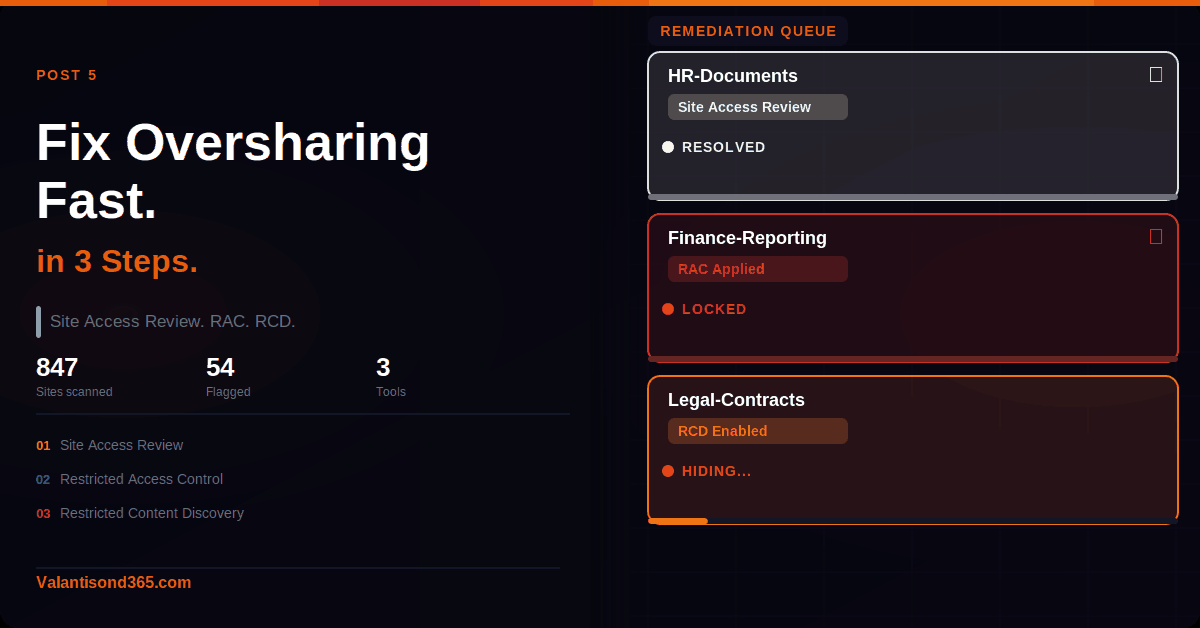
Site Access Reviews, Restricted Access Control, and Restricted Content Discovery. In the right order.
Why this post matters
Post 4 gave you a prioritised list of overshared sites with owner contacts. Those reports do not fix anything on their own. This post is where the actual remediation happens.
Three tools. Different jobs. You do not pick one. You use all three in a deliberate sequence depending on the risk level of each site:
- Site Access Review gets the site owner involved. They see the exposure, they fix the permissions.
- Restricted Access Control (RAC) locks the site to a named group immediately. Nobody outside that group gets in, regardless of prior permissions or sharing links.
- Restricted Content Discovery (RCD) leaves permissions untouched but removes the site from Copilot and org-wide search while cleanup happens.
The sequence matters. Start with Site Access Review for most sites. Apply RAC immediately for HR, Legal, Finance, and M&A. Use RCD as short-term containment while remediation catches up.
Audience: SharePoint admins and Microsoft 365 consultants running Copilot readiness work for a client tenant.
Prerequisites
- SharePoint Administrator or Global Administrator role.
- SAM licence. Included with Microsoft 365 Copilot licences if at least one user in the tenant is assigned a Copilot licence. Available as a standalone Plan 1 add-on otherwise.
- The prioritised site list and owner contacts from Post 4. Site Access Reviews cannot be initiated without knowing which sites to target and who owns them.
- For RAC: a Microsoft Entra security group or Microsoft 365 group already created containing the users who should retain access to the site.
| Availability. Site Access Reviews, RAC, and RCD are all available in commercial, GCC, GCC-High, and DoD environments. None of the three are available in Gallatin even with the required licences. Source: References 1, 2, and 3. |
What you will have after this post
- Owners notified and actively reducing permissions on flagged sites.
- Critical sites locked to authorised users only via RAC.
- High-risk sites excluded from Copilot and org-wide search via RCD while remediation continues.
- A clear record of which tool is applied to which site and why.
TL;DR
| Tool | What it does |
| Site Access Review | Sends the site owner a targeted email asking them to review and fix oversharing. Owner sees the specific issue from the DAG report. Up to 100 sites per batch from the UI, PowerShell for more. |
| RAC | Locks site access to users in a named group. Everyone else is blocked regardless of prior permissions or sharing links. Must be enabled at tenant level first, then applied per site. Up to 10 groups per site. |
| RCD | Leaves permissions untouched. Removes the site from Copilot Business Chat and org-wide search. Users with access can still open files directly. Use as temporary containment only. |
| Key limits | SAR: 100 per batch from UI, 1,000 per calendar month from site permissions report. RAC: up to 10 groups per site. RCD: cannot apply to OneDrive sites. Sites with 500k+ items can take over a week to update in search after RCD is toggled. |
| Admin paths | SAR: Reports > Data access governance > view report > select sites > Initiate site access review. RAC enable: Policies > Access control > Site-level access restriction. RAC per site: Sites > Active sites > select site > Settings. RCD per site: Sites > Active sites > select site > Settings > Restrict content from Microsoft 365 Copilot. |
Step 1: Initiate Site Access Reviews
What Site Access Review does
IT admins cannot access file-level or item-level details in SharePoint for compliance reasons. That is by design. Site Access Review works around this by delegating the review to the site owner, who can see exactly what is shared and take action on it.
When you initiate a review, the owner receives an email tailored to the specific issue from the DAG report. If the review came from an EEEU report, the email focuses on EEEU sharing. If it came from a sharing links report, the email covers those links. The owner sees the actual files and groups involved, not a generic warning.
| SharePoint sites only. Site Access Review is supported for SharePoint sites only. It is not available for OneDrive accounts. Source: Reference 1. |
Admin path
SharePoint admin centre > Reports > Data access governance > View reports > select sites > Initiate site access review
Phase 1: Select sites and initiate
- Sign in to the SharePoint admin centre at https://admin.sharepoint.com.
- Expand Reports and select Data access governance.
- Select View reports under the relevant report sharing links, EEEU, or site permissions.
- Select the sites you want to review. Up to 100 per batch from the UI.
- Select Initiate site access review.
- Select Customize and preview email. Add context: your name, what the issue is, and your SLA for response.
- Select Send.
| Confirmed as: documented behaviour. Reviews can be initiated for up to 100 sites at a time from the web UI. For larger volumes, use PowerShell. The email sent to the owner is tailored to the specific report type used. Review status stays pending until the owner completes it. Track all initiated reviews from the My review requests tab on the Data access governance landing page. Source: Reference 1. |
Phase 2: What the owner does
The owner receives an email with a link to the detailed review page. What they see depends on which report triggered the review:
- EEEU report: owner sees which SharePoint groups contain Everyone except external users and which individual files or folders were shared with EEEU in the last 28 days. They can remove EEEU from groups or remove access from individual items directly from the review page.
- Sharing links report: owner sees files with active sharing links, the date each was created, and who created it. They can remove or modify access via the Manage access button.
- Site permissions report: owner sees items ranked by number of permissioned users, highest first. They can review and reduce permissions at site, list, folder, or file level.
Once the owner has made the necessary changes they select Complete review, add comments, and submit. The review is marked complete and the comments come back to you.
| 1,000 per calendar month limit. Site Access Reviews initiated from the site permissions report are limited to 1,000 per calendar month. The limit resets when the month changes. Reviews from sharing links and EEEU reports do not have this specific cap documented. Source: Reference 1. |
Phase 3: Handle non-responsive owners
If the owner does not respond within your SLA window:
- Apply RAC to the site immediately. Step 2 covers this.
- Escalate to the owner’s manager or reassign ownership using the Site Ownership policy from Post 3.
- Track non-responses from the My review requests tab. Any review still pending after your SLA window is a candidate for escalation.
Step 2: Apply Restricted Access Control for Critical Sites
What RAC does
RAC locks a SharePoint site to users in a named Microsoft Entra security group or Microsoft 365 group. Anyone outside that group cannot access the site or its content, even if they have direct permissions or an active sharing link.
Use RAC for sites where you cannot wait for an owner review. HR, Legal, Finance, and M&A sites with confirmed oversharing need locking now, not after a two-week review cycle.
| Critical RAC requirement. Adding users to the RAC group does not give them access to the site. A user needs both membership in the RAC group AND existing site or content permission to get through. Do not add a new group and assume access is automatically granted. Source: Reference 2. |
Step 2a: Enable RAC at tenant level first
This must be done once before RAC can be applied to any individual site.
SharePoint admin centre > Policies > Access control > Site-level access restriction > Allow access restriction > Save
- Expand Policies and select Access control.
- Select Site-level access restriction.
- Select Allow access restriction and then select Save.
| Confirmed as: documented requirement. Site-level access restriction must be enabled at tenant level before it can be configured for individual sites. PowerShell equivalent: Set-SPOTenant -EnableRestrictedAccessControl $true. Allow up to 1 hour for the command to take effect. Source: Reference 2. |
Step 2b: Apply RAC to a specific site
SharePoint admin centre > Sites > Active sites > select site > Settings tab > Edit in Restricted site access section > add groups > Save
- Expand Sites and select Active sites.
- Select the site you want to restrict.
- In the Settings tab, select Edit in the Restricted site access section.
- Select the Restrict SharePoint site access to only users in specified groups check box.
- Add the security group or Microsoft 365 group containing users who should retain access.
- Select Save.
You can add up to 10 groups per site. For group-connected sites, the connected Microsoft 365 group is added as the default RAC group automatically.
| Confirmed as: documented behaviour. RAC can be applied to Microsoft 365 group-connected, Teams-connected, and non-group connected sites. Up to 10 Microsoft Entra security groups or Microsoft 365 groups per site. Users outside the RAC group cannot access the site or its content even with prior permissions or a sharing link. Source: Reference 2. |
| Teams channel sites need separate RAC configuration. Shared and private Teams channel sites are separate from the main group-connected team site. RAC applied to the main team site does not automatically apply to associated shared or private channel sites. Each channel site must be configured separately as a non-group connected site. Source: Reference 2. |
Step 3: Apply Restricted Content Discovery
What RCD does and what it does not do
RCD is not an access control. It does not change who has permission to a site. Users with access can still navigate directly to the site and open files. What RCD does is remove the site from org-wide search results and from Copilot Business Chat.
The use case is specific: you have identified a high-risk site, you are waiting for the owner to complete the review or for RAC to be confirmed, but you do not want Copilot surfacing that content in responses to other users in the meantime. RCD buys you time.
| Microsoft caution on overuse. Microsoft explicitly warns that overusing RCD degrades search and Copilot quality across the tenant. Removing too many sites from discovery means less content for Copilot to reference, leading to less accurate responses. Apply it selectively to genuinely high-risk sites. Remove it once remediation is complete. Source: Reference 3. |
Admin path
SharePoint admin centre > Sites > Active sites > select site > Settings tab > Restrict content from Microsoft 365 Copilot > toggle on > Save
- Expand Sites and select Active sites.
- Select the site you want to restrict.
- In the Settings tab, find the Restrict content from Microsoft 365 Copilot section.
- Toggle it on.
- Select Save.
Once enabled, a Restricted tag appears on the home tab of the site. Changes take time to propagate to the search index. For sites with more than 500,000 items, the update can take over a week to fully reflect in search and Copilot.
| Confirmed as: documented behaviour. RCD prevents sites from surfacing in org-wide search and Microsoft 365 Copilot Business Chat. It does not affect existing permissions — users with access can still open files. Cannot be applied to OneDrive sites. For sites with more than 500,000 items, propagation can take over a week. Source: Reference 3. |
| RCD does not protect the content. Any user who has a direct link to a file or knows the URL can still access it. RCD only removes the site from discovery. It is a visibility control, not an access control. For real access restriction, RAC is the correct tool. Source: Reference 3. |
Which Tool to Use and When
| Tool | Use when | Trade-off |
| Site Access Review | The site has an active owner who can be held accountable. The oversharing is recent. You need the owner to understand what is exposed. | Requires owner engagement. Can take days. No guarantee of action without a clear SLA. |
| RAC | The site contains HR, Legal, Finance, or M&A content. The risk is high enough that you cannot wait for an owner review. You have a group ready to use as the access boundary. | Blocks all users outside the group including those with prior permissions. Shared and private channel sites need separate configuration. |
| RCD | You need to stop Copilot surfacing a site immediately while access remediation is in progress. | Does not restrict access. Users can still open files directly. Large sites take over a week to propagate. Remove once remediation is done. |
| RAC and RCD together | Critical site with confirmed oversharing where you want both hard access restriction and Copilot exclusion immediately. | Most restrictive combination. Use only for the highest-risk sites. Remove RCD once RAC and permission cleanup are confirmed. |
Validate
Check 1: Site Access Reviews sent and tracked
- Go to Reports > Data access governance > My review requests tab.
- Confirm reviews show as pending for the sites you targeted.
- After your SLA window, check which reviews are still pending and escalate or apply RAC to those sites.
| Expected result: All targeted sites show a pending or completed review. No site from the Post 4 priority list is left without an action taken. |
Check 2: RAC applied and blocking correctly
- Sign in as a user who is NOT in the RAC group but previously had access to the site.
- Attempt to open the site URL directly.
- Confirm access is denied.
- Sign in as a user who IS in the RAC group and has existing site permissions.
- Confirm access is granted.
| Expected result: Users outside the RAC group cannot access the site. Users inside the group with existing permissions can. Copilot surfaces content from this site only for users in the RAC group who have permission. |
Check 3: RCD applied and Copilot no longer surfaces the site
- Sign in as a regular user who previously had access to content on the site.
- Open Microsoft 365 Copilot Chat and ask a question that would previously have returned content from that site.
- Confirm Copilot does not surface content from the site in its response.
- Confirm the user can still open files directly by navigating to the site URL.
| Expected result: Copilot does not return content from the RCD-protected site. Direct navigation to the site still works for users with permission. The Restricted tag is visible on the site home tab. |
Troubleshooting
| Symptom | Most likely cause | Fix |
| Site Access Review email not received by owner. | Owner email address is invalid or no primary admin is set for the site. | Check the Primary admin email column in the DAG report CSV. If blank or invalid, assign a primary admin in SharePoint admin centre > Active sites before retrying the review. |
| RAC applied but users outside the group can still access the site. | Tenant-level site-level access restriction was not enabled before applying RAC to the site. | Go to Policies > Access control > Site-level access restriction and confirm Allow access restriction is saved. Reapply RAC to the site. Allow up to 1 hour after the tenant setting change. Source: Reference 2. |
| User in the RAC group cannot access the site. | The user is in the RAC group but does not have an existing site or content permission. RAC group membership alone is not enough. | Check the user has an existing permission on the site (owner, member, visitor, or direct item permission) in addition to RAC group membership. Source: Reference 2. |
| RCD enabled but Copilot is still surfacing content from the site. | Search index has not yet propagated the RCD setting. For large sites (500k+ items) this can take over a week. | Wait for the index to update. Apply RAC in the meantime if immediate access restriction is needed. Source: Reference 3. |
| Teams channel site is not covered by RAC applied to the main team site. | Shared and private channel sites are separate sites not covered by the parent team RAC policy. | Apply RAC separately to each shared or private channel site as a non-group connected site. Source: Reference 2. |
| Owner is not responding to the access review. | Owner may have left the organisation, have an invalid account, or is not prioritising the request. | Apply RAC immediately to lock the site. Escalate or reassign ownership using the Site Ownership policy from Post 3. |
Lessons Learned
These come from working through remediation on real client tenants.
- Set a clear SLA in the Site Access Review email. If you send a review without a deadline, owners treat it as optional. Five business days is reasonable. Ten is generous. No deadline means no urgency.
- Always create the RAC group in Entra ID before you need it. If you are working on a client tenant with sensitive sites, have a security group ready for each line of business before you start initiating reviews. Waiting for IT to create a group during an incident is a delay you do not need.
- RAC blocks sharing links. If a user outside the RAC group already has a sharing link to a file, the link stops working once RAC is applied. That is the intended behaviour but it will generate support tickets. Communicate this to the client before applying RAC.
- RCD is temporary. Apply it, note the date, and set a calendar reminder to remove it once remediation is confirmed. Leave it on permanently across too many sites and you will degrade Copilot quality for the whole tenant.
- Check Teams channel sites separately. Every time. The parent team site and the associated shared or private channel sites are different SharePoint sites with separate permission sets. A client who thinks they have locked down a Teams site with RAC may have missed the channel sites entirely.
- PowerShell is your friend for large tenants. If you have more than 100 sites to review or more than a handful of RAC configurations to apply, script it. The PowerShell commands for all three features are documented and work at scale.
References
All links verified April 2026.
1. Initiate site access reviews for Data access governance reports – Full documentation for Site Access Review. Covers how to initiate, what the owner sees, supported report types, the 100-site UI limit, the 1,000 per month cap, and how to track reviews.
https://learn.microsoft.com/en-us/sharepoint/site-access-review
2. Restrict SharePoint site access with Microsoft 365 groups and Microsoft Entra security groups – Full documentation for RAC. Covers the tenant-level enable step, per-site configuration, the dual access requirement, the 10-group limit, Teams channel site behaviour, and PowerShell commands.
https://learn.microsoft.com/en-us/sharepoint/restricted-access-control
3. Restrict discovery of SharePoint sites and content – Full documentation for RCD. Covers what RCD does and does not do, the overuse warning, the per-site toggle path, OneDrive exclusion, propagation timing for large sites, and the FAQ on Copilot behaviour.
https://learn.microsoft.com/en-us/sharepoint/restricted-content-discovery
4. Get ready for Microsoft 365 Copilot with SharePoint Advanced Management – Primary Copilot readiness source. Confirms Site Access Review, RAC, and RCD as the recommended remediation tools following DAG report findings.
https://learn.microsoft.com/en-us/sharepoint/get-ready-copilot-sharepoint-advanced-management
5. Licensing for SharePoint Advanced Management – Confirms which Copilot SKUs include SAM and the standalone SAM Plan 1 add-on option.
https://learn.microsoft.com/en-us/sharepoint/sharepoint-advanced-management-licensing
6. Manage Data access governance reports using SharePoint Online PowerShell – PowerShell reference for initiating Site Access Reviews at scale beyond the 100-site UI limit.
https://learn.microsoft.com/en-us/sharepoint/powershell-for-data-access-governance
Conclusion
Post 4 told you what is exposed. Post 5 is where you act on it.
The three tools in this post cover every scenario you will face. Site Access Review for owner-led cleanup. RAC for hard access lockdown on critical sites. RCD to keep Copilot away from a site while remediation is in progress.
None of these are permanent solutions on their own. The goal is clean permissions, not indefinitely locked sites. Once owners have completed their reviews and the high-risk sites have proper access controls in place, RCD comes off and RAC boundaries should reflect the actual intended audience, not a temporary emergency group.
Post 6 will cover how to maintain what you have built keeping the governance state clean as the tenant continues to grow and new sites are created.