
Struggling with Copilot Studio agent sharing governance? I spent two days helping a client lock down bot distribution only to discover their entire security strategy was invalid because they weren’t using Managed Environments. Here’s what actually works.
You’ll learn:
- Why Copilot Studio sharing controls don’t exist without Managed Environments (and where this prerequisite lives in the documentation)
- The real difference between Copilot Studio Lite sharing and enterprise agent governance
- How PowerShell sharing limits can automate compliance at scale
- Production security group sharing gotchas that break rollouts
TL;DR: Copilot Studio Sharing Governance
Problem: Can’t configure Copilot Studio agent sharing limits or restrict editor permissions
Root cause: Sharing governance requires Managed Environments (prerequisite in advanced documentation)
Solution: Convert to Managed Environment → Configure sharing rules in Power Platform Admin Center
Gotcha: Takes 60 minutes to propagate, doesn’t remove existing shares
Docs: Managed Environment sharing limits | Agent sharing guide
The Copilot Studio Sharing Scenario
Environment: Production Power Platform + 50 published Copilot Studio agents
Goal: To restrict agent sharing to security groups only (no individual user spam) and limit viewer counts to 20 per bot
What broke: Spent 90 minutes searching Power Platform Admin Center for “agent sharing controls” that literally didn’t exist in the environment
The kicker: The main agent sharing documentation shows you how to share but the governance controls live in a different section. The Managed Environment prerequisite appears three links deep in the advanced admin documentation.
Why “Just Configure Sharing Rules” Doesn’t Work
What Admins Try First and doesnt work
“Solution”: Go to Power Platform Admin Center → Environments → Settings → Configure bot sharing limits. That’s where every other Power Platform governance control lives (DLP policies, connector limits, etc.)
Why it fails: Agent sharing governance literally doesn’t exist unless your environment is a Managed Environment. Not grayed out. Not disabled. Just… not there.
I checked five times. Refreshed. Different browsers. Nope.
How Copilot Studio Sharing Governance Actually Works
Here’s the architecture foundation:
Standard Environments → No sharing controls → Users can share agents however they want
Managed Environments → Edit Managed Environments section unlocks → Sharing governance appears
Enforcement level: API-level validation during Share operation
Storage: governanceConfiguration.settings.extendedSettings (Dataverse)
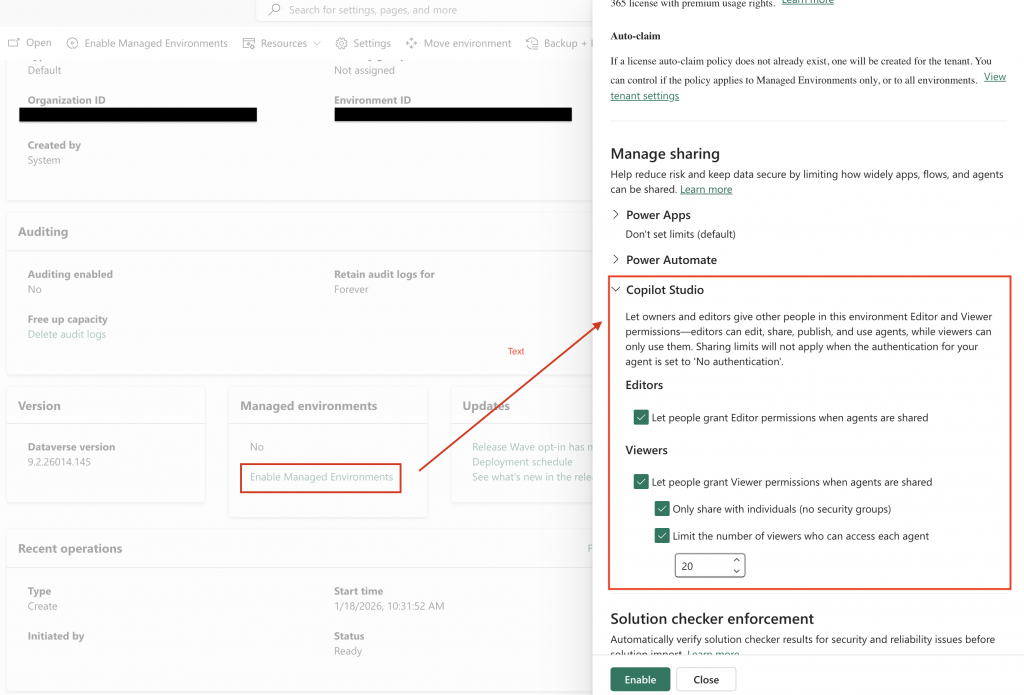
This is by design to keep governance features consolidated under the Managed Environment umbrella. The platform architecture assumes that if you care about governance, you should already be using Managed Environments for data loss prevention, solution checking, and usage insights.
Confirmed: Managed Environment sharing limits documentation explicitly states “Sharing limits are only available in Managed Environments.”
Copilot Studio Managed Environment Setup: What Actually Works
My fix:
Step 1: Convert to Managed Environment (15 minutes)
Power Platform Admin Center
→ Environments
→ Select your production environment
→ Edit
→ Go to "Edit managed environments"
→ Set up
→ Save
This triggers a brief service interruption (2-3 minutes). The agents stayed online.
Step 2: Configure Agent Sharing Rules (5 minutes)
Same environment
→ Edit Managed Environments
→ Scroll to "Manage sharing" section
→ Select "Copilots"
→ Configure 4 controls:
The four controls that appeared like magic:
- Can editors share with Editor permissions? → Set to “No” – uncheck (our requirement)
- Can agents be shared with security groups? → Set to “Yes” (groups only)
- Exclude sharing to security groups → Enabled (forces individual-only if you flip it)
- Max viewers per agent → Set to “20”
Step 3: Wait for Propagation (60 minutes)
Changes take up to 60 minutes to apply. During this window:
- Existing shares remain valid
- New shares fail validation
- Users see error: “Sharing limit exceeded”
Timeline: Configured at 2:15 PM. First enforcement at 3:10 PM. Full rollout by 3:20 PM.
Step 4: Handle Existing Non-Compliant Shares
Critical discovery: If an agent already has 35 viewers when you set the limit to 20, the platform doesn’t auto-remove anyone. Instead:
- Owners can only unshare (remove viewers)
- No new viewers until count drops below 20
- No automated enforcement email (we had to audit manually)
We ran this PowerShell to find violators:
# Get all agents with viewer count > 20
Get-PowerAppsApp -EnvironmentName $envId |
  Where-Object {$_.Internal.properties.sharedUsers.Count -gt 20} |
  Select DisplayName, @{N='ViewerCount';E={$_.Internal.properties.sharedUsers.Count}}
Copilot Studio Lite Sharing vs Enterprise Agent Governance
This trips up everyone coming from Microsoft 365 Copilot:
| Sharing Type | Control Location | Scope | Security Groups | Max Viewers |
|---|---|---|---|---|
| Copilot Studio Lite (M365 Copilot) | M365 Admin Center → Agents | Org-wide sharing links | ✅ Supported | ❌ No limit |
| Copilot Studio Enterprise | Power Platform Admin Center → Managed Environments | Per-agent sharing | ✅ Configurable | ✅ 1-10,000 |
The Copilot Studio Lite “Trap”
Users with Microsoft 365 Copilot licenses can create agents directly in Copilot Business Chat (no Power Platform license needed). These “Lite” agents:
- Can be shared org-wide with one click
- Bypass Managed Environment governance (they live in a different environment type)
- Are controlled by a separate tenant setting in M365 Admin Center
How to lock it down:
M365 Admin Center
→ Copilot
→ Settings
→ Data access
→ Agents
→ "Choose who can share agents with the entire organization"
→ Select "No users" or "Specific users or groups"
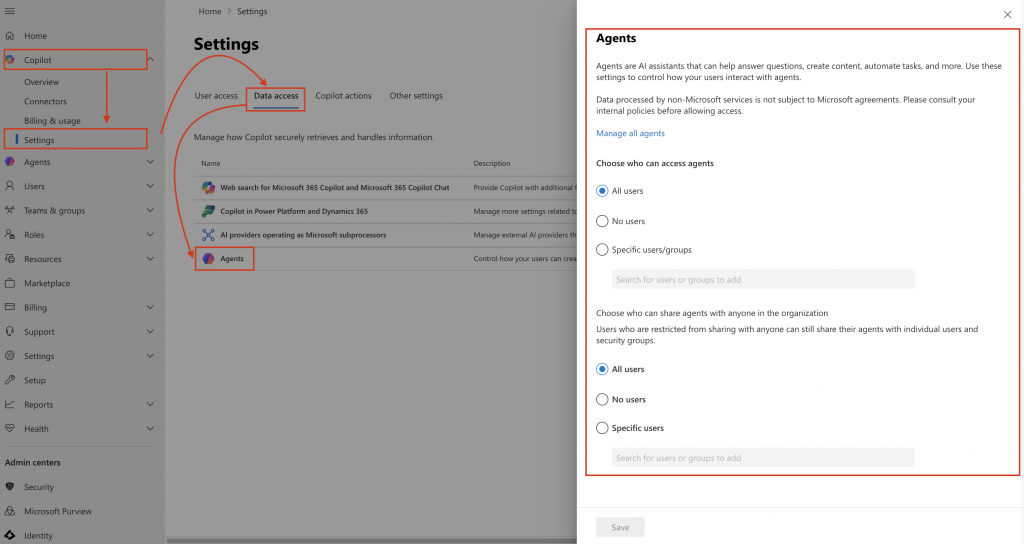
What the architecture gets right: Separating consumer-grade (Lite) from enterprise governance. Most companies want Lite locked down tight (security risk) while keeping enterprise agents flexible for makers.
PowerShell Agent Sharing Automation: Battle-Tested Script
For clients with 100+ environments, clicking through the UI is a dumb mistake. Here’s the production script I use:
powershell
# Authenticate to Power Platform
Add-PowerAppsAccount

# Get environment and governance config
$envId = "your-environment-guid"
$environment = Get-AdminPowerAppEnvironment -EnvironmentName $envId
$governanceConfiguration = $environment.Internal.properties.governanceConfiguration

# Configure sharing limits (exclude security groups, max 20 viewers)
$governanceConfiguration.settings.extendedSettings |
  Add-Member -MemberType NoteProperty -Name 'bot-limitSharingMode' -Value "ExcludeSharingToSecurityGroups" -Force

$governanceConfiguration.settings.extendedSettings |
  Add-Member -MemberType NoteProperty -Name 'bot-maxLimitUserSharing' -Value "20" -Force

# Disable editor sharing (owner-only sharing)
$governanceConfiguration.settings.extendedSettings |
  Add-Member -MemberType NoteProperty -Name 'bot-authoringSharingDisabled' -Value $true -Force

# Apply configuration
Set-AdminPowerAppEnvironmentGovernanceConfiguration -EnvironmentName $envId -UpdatedGovernanceConfiguration $governanceConfiguration
Gotchas:
- You must extract
governanceConfigurationfrom the environment object first (this is the step most people miss) - The property names use hyphens:
'bot-limitSharingMode'requires quotes in PowerShell - You need Power Platform Administrator role (Environment Admin isn’t enough)
- Changes still take 60 minutes to propagate (no manual force-sync available)
Copilot Studio Sharing Troubleshooting: Common Errors
“Sharing limit exceeded” – Even With Zero Viewers
Symptom: User tries to share agent, gets error, but agent shows 0 viewers in UI
Root cause: Security group membership counts every member of the group against the limit. If you share with a group of 50 people and your limit is 20, it fails.
Fix: Either raise the limit or share with smaller groups. The platform counts individual group members, not the group as a single entity.
“Share button missing” – Published Agent
Symptom: Agent is published, but Share button doesn’t appear for editors
Root cause: Either (a) editor sharing is disabled via bot-authoringSharingDisabled, or (b) user only has Viewer permission (viewers can’t share)
Fix: Check Managed Environment settings. If disabled, only owners can share. Grant Owner permission if needed.
“Security group not found” – Entra ID Sync Lag
Symptom: Just created a security group in Entra ID, but it doesn’t appear in Copilot Studio sharing picker
Root cause: Entra ID → Power Platform sync takes 15-30 minutes
Fix: Wait. Grab coffee. The sync happens automatically on the platform’s schedule.
Propagation Limbo (0-60 Minutes After Config Change)
Symptom: Set limit to 10, but user can still share with 15 people 20 minutes later
Root cause: Governance rules cache at the API level. Takes up to 60 minutes to invalidate.
Fix: Warn users in advance. We sent a Teams message: “Sharing limits enforced at 3 PM – clean up your shares before then.”
8 Copilot Studio Sharing Rules I Learned The Hard Way
- Always ask first: “Do you need sharing governance or just basic sharing?” If governance, convert to Managed Environment before building agents (migrations are sketchy).
- Managed Environments are prerequisite: Not optional. Not “recommended.” Literally won’t work without it.
- 60-minute propagation is real: Plan config changes during low-traffic windows. We got burned by a Friday 4 PM change that didn’t enforce until after-hours.
- Security groups count members individually: A group of 100 people = 100 viewers against your limit. This breaks “share with Sales team” strategies fast.
- Copilot Studio Lite is separate: If users have M365 Copilot licenses, they can bypass your entire governance setup. Lock down M365 Admin Center first.
- Existing shares aren’t revoked: Setting a limit to 10 when an agent has 50 shares just prevents new shares. You have to manually audit and clean up.
- PowerShell names are inconsistent:
bot-limitSharingModevsbotLimitSharingModedepending on API version. Always quote property names. - Test with zero-permission users: Create a test user with no environment access and try sharing. We discovered our Entra ID group wasn’t synced this way.
Copilot Studio Sharing Strategy:
For small teams (< 50 agents):
- Use Managed Environments from day one
- Security groups only, no individual sharing
- Limit viewers to 20-50 (forces intentional distribution)
For enterprise (100+ agents):
- PowerShell automation for all governance
- Separate environments: Dev (no limits) → Test (staged limits) → Prod (strict)
- Monitor with Power Platform CoE Toolkit (tracks sharing telemetry)
For M365 Copilot users:
- Lock down Copilot Studio Lite org-wide sharing immediately
- Train users: “If you built it in Copilot chat, it’s Lite. If you built it in copilot.microsoft.com, it’s enterprise.”
Copilot Studio Sharing Governance Documentation
- Managed Environment sharing limits ← The one doc that mentions the prerequisite
- Share agents with users ← How to share (but not how to govern)
- Secure Copilot Studio projects ← Best practices for Entra ID groups
- Copilot Studio Lite tenant controls ← M365 Admin Center lockdown
Copilot Studio Sharing Bottom Line
You cannot configure agent sharing governance without Managed Environments. Period. This prerequisite lives in the advanced admin documentation, so admins can spend hours looking for controls that won’t appear until the environment type is configured.
Your action plan:
- Convert production to Managed Environment
- Configure sharing rules (security groups + viewer limits)
- Wait 60 minutes for propagation
- Audit existing shares manually
- Lock down Copilot Studio Lite separately in M365 Admin Center
What’s your Copilot Studio sharing horror story? Drop it in the comments – I’m building a troubleshooting database and need more real-world failure cases.