Post 8: Copilot Pages and Notebooks Governance
What admins need to know about SharePoint Embedded storage, Cloud Policy, retention, eDiscovery, and the limits that matter.
Why this post matters
When a user creates a Copilot Page or Copilot Notebook, the content does not go into their OneDrive or a SharePoint site they manage. It goes into a SharePoint Embedded container that the user owns but that behaves differently from anything else in Microsoft 365. This container has its own governance characteristics that most admins do not know about until something goes wrong.
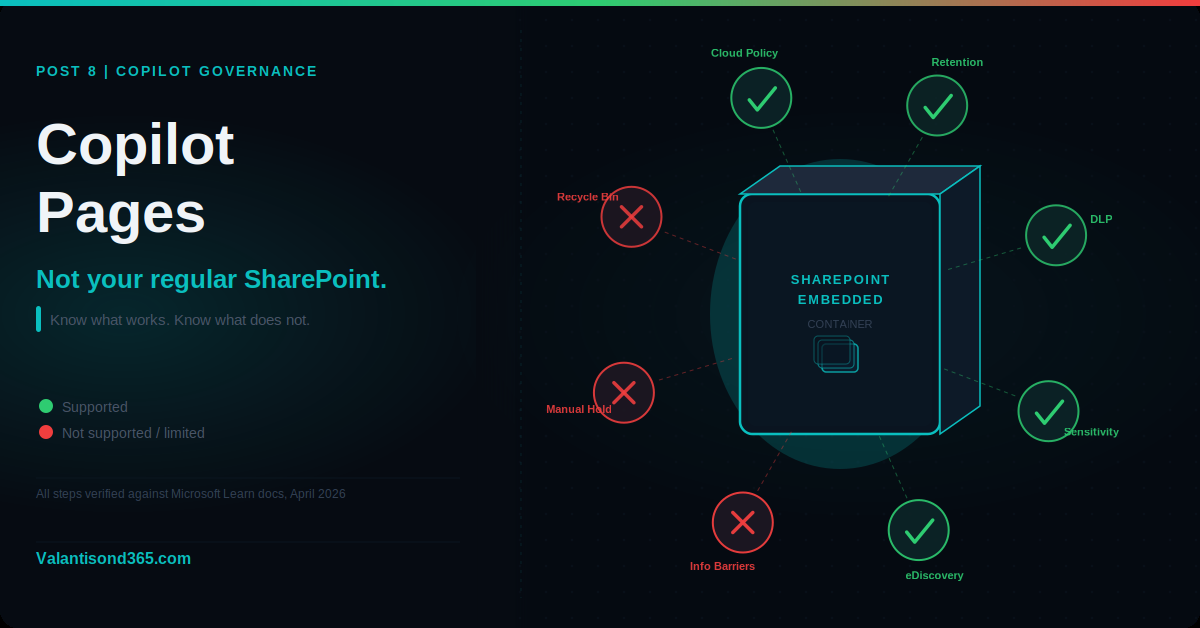
Three things stand out. First, Information Barriers are not supported for this storage type. If your organisation uses Information Barriers, Copilot Pages and Notebooks require a specific response. Second, Conditional Access applies only at the app level, not at the container level. Third, eDiscovery holds do not apply automatically. Every user container must be added manually.
This post covers exactly what is and is not supported, what the admin paths look like, and where the gaps are.
Audience: Microsoft 365 compliance administrators, SharePoint administrators, and consultants designing a Copilot governance programme.
TL;DR
- Copilot Pages (.page files) and Copilot Notebooks (.pod files) are stored in a single user-owned SharePoint Embedded container, shared with Loop My workspace.
- Creation is controlled via Cloud Policy in the Microsoft 365 Apps admin center at config.office.com. This is the only admin control for creation.
- Information Barriers are not supported. If your organisation requires IB, disable Copilot Pages and Notebooks via Cloud Policy.
- Conditional Access applies to the entire Microsoft 365 Copilot app (m365.cloud.microsoft), not to individual containers.
- Retention policies configured for All SharePoint sites cover Copilot Pages and Notebooks automatically.
- eDiscovery holds do not apply automatically. Each user container must be added manually to a hold.
- There is no end-user recycle bin for Copilot Notebooks. Plan retention and export accordingly.
- Storage counts against your organisation’s SharePoint quota.
Capability Summary
| Capability | Status | Notes |
| Admin policy (creation) | Supported | Cloud Policy at config.office.com |
| Information Barriers | Not supported | Disable Pages/Notebooks if IB is required |
| Conditional Access | App-level only | Applies to m365.cloud.microsoft, not container |
| Retention policies | Supported | Via All SharePoint sites scope |
| Retention labels | Limited | Manual application limited. Labels not viewable from Copilot Page directly |
| eDiscovery | Supported | Full-text search in review sets not available |
| Legal hold | Manual only | Container must be added per user, not automatic |
| Sensitivity labels | Supported | Copilot Pages only |
| DLP | Supported | With policy tips |
| End-user recycle bin | Not supported | No recycle bin for Copilot Notebooks |
| Storage | SharePoint quota | Counts against organisation SharePoint quota |
| Customer Lockbox | Supported |
| Confirmed as: documented behaviour. All capability statuses in the table above are drawn directly from the Microsoft Learn compliance summary page for Copilot Pages and Copilot Notebooks. Source: Reference 1. |
How Storage Works
Understanding the storage model is the foundation for understanding the governance model.
Every user gets one SharePoint Embedded container. Copilot Pages, Copilot Notebooks, and Loop My workspace all share that single container. In SharePoint admin tools, the owning application is shown as Loop, which can be confusing. The container is not a SharePoint site in the traditional sense. It is a SharePoint Embedded container that looks like a site in compliance tools but behaves differently.
The container is created the first time a user needs it, triggered by either the Loop policy or the Copilot Pages and Notebooks policy being enabled. If both policies are disabled, the container is not created. To prevent creation entirely, both policies must be disabled for the same user.
| Disabling one policy is not enough. If you disable the Copilot Pages and Notebooks policy but leave Loop enabled, a user opening Loop My workspace will still create the shared container. To prevent the container from being created at all, both the Loop policy and the Copilot Pages and Notebooks policy must be disabled for the same user. Source: Reference 2. |
When a user leaves the organisation, the container follows the OneDrive cleanup schedule: 30 days active followed by 93 days to permanent deletion. Unlike OneDrive, there is no manager workflow to retain or transfer the content. If content needs to be preserved before the user departs, it must be exported via Microsoft Purview or the Graph API, or the container must be added to a retention policy before the account is deleted.
| Limitation confirmed: there is no admin control to set individual storage limits on containers. There is also no user workflow for content after a user departs. Source: Reference 1. |
Step 1: Control Creation with Cloud Policy
Admin path
config.office.com > Customization > Policy Management > create or edit policy > Configure Settings > Create and view Copilot Pages and Copilot Notebooks
Cloud Policy is the only admin control for creation of Copilot Pages and Notebooks. There is no toggle in the Microsoft 365 admin center or the SharePoint admin center for this.
- Sign in to https://config.office.com with your Microsoft 365 admin credentials.
- Select Customization from the left pane.
- Select Policy Management.
- Create a new policy configuration or edit an existing one.
- From the Choose the scope dropdown, select All users or a specific group.
- In Configure Settings, find Create and view Copilot Pages and Copilot Notebooks.
- Set to Enabled or Disabled as required.
- Save the policy configuration.
| Policy replication delay. If there were existing policy configurations before the change, the change takes up to 90 minutes to apply. If there were no previous policy configurations, the change can take up to 24 hours. Plan changes accordingly and do not assume immediate effect. Source: Reference 2. |
To scope the policy to a specific group of users rather than the whole tenant, create a group containing the target users and assign the policy to that group. For a broader disable while keeping some users enabled, use priority ordering: assign Enabled to a higher-priority group and Disabled to All users at lower priority.
| Confirmed as: documented behaviour. The policy setting name is “Create and view Copilot Pages and Copilot Notebooks.” This is the authoritative control. Source: Reference 2. |
Information Barriers: The Limitation to Communicate
Information Barriers are not supported for content stored in SharePoint Embedded containers. This includes all Copilot Pages and Copilot Notebooks. There is no roadmap date listed in the documentation for this capability.
What this means in practice: if your organisation uses Information Barriers to separate groups of users and prevent communication or data sharing between them, Copilot Pages and Notebooks do not enforce those barriers. A user in one IB segment could potentially share a Copilot Page with a user in another segment.
| What to do if your organisation requires Information Barriers. Disable Copilot Pages and Copilot Notebooks creation for all users via Cloud Policy. This does not delete existing content but prevents new containers from being created and new pages from being shared. Source: Reference 1. |
Conditional Access: App-Level Only
Conditional Access applies to Copilot Pages and Copilot Notebooks at the app level only. Because both features are part of the Microsoft 365 Copilot app (hosted at m365.cloud.microsoft), any Conditional Access policy targeting that app applies to everything inside it, including Pages and Notebooks. You cannot create a Conditional Access policy that targets only the Copilot Pages container or only Copilot Notebooks.
In practical terms, this means:
- If you have a CA policy requiring MFA and a compliant device for the Microsoft 365 Copilot app, that policy protects access to Copilot Pages and Notebooks as well.
- You cannot apply more granular controls at the container level through Conditional Access.
- If container-level access control is required beyond app-level CA, use Cloud Policy to disable creation for specific user groups.
| Confirmed as: documented behaviour. “Conditional Access applies to the entire app at m365.cloud.microsoft.” Source: Reference 1. |
Step 2: Retention Policies
Admin path
Microsoft Purview portal > Solutions > Data lifecycle management > Retention policies
Copilot Pages and Copilot Notebooks are automatically covered by any retention policy that includes the All SharePoint sites location. You do not need to create a separate policy for this content type. If you already have a tenant-wide retention policy covering All SharePoint sites, it applies.
- Sign in to the Microsoft Purview portal at https://purview.microsoft.com.
- Go to Solutions > Data lifecycle management > Retention policies.
- Review your existing policies. Check which ones include All SharePoint sites in their scope.
- If no such policy exists, create one. Select New retention policy, choose SharePoint sites as the location, select All SharePoint sites, configure the retention duration and action, then publish.
| Retention labels are limited. Retention labels are supported for Copilot Pages (.page files) but with limited manual application. Labels cannot be viewed or applied directly from a Copilot Page. Apply labels via OneDrive or SharePoint, or use auto-apply label policies. Source: Reference 1. |
| Confirmed as: documented behaviour. “Retention policies from Microsoft Purview Data Lifecycle Management configured for all SharePoint sites are enforced for all Copilot Pages and Copilot Notebooks.” Source: Reference 1. |
Step 3: eDiscovery and Legal Holds
Admin path
Microsoft Purview portal > Solutions > eDiscovery > Cases
eDiscovery is supported for Copilot Pages and Notebooks but with two important limitations. First, the user container must be added to a case manually. It is not automatically included when you add a custodian. Second, full-text search in review sets is not available for this content type.
The same limitation applies to legal holds. When you place a user on Litigation Hold, their Copilot Pages and Notebooks container is not automatically included. Each container must be added manually to the hold.
Adding a container to an eDiscovery case
- Sign in to the Microsoft Purview portal.
- Go to Solutions > eDiscovery > Cases.
- Open the relevant case or create a new one.
- Go to the Data sources tab.
- Select Add data source > Add data locations.
- Add the user’s SharePoint Embedded container. To find the container URL, go to the SharePoint admin center, navigate to Containers > Active containers, locate the container for the user (it is listed under the owning application Loop), and copy the container URL. Paste that URL as the data location in the eDiscovery case.
- With the container added, create a hold on that data source to preserve the content.
- Run a search that includes the container as a location.
| Manual hold is required every time. Copilot Pages and Notebooks containers are not automatically included when a user is placed on Litigation Hold. Every container must be added manually per user. This is a documented limitation. Build this step into your eDiscovery and departure workflows. Source: Reference 1. |
| Confirmed as: documented behaviour. Full-text search in review sets is listed as not available in the capability summary table. The manual hold requirement is confirmed in the compliance summary documentation. Source: Reference 1. |
Validate
Check 1: Cloud Policy applies correctly
- Sign in as a user who should have Copilot Pages and Notebooks creation disabled by the policy.
- Open the Microsoft 365 Copilot app at m365.cloud.microsoft.
- Attempt to create a new Copilot Page.
- Confirm creation is blocked.
- Allow up to 90 minutes for policy changes to propagate before testing.
| Expected result: The user cannot create a new Copilot Page or Notebook. The option is unavailable or greyed out. Existing pages the user already created remain accessible. |
Check 2: Retention policy covers the container
- In the Microsoft Purview portal, go to Solutions > Data lifecycle management > Retention policies.
- Open the policy that includes All SharePoint sites.
- Confirm the policy is active and in scope.
- Using Purview content search or eDiscovery, run a search targeting a known Copilot Page and confirm the item is discoverable.
| Expected result: The Copilot Page appears in the search results, confirming that the retention policy covers the SharePoint Embedded container. |
Check 3: eDiscovery hold returns expected items
- In an eDiscovery case, add the user’s SharePoint Embedded container manually.
- Place a hold on the container.
- Run a search scoped to that container.
- Confirm that Copilot Page content is returned in the results.
| Expected result: Copilot Page content is present in the search results. The hold is applied and confirmed in the case data sources. |
Troubleshooting
| Symptom | Most likely cause | Fix |
| Cloud Policy change has not taken effect after 30 minutes. | Policy replication delay. New policies take up to 24 hours; changes to existing policies take up to 90 minutes. | Wait for the full replication window. Confirm the policy is saved and assigned to the correct scope. Do not assume immediate effect. Source: Reference 2. |
| User can still create Copilot Pages after policy is disabled. | The Loop policy may still be enabled, allowing the shared container to be created via Loop My workspace. | Disable both the Copilot Pages and Notebooks policy and the Loop policy for the same user. Disabling only one is not sufficient to prevent container creation. Source: Reference 2. |
| Organisation requires Information Barriers but Pages/Notebooks are in use. | Information Barriers are not supported for SharePoint Embedded containers. | Disable Copilot Pages and Copilot Notebooks creation via Cloud Policy for all users in scope of Information Barriers. Source: Reference 1. |
| Copilot Pages container is not included in a litigation hold. | Containers are not added automatically when a user is placed on hold. | Manually add the user’s SharePoint Embedded container to the hold in the eDiscovery case. Build this into your standard hold workflow. Source: Reference 1. |
| User content was lost after account deletion. | Container followed the OneDrive cleanup schedule and was permanently deleted after 93 days. | Export content via Purview or Graph API before account deletion. Or add the container to a retention policy before the user departs. Source: Reference 1. |
Lessons Learned
These come from working with Copilot governance programmes across client tenants.
- Check for Information Barriers before enabling Copilot Pages and Notebooks. IB tenants are often not aware that SharePoint Embedded containers do not support IB. Discovering this after users have created Pages and shared them across IB segments is a compliance issue. Ask the question before rollout.
- Disabling one policy is not the same as disabling Pages. A client disabled the Copilot Pages policy assuming that stopped container creation. It did not because Loop My workspace was still enabled for those users. To prevent container creation, both the Loop policy and the Copilot Pages and Notebooks policy must be disabled for the same user.
- Build manual holds into your departure workflow now. The fact that containers are not automatically included in Litigation Hold is easy to overlook. Waiting until a legal hold is needed to discover this creates a gap. Add the step to add Copilot Pages containers to the standard employee offboarding and legal hold runbook.
- Plan for the no-recycle-bin limitation on Notebooks. Users who delete a Copilot Notebook cannot recover it themselves. There is no end-user recycle bin. Make sure your retention policy is in place and that users understand they cannot self-serve recovery of deleted Notebook content.
- The container shows as Loop in admin tools. When you look at SharePoint Embedded containers in the SharePoint admin center or in PowerShell, the owning application for the Copilot Pages and Notebooks container is listed as Loop. This is expected and documented but it creates confusion. Make sure your eDiscovery and compliance teams know to look for Loop-owned containers when searching for Copilot content.
References
All links verified April 2026.
1. Summary of governance, lifecycle, and compliance capabilities for Copilot Pages and Copilot Notebooks Authoritative compliance summary covering all supported and unsupported capabilities including Information Barriers, Conditional Access, retention, eDiscovery, holds, and recycle bin.
https://learn.microsoft.com/en-us/microsoft-365/loop/cpcn-compliance-summary
2. Admin policies for Copilot Pages and Copilot Notebooks Full documentation for Cloud Policy configuration including the policy name, path, replication delays, and relationship between the Loop policy and the Copilot Pages policy.
https://learn.microsoft.com/en-us/microsoft-365/loop/cpcn-admin-configuration
3. Requirements for Copilot Pages and Copilot Notebooks Storage model, licence requirements, and network requirements. Confirms .page and .pod file types and SharePoint quota impact.
https://learn.microsoft.com/en-us/microsoft-365/loop/cpcn-requirements