Post 2: Agent-Level Security Controls
Runtime protection status, tool authentication, sensitivity labels in agent responses, and user authentication options for Copilot Studio agents.
Why this post matters
Post 1 covered the controls admins set before makers start building. This post covers what happens at the individual agent level: how to read an agent’s protection status after it is published, how tool authentication works and why it matters for data access, what sensitivity labels mean in agent responses, and how to configure user authentication correctly.
These are controls that makers and admins review together. A maker builds the agent. An admin or security reviewer checks whether it meets the organisation’s standards before it is deployed more broadly. The runtime protection status is the place to start that conversation.
Audience: Copilot Studio makers, Power Platform administrators, and security reviewers evaluating published agents.
TL;DR
- The Protection status column on the Agents page shows whether a published agent is Protected, Needs review, or Unknown.
- Protection status covers three categories: Authentication, Policies, and Content moderation.
- All published agents have threat detection enabled automatically. No admin action is required to activate it.
- Tool authentication has two options: End user credentials (the user authenticates with their own account) or Maker-provided credentials (the agent uses the maker’s account). End user credentials is the default and the safer option for most scenarios.
- Admins can restrict maker-provided credentials at the environment level. Path: Power Platform admin center > Manage > Environments > select environment > Settings > Product > Features > Copilot Studio agents > Control maker credential options.
- Sensitivity labels in agent responses are a preview feature. Not for production use. Covers SharePoint, OneDrive, SQL, Dataverse, and several other knowledge sources.
- User authentication has three options: No authentication, Authenticate with Microsoft, and Authenticate manually. Authenticate with Microsoft is the default for new agents.
Runtime Protection Status
Where to find it
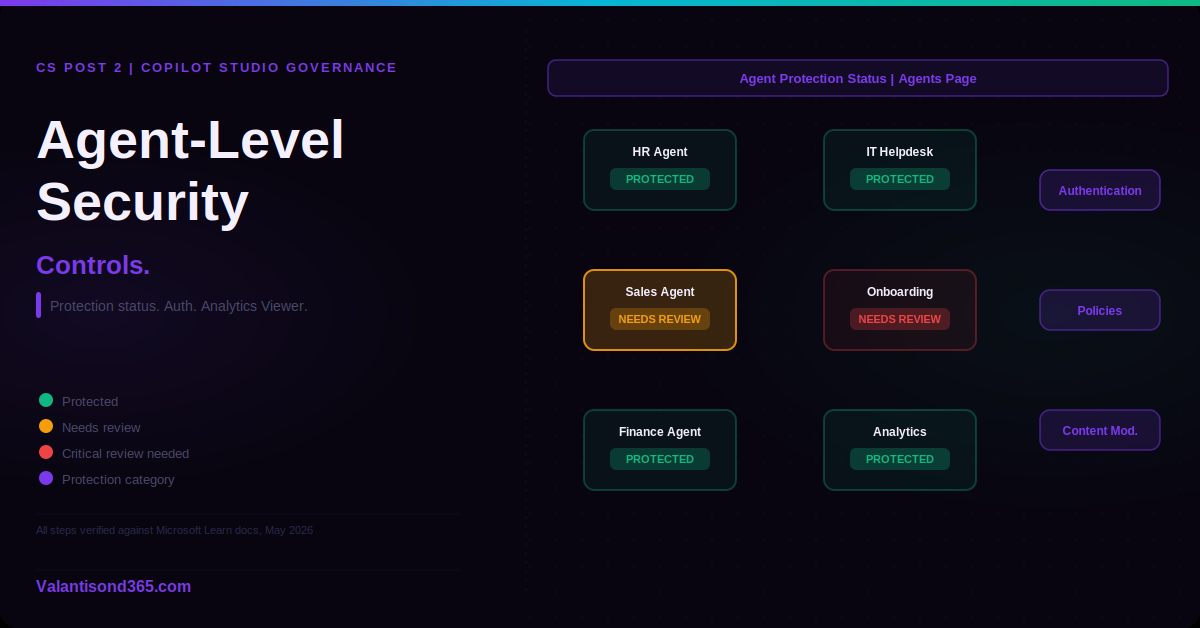
The Protection status column appears on the Agents page in Copilot Studio. Select any status value to open the agent-level summary dialog.
What the status values mean
A published agent shows one of three values in the Protection status column:
- Protected: no issues detected based on current signals. A green shield icon appears. No immediate action is required.
- Needs review: either the agent’s data policies are violated, authentication is inadequate, or content moderation settings have a problem. The maker needs to investigate the specific category that is flagged.
- Unknown: the status cannot be determined. This can occur when the agent has not yet been evaluated or when data is not available.
| Confirmed as: documented behaviour. “All published agents automatically have threat detection enabled and display the Active label.” The Protection status rolls up from three sub-categories: Authentication, Policies, and Content moderation. If either Authentication or Policies are in violation, the Needs review label rolls up to the agent-level status. Source: Reference 1. |
The three protection categories
Selecting the status value opens the agent-level summary dialog. This dialog breaks the protection profile into three categories:
Authentication
Shows whether the agent’s authentication configuration meets the security standards defined by the agent’s setup. If the agent is set to No authentication, this category will show Needs review because anyone with the link can interact with the agent without signing in.
Policies
Shows whether the agent is compliant with the data policies configured in the Power Platform admin center. If a connector used by the agent is in the Blocked group in a data policy that applies to this environment, this category shows Needs review.
Content moderation
Shows the status of content moderation settings for the agent. Content moderation controls what types of content the agent will and will not generate or relay to users.
Security analytics
From the summary dialog, select See details to open the Security analytics dialog. This shows statistics and trends for blocked messages over the last 7, 14, or 30 days. The Reason for block chart breaks down blocks by category: potential threats (direct and indirect prompt attacks), policy violations, and content moderation violations.
The Session block rate trend graph shows the share of sessions where a prompt was blocked as a trend line over time. Each category has its own trend line.
| Threat detection is always on for published agents. Makers do not need to turn on threat detection. All published agents have it enabled automatically. The security analytics data is available for all published agents regardless of how the agent was configured. Source: Reference 1. |
Tool Authentication: End User vs Maker Credentials
Why this matters for governance
When a maker adds a tool to an agent, they choose how the tool authenticates with the external service it connects to. This choice determines whose permissions are used when the agent accesses data.
The two options are:
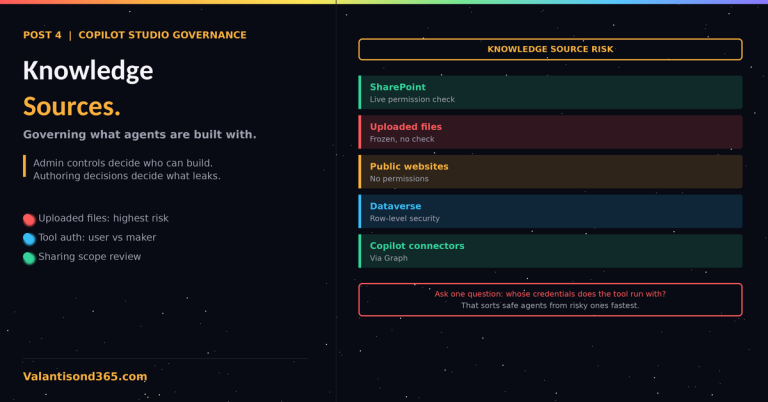
- End user credentials: the agent uses the credentials of the person who is chatting with the agent. The user authenticates with the connected service during the conversation. The agent can only access what that specific user is permitted to access. This is the default and the recommended option for most scenarios.
- Maker-provided credentials: the agent uses the credentials of the maker who built and published it. Every user who interacts with the agent accesses the connected service using the maker’s permissions, not their own.
| Confirmed as: documented behaviour. “End user credentials: The agent uses the user’s credentials to authenticate with the service. This method ensures users only access data they’re authorized to see. Maker-provided credentials: The agent uses the credentials of its author to authenticate with the service.” Source: Reference 2. |
The governance risk with maker-provided credentials
When a maker uses their own credentials, every end user who interacts with the agent can effectively access whatever the maker has access to. If the maker has broad SharePoint permissions, Dataverse access, or Outlook access, every user of the agent inherits that access through the tool. The end user does not need to have those permissions themselves.
This is not always wrong. There are legitimate use cases: a weather lookup tool that calls a public API does not need per-user authentication. A tool that retrieves a publicly available support phone number does not carry data risk. But for tools that access sensitive organisational data, maker-provided credentials create an oversharing risk that is easy to overlook.
| Impact on autonomous agents. When admins restrict maker-provided credentials at the environment level, autonomous agents that rely on maker credentials stop working. Each tool call must be authenticated with a live user sign-in, which is not possible for background or scheduled agent runs. Plan this carefully before enforcing the restriction in an environment that has autonomous agents in production. Source: Reference 3. |
Admin control for maker credentials
Admins can restrict or allow maker-provided credentials at the environment level through the Power Platform admin center.
Admin path: Power Platform admin center > Manage > Environments > select the environment > Settings > Product > Features > Copilot Studio agents > Control maker credential options.
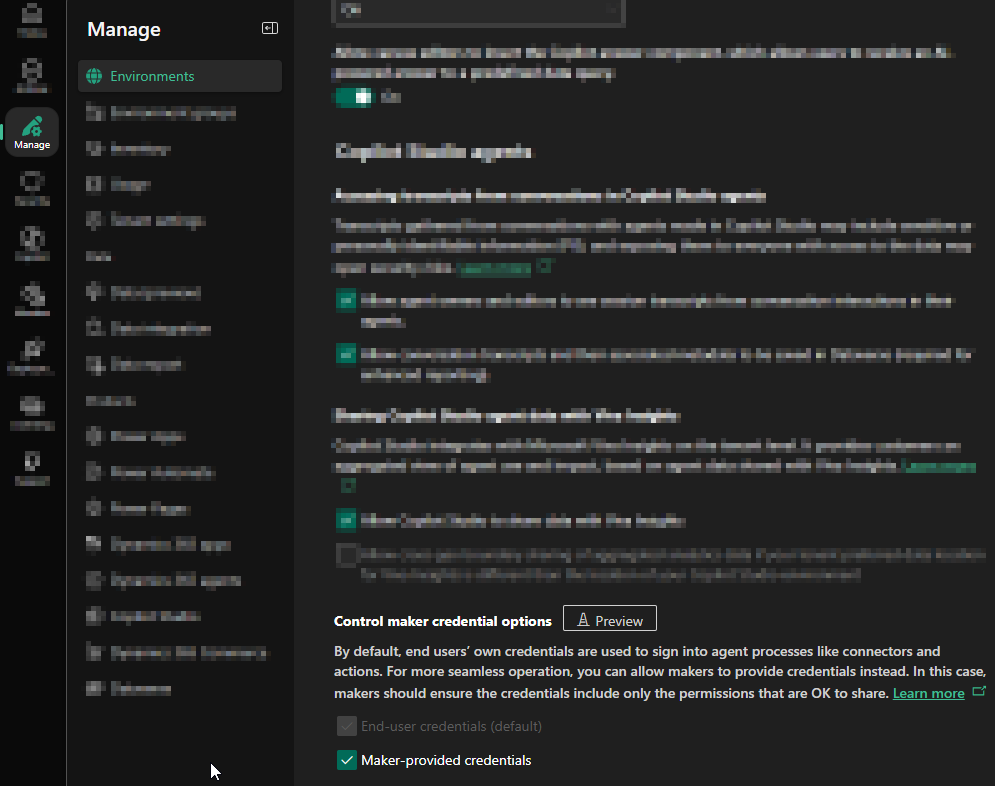
When the restriction is applied, the Copilot Studio authoring interface automatically hides or disables the maker-provided credentials option. Existing agents that were using maker credentials are not automatically changed, but makers will be prompted to update the tool authentication before they can publish again.
| Confirmed as: documented behaviour. “The Copilot Studio authoring UI automatically reflects this policy. Any toggle or dropdown for authentication methods have maker-provided credentials disabled or hidden.” Source: Reference 3. |
Analytics Viewer Role
The Analytics Viewer role is a separation of duties control that lets agent owners share read-only access to an agent’s Analytics page with analysts and business stakeholders, without granting any maker permissions.
This is a general availability feature as of April 2026. Source: Reference 6.
What the Analytics Viewer role covers:
- Can view the agent’s Analytics page and all metrics.
- Can open the agent directly on the Analytics page.
- Cannot edit or share the agent.
- Cannot access topics, actions, settings, the test panel, or publishing.
Admin path: open the agent in Copilot Studio > select the three dots (…) next to Test > select Share > add the user > select Analytics viewer > Share.
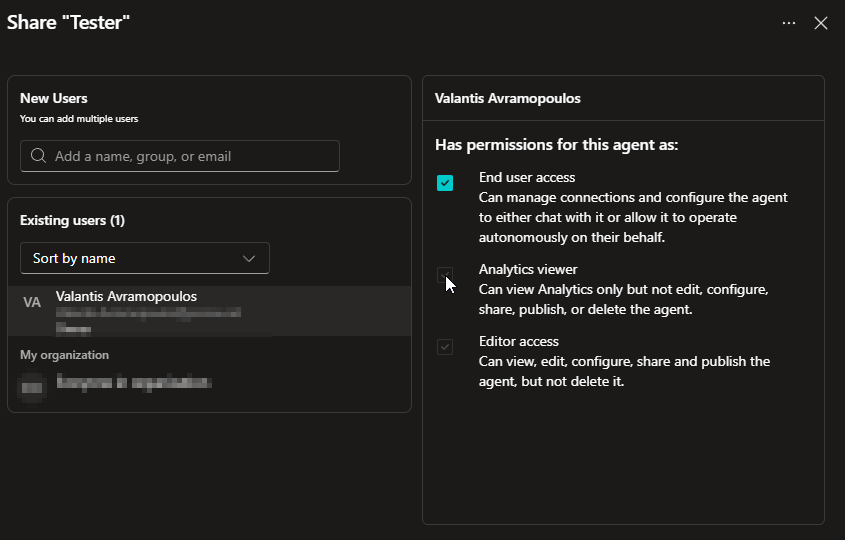
Assignment constraint: the Analytics Viewer role can only be shared with individuals, not with groups. Source: Reference 6.
Bot Transcript Viewer Role
The Bot Transcript Viewer role is a Dataverse security role that grants access to session-level conversation transcripts. It is separate from the Analytics Viewer sharing role and operates at a different scope and level.
Key differences from the Analytics Viewer role:
Analytics Viewer is a per-agent sharing role assigned in the Copilot Studio sharing dialog. It gives read-only access to the Analytics page for that specific agent only.
Bot Transcript Viewer is a Dataverse security role assigned at the environment level in the Power Platform admin center. Users with this role can access conversation transcripts for all agents they create or that are shared with them in that environment.
What the Bot Transcript Viewer role covers:
Can view session-level conversation transcripts for agents they create or that are shared with them.
Does not grant access to agent analytics, topics, settings, or publishing capabilities.
Transcript access applies across all agents in the environment where the role is assigned, not just a single agent.
Admin path: Power Platform admin center > Environments > select environment > Settings > Users and permissions > Security roles > assign Bot Transcript Viewer to the relevant user.

Use this role for compliance reviewers and operations teams who need to audit what users said to agents and what responses were generated, without needing any maker or editor permissions. Source: Reference 6.
Sensitivity Labels in Agent Responses (Preview)
| Preview feature. Not for production use. The sensitivity label display feature in Copilot Studio is explicitly marked as preview documentation. “Preview features aren’t meant for production use and may have restricted functionality.” Do not rely on this feature in a production agent deployment. The documentation and behaviour are subject to change. Source: Reference 4. |
When an agent is configured with a supported knowledge source and that knowledge source contains files with Microsoft Purview sensitivity labels applied, the agent can surface the label alongside the response. The user sees a shield icon with the highest sensitivity label from the content the agent used to generate the response.
This is a transparency mechanism, not a protection mechanism. The label display tells the user which sensitivity classification the content carries. The actual protection is provided by the sensitivity label itself on the source file, not by the label displayed in the agent response.
For context on how sensitivity labels are created and published, see Post 6 of the Microsoft 365 Copilot Governance Series. Creating labels is a Purview administrator task covered separately from how agents display them.
Supported knowledge sources for sensitivity label display
- SharePoint
- OneDrive for Business
- SQL
- Dataverse
- Cosmos
- Azure Blob Storage
- Word, Excel, Outlook documents
- Office groups and Office users
User Authentication Options for Agents
The three authentication options
Every Copilot Studio agent has an authentication configuration. This is set in Copilot Studio under Settings > Security > Authentication. Three options are available:
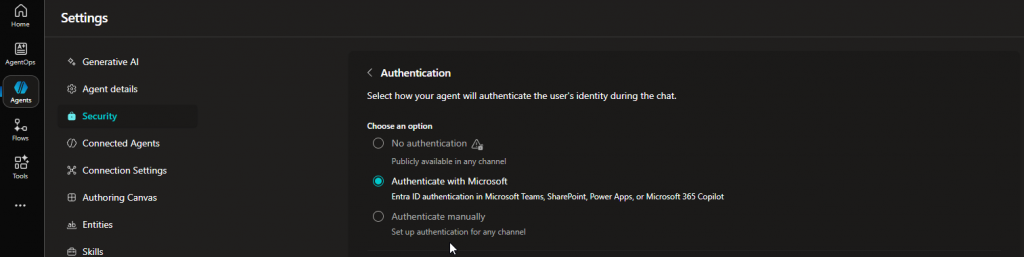
No authentication
Anyone who has the link to the agent can interact with it without signing in. This is the least secure option. A data policy that blocks the “Chat without Microsoft Entra ID authentication in Copilot Studio” connector will prevent makers from publishing agents with this setting enabled. See Post 1 for detail on this.
| Confirmed as: documented behaviour. “Selecting the No authentication option allows anyone who has the link to chat and interact with your bot or agent.” Source: Reference 5. |
Authenticate with Microsoft
This is the default for new agents. The agent automatically uses Microsoft Entra ID authentication without any manual setup by the maker. Users can only interact with the agent through Teams, SharePoint, Power Apps, or Microsoft 365 Copilot. This option is not available for agents integrated with Dynamics 365 Customer Service.
Authenticate manually
The maker configures authentication manually using a supported identity provider. Copilot Studio supports Microsoft Entra ID and any OAuth2 identity provider for manual authentication. When using manual authentication, the maker can configure whether users must sign in before the conversation starts or only when they reach a topic that requires it.
| Authentication changes only take effect after publishing. Changes to the authentication configuration in Copilot Studio do not take effect until the agent is published. If a maker changes authentication settings during testing, they must publish the agent before the new settings apply to any channel. Source: Reference 5. |
Validate
Check 1: Protection status is visible and accurate
- Sign in to Copilot Studio.
- Go to the Agents page.
- Confirm the Protection status column is visible for published agents.
- Select a status value to open the summary dialog.
- Confirm the three categories (Authentication, Policies, Content moderation) are shown with their individual statuses.
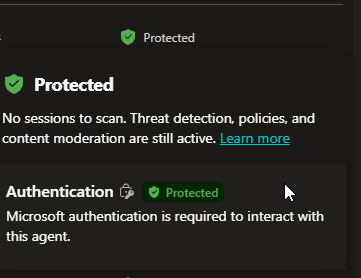
| Expected result: Published agents show a Protection status. The summary dialog shows the three sub-categories. The Threat detection label shows Active for all published agents. |
Check 2: Maker credential restriction enforces at authoring time
- Configure the environment to allow End-user credentials only via Power Platform admin center > Environments > Settings > Product > Features.
- Open an agent in Copilot Studio in that environment.
- Add a tool and go to the authentication settings for that tool.
- Confirm the Maker-provided credentials option is hidden or disabled.
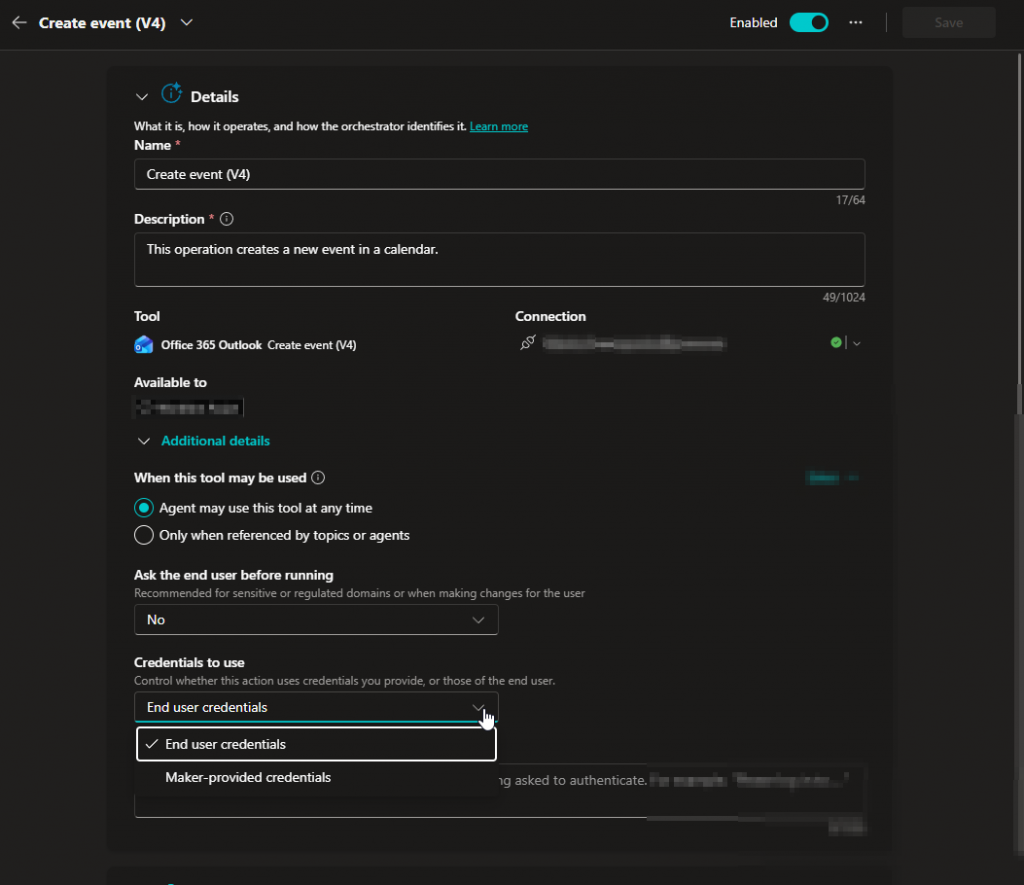
| Expected result: The Copilot Studio interface does not offer Maker-provided credentials as an option. |
Check 3: No authentication triggers protection status review
- Open an agent configured with No authentication.
- Go to the Agents page and check the Protection status for that agent.
- Confirm the status shows Needs review with the Authentication category flagged.
| Expected result: The agent shows Needs review. The summary dialog shows the Authentication category with a Needs review label. |
Troubleshooting
| Symptom | Most likely cause | Fix |
| Protection status shows Unknown for a published agent. | The agent has recently been published and has not yet been evaluated. | Wait and refresh the Agents page. If Unknown persists after several hours, confirm the agent was published successfully. Source: Reference 1. |
| An existing agent stops working after the maker credential restriction is applied. | The agent has tools configured with maker-provided credentials. | Review all tools in the affected agent. Update each tool authentication to End-user credentials. Source: Reference 3. |
| Autonomous agent fails after maker credential restriction is enforced. | Autonomous agents that rely on maker credentials cannot run without a live user session. | Review whether the autonomous agent can operate with end-user credentials. If not, the environment policy must allow maker-provided credentials for that environment. Source: Reference 3. |
| Sensitivity labels do not appear in agent responses. | The feature is in preview and may not be available in your tenant, or the knowledge source type is not supported. | Check whether your knowledge source is on the supported list. Do not rely on this feature in production. Source: Reference 4. |
Lessons Learned
These come from working with Copilot Studio agents in enterprise environments.
- Check Protection status before any agent goes to production. The Protection status column on the Agents page is the fastest way to confirm an agent is configured correctly. A Needs review status for Authentication almost always means No authentication is enabled or authentication was changed and the policy check failed.
- Maker-provided credentials are easy to set and hard to notice later. A maker building a personal productivity agent often sets their own credentials for convenience during development. If that agent later gets shared more broadly, those credentials still apply. Review tool authentication settings during every governance review.
- The sensitivity label display tells users what they are seeing, not what they are restricted from seeing. The actual protection is on the source file. If a user can access a labeled file through the agent, they see the label. The label display confirms classification but does not add access control.
- End-user credentials and autonomous agents do not mix easily. An autonomous agent that needs to access data on behalf of no specific user cannot use end-user credentials because there is no user present. Plan authentication carefully before designing autonomous agents, and test the impact of any environment-level credential restrictions before applying them to environments with autonomous agents in production.
References
All links verified June 2026.
1. Agent runtime protection status Documents the Protection status column, the three categories (Authentication, Policies, Content moderation), the agent-level summary dialog, and the Security analytics view.
https://learn.microsoft.com/en-us/microsoft-copilot-studio/security-agent-runtime-view
2. Add tools to custom agents Documents tool authentication options including End user credentials and Maker-provided credentials and when to use each.
https://learn.microsoft.com/en-us/microsoft-copilot-studio/add-tools-custom-agent
3. Control maker-provided credentials for authentication Documents the admin control to restrict maker credentials at the environment level and the impact on autonomous agents.
https://learn.microsoft.com/en-us/microsoft-copilot-studio/configure-no-maker-authentication
4. View sensitivity labels in agent responses (preview) Documents the preview feature for displaying sensitivity labels in agent responses and the supported knowledge source types.
https://learn.microsoft.com/en-us/microsoft-copilot-studio/sensitivity-label-copilot-studio
5. Configure user authentication in Copilot Studio Documents the three authentication options, when to use each, and the publish requirement for authentication changes.
https://learn.microsoft.com/en-us/microsoft-copilot-studio/configuration-end-user-authentication
6. Share agents with other users Documents the Analytics Viewer role, what it covers, assignment constraints, and the admin path to assign it.
https://learn.microsoft.com/en-us/microsoft-copilot-studio/admin-share-bots