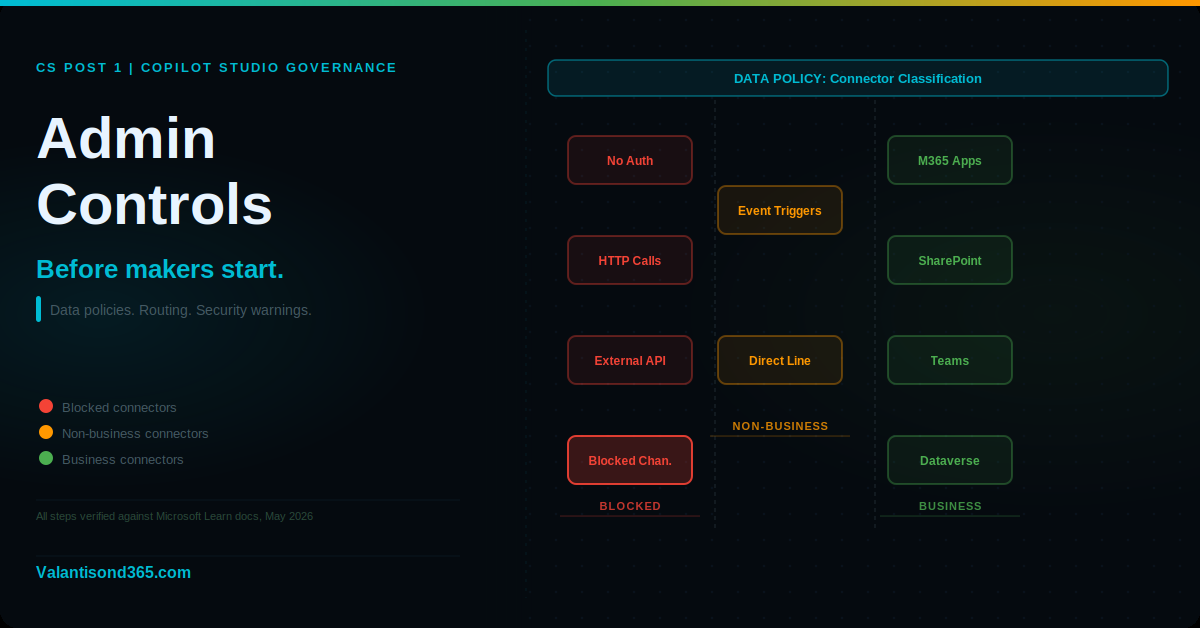
Post 1: Admin Controls Before Makers Start
Data policies, environment routing, the maker security warning, and governing autonomous agents, covering all the controls an admin needs to configure before anyone builds an agent.
Why this post matters
In large enterprises, the governance controls covered in this post are set up before any maker opens Copilot Studio. They are not optional extras added after an incident. They are the baseline that defines what makers are allowed to build, where they are allowed to build it, and what happens if they try to publish something that violates policy.
Copilot Studio agents can connect to hundreds of data sources and services, including external non-Microsoft services. Without data policies in place, a maker can publish an agent that connects to public websites, sends data outside your organisation, or allows anyone with a link to interact with it, all without any warning or block.
This post covers four controls that admins configure before makers start:
- Data policies: define which connectors agents are allowed to use and which are blocked.
- Environment routing: automatically direct makers to governed personal developer environments instead of the shared default environment.
- Maker security warning: understand when Copilot Studio warns makers before publishing and what those warnings cover.
- Autonomous agent governance with data policies: apply data policies specifically to agents that run without user interaction.
Audience: Power Platform administrators and Microsoft 365 consultants setting up Copilot Studio governance for the first time or auditing an existing deployment.
TL;DR
- Data policies are configured in the Power Platform admin center. Path: Power Platform admin center > Security > Data and privacy > Data policies.
- Connectors are classified as Business, Non-business, or Blocked. Data cannot flow between connectors in different groups.
- Since early 2025, data policy enforcement is in effect for all tenants. Exemptions are no longer supported.
- Environment routing automatically places new makers in their own personal developer environment instead of the default environment. Path: Power Platform admin center > Manage > Tenant settings > Environment routing.
- Copilot Studio runs an automatic security scan before publishing. It warns makers when they have disabled authentication, used maker-provided credentials, or shared an agent with everyone in the organisation.
- Autonomous agents are subject to the same data policies as all other agents. No separate configuration is needed, but specific connectors control event trigger access.
Step 1: Configure Data Policies
Why data policies matter first
A data policy is the boundary that defines what an agent can and cannot connect to. Before any maker builds anything, the admin team needs to decide: which connectors are allowed for business use, which are non-business, and which are blocked entirely.
Copilot Studio supports data policy enforcement in real time. When a maker tries to publish or use an agent that violates a data policy, they see an error immediately. This is not a post-deployment audit. It is a build-time control.
| Confirmed as: documented behaviour. “Since early 2025, data policy enforcement is in effect for all tenants… Agent data policy enforcement exemption is no longer supported. Agents that were previously exempted from data policy enforcement are all subject to enforcement.” Source: Reference 1. |
Admin path
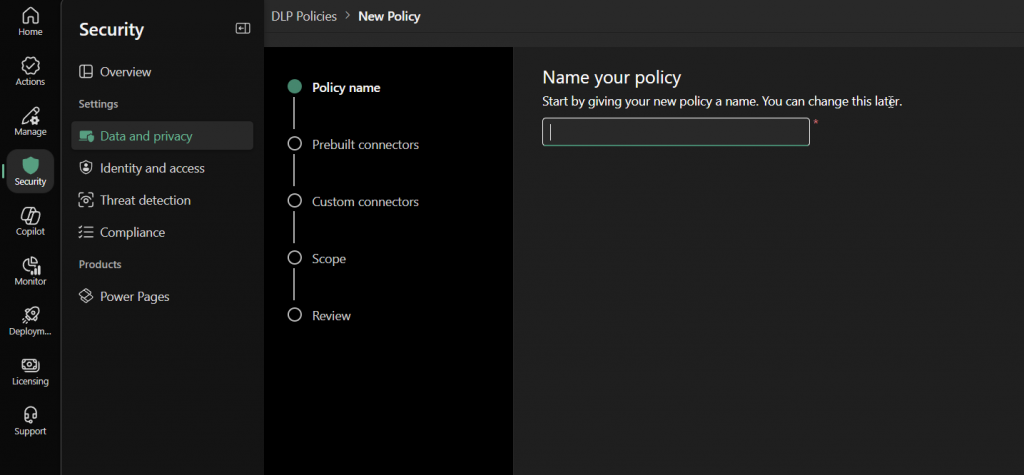
Power Platform admin center > Security > Data and privacy > Data policies > New policy
Connector classification
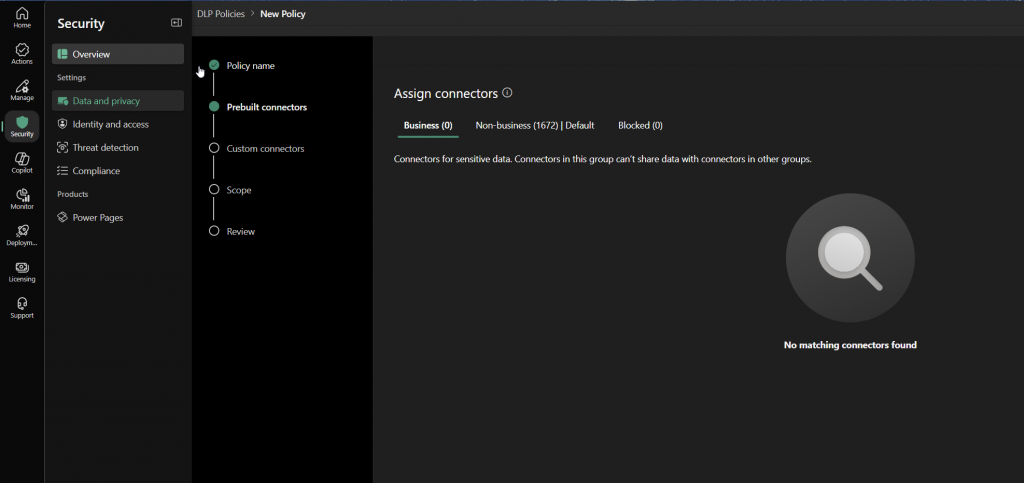
In a data policy, every Copilot Studio connector is placed into one of three groups:
- Business: connectors allowed to share data with each other. Typically your organisational data sources.
- Non-business: connectors that are kept separate from business data. Connectors introduced after 2019 land here by default if no explicit grouping is defined.
- Blocked: connectors that agents are not permitted to use at all.
| Default group risk. Connectors introduced after 2019, including “Chat without Microsoft Entra ID authentication in Copilot Studio” and “Direct Line channels in Copilot Studio”, land in the Non-business group by default. In many organisations, Non-business connectors are blocked. If a connector is blocked and a maker tries to use it, their agent will not publish. Review your default group setting before your first makers start building. Source: Reference 1. |
Common use cases for data policies in Copilot Studio
The following use cases are documented and verified from the Microsoft Learn data policy page. Each maps to a specific connector or connector group.
Require user authentication
By default, new agents use “Authenticate with Microsoft” authentication. A maker can switch this to “No authentication,” which allows anyone with the link to interact with the agent. To prevent this, block the connector “Chat without Microsoft Entra ID authentication in Copilot Studio” in your data policy.
Once this policy is in place, makers can only use “Authenticate with Microsoft” or “Authenticate manually” for user authentication. They cannot publish an unauthenticated agent.
| Confirmed as: documented behaviour. “To prevent agent makers from publishing agents that don’t require authentication, configure a data policy that blocks the connector Chat without Microsoft Entra ID authentication in Copilot Studio.” Source: Reference 1. |
Block specific knowledge sources
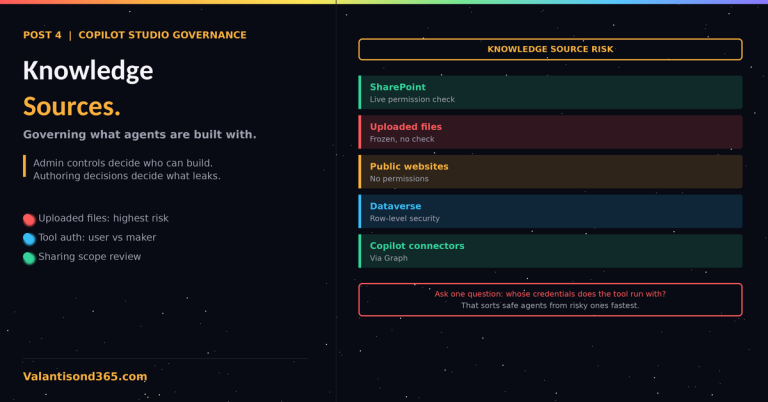
Use data policies to control which knowledge sources makers can add to agents. You can block SharePoint, public websites, or file uploads as knowledge sources at the environment or tenant level. This is relevant when you need to limit agents to specific approved data sources and prevent connections to public web content or unmanaged SharePoint sites.
Block Power Platform connectors as tools
Agents can use Power Platform connectors as tools to take actions: sending emails, creating records, calling APIs. To block specific connectors from being used as tools in agents, add those connectors to the Blocked group in your data policy.
Block HTTP requests
Agents can make custom HTTP requests to any endpoint, which creates a risk of data exfiltration to arbitrary URLs. Block the “HTTP with Microsoft Entra ID” and “HTTP” connectors in your data policy to prevent agents from making custom HTTP calls.
Block publishing to specific channels
Copilot Studio agents can publish to channels including Teams, websites, and Direct Line. Use data policies to block specific channels. For example, block “Direct Line channels in Copilot Studio” to prevent agents from being deployed outside approved Microsoft 365 channels.
Block event triggers for autonomous agents
Autonomous agents use event triggers to act without a user starting a conversation. Each trigger type, such as “When a new email arrives” or “When a new Teams message is added”, has a corresponding connector in Copilot Studio. To govern which autonomous triggers agents in a specific environment can use, block the corresponding connectors in the data policy for that environment.
| Confirmed as: documented behaviour. Autonomous agents are subject to the same data policies as all other agents. Blocking the connector for a specific trigger type prevents agents in that environment from using that trigger. Source: Reference 1. |
How to configure a data policy
- Sign in to the Power Platform admin center at https://admin.powerplatform.microsoft.com.
- In the left navigation, select Security.
- Select Data and privacy, then select Data policies.
- Select New policy.
- Enter a name for the policy.
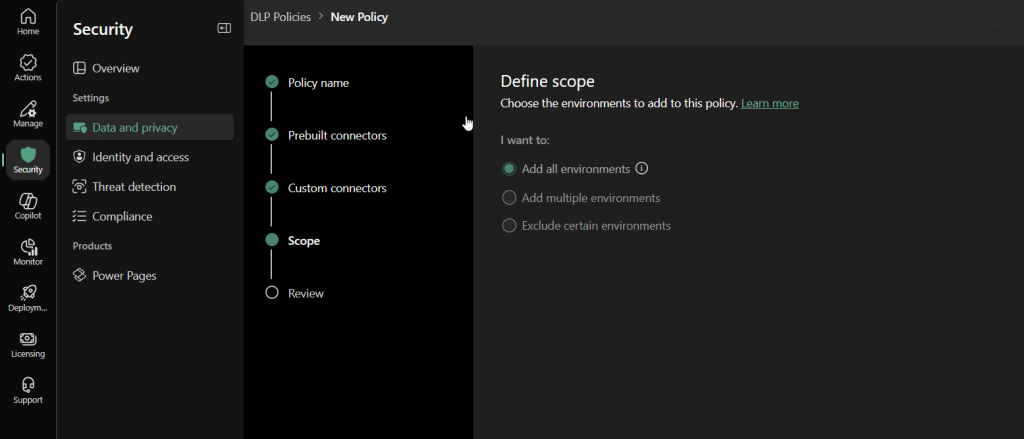
- Choose the scope: apply to all environments (tenant-level) or to specific environments.
- For each Copilot Studio connector, assign it to the Business, Non-business, or Blocked group.
- Save the policy.
| Tenant admin or Environment Admin role required. Only tenant admins or users with the Environment Admin role can create and manage data policies. Makers cannot create or modify data policies. Source: Reference 1. |
Step 2: Configure Environment Routing
What environment routing does
When a new maker visits Copilot Studio for the first time, they land in the default environment unless environment routing is configured. The default environment is shared across your entire tenant, which creates a risk: makers experimenting with agents, connectors, and data sources all work in the same shared space.
Environment routing solves this by automatically provisioning each new maker their own personal developer environment the first time they sign in. This environment is isolated to that maker, similar to how OneDrive gives each user their own personal storage. Other users cannot access the maker’s personal developer environment.
| Confirmed as: documented behaviour. “Environment routing is a premium governance feature. This feature allows Power Platform admins to automatically direct new or existing makers into their own personal developer environments when they visit Copilot Studio, Power Apps, Power Automate, or Power Automate for desktop.” Source: Reference 2. |
Admin path
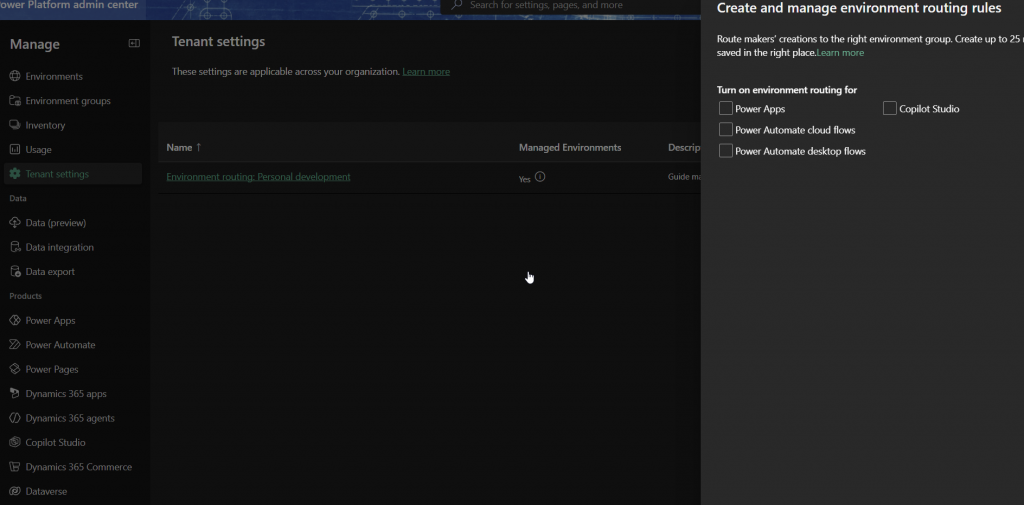
Power Platform admin center > Manage > Tenant settings > Environment routing
How to configure environment routing
- Sign in to the Power Platform admin center.
- In the navigation pane, select Manage.
- Select Tenant settings.
- Select Environment routing.
- In the “Turn on environment routing for” section, select the product portals to enable routing for. For Copilot Studio governance, select Copilot Studio at minimum.
- Select New rule to define a routing rule.
- Name the rule, apply it to Everyone or specific security groups, and select the environment group to route makers into.
- Save.
What personal developer environments inherit
Personal developer environments created through environment routing are Managed Environments by default. They inherit the following preconfigured settings:
- Sharing limits: set to exclude sharing with security groups, preconfigured to share with a maximum of five individuals.
- Solution Checker: set to Warn.
- Usage insights: enabled.
- The developer environment inherits existing tenant-level data policies. No specific data policies are assigned to the developer environment separately.
| Environment routing is off by default. Environment routing must be explicitly turned on. New Copilot Studio deployments do not get environment routing automatically. If you are deploying Copilot Studio to makers now and environment routing is not configured, all new makers are landing in the default environment. Source: Reference 2. |
Step 3: Understand the Maker Security Warning
What the security scan does
Copilot Studio runs an automatic security scan before a maker publishes an agent. This scan does not block publishing. It warns the maker that they have changed a security-relevant default setting. The maker can still publish, but they see a warning first.
The scan runs automatically. Makers do not need to trigger it. It is a build-time check, not a post-deployment audit.
What triggers a warning
Three specific settings trigger a security warning when changed from their defaults:
- Authentication mode set to “No authentication“: the default is “Authenticate with Microsoft.” If a maker changes this to “No authentication,” the scan warns them that anyone with the link can interact with the agent.
- Credentials set to “Maker-provided credentials” for connectors or flows: the default is “End user credentials.” If a maker changes this so the agent runs connectors using the maker’s own credentials rather than the end user’s, the scan warns them. This is relevant because maker-provided credentials mean the agent can access data the end user does not have permission to see.
- Agent shared with everyone in the organisation: the default is no sharing. If a maker shares the agent with the entire organisation, the scan warns them.
| Confirmed as: documented behaviour. These are the three exact scenarios documented in the Copilot Studio security scan page. Source: Reference 3. |
| The security warning is not a data policy. The maker security warning does not prevent publishing. It is a warning, not a block. If you need to prevent makers from publishing agents without authentication, you must configure a data policy that blocks the relevant connector. The security warning and the data policy serve different purposes. Source: References 1 and 3. |
Step 4: Governing Autonomous Agents with Data Policies
Autonomous agents run without a user starting a conversation. They are triggered by events such as a new email arriving, a new Teams message being added, or a scheduled time. In Copilot Studio, these triggers are implemented as connectors.
From a data policy perspective, autonomous agents are not a special case. The same data policies that apply to conversational agents also apply to autonomous agents. The admin control for autonomous agent governance is the same connector-based blocking described in Step 1.
To govern which autonomous triggers are permitted in an environment:
- Identify the connector that corresponds to each trigger type. For example, the “When a new email arrives (V3)” trigger corresponds to the Office 365 Outlook connector.
- In the data policy for the relevant environment, move the connector to the Blocked group.
- Makers in that environment will not be able to use that event trigger in any agent.
To restrict autonomous agents entirely while allowing conversational agents, block all event trigger connectors for the target environment while leaving conversational connectors in the Business or Non-business group.
| Confirmed as: documented behaviour. Autonomous agent event triggers are governed through the same data policy connector framework as all other agent connectors. Source: Reference 1. |
Validate
Check 1: Data policy enforces at publish time
- Create a test agent in an environment covered by a data policy.
- Add a connector that is in the Blocked group.
- Attempt to publish the agent.
- Confirm the maker sees an error and the agent does not publish.
| Expected result: The maker sees a data policy violation error at publish time. The agent cannot be published while the blocked connector is in use. |
Check 2: Environment routing places new makers in developer environment
- Sign in with a new user account that has not previously visited Copilot Studio.
- Open Copilot Studio.
- Confirm the user is placed in their personal developer environment, not the default environment.
- In the Power Platform admin center, confirm the personal developer environment appears under Environments and is a Managed Environment.
| Expected result: The new maker lands in their own personal developer environment. The default environment is not used. |
Check 3: Security warning appears when authentication is disabled
- Open an agent in Copilot Studio.
- Go to Settings > Security > Authentication.
- Change the authentication to No authentication.
- Attempt to publish.
- Confirm the security warning appears before publishing completes.
| Expected result: Copilot Studio displays a security warning about the No authentication setting. The maker must acknowledge it before continuing. |
Troubleshooting
| Symptom | Most likely cause | Fix |
| A maker can publish an agent using a connector that should be blocked. | The data policy has not been applied to the environment the maker is building in, or the connector is in the Non-business group rather than Blocked. | Check which environments the data policy covers. Confirm the connector is in the Blocked group, not Non-business. Source: Reference 1. |
| New makers are still landing in the default environment after environment routing is enabled. | Environment routing was enabled but no routing rule was defined, or the rule does not apply to the security group the new maker belongs to. | Check the routing rules in Power Platform admin center > Manage > Tenant settings > Environment routing. Confirm at least one rule applies to the new maker’s account. Source: Reference 2. |
| A maker does not see the security warning when publishing without authentication. | The agent already had authentication disabled before the current session, or the warning was previously acknowledged. | The security warning appears when the setting is changed in the current session. If authentication was already disabled before opening the agent, the warning may not reappear. Configure a data policy to block unauthenticated agents as a hard control. Source: Reference 3. |
| An autonomous agent is still able to use a blocked event trigger. | The data policy blocking the trigger connector has not been applied to the environment where the agent was created. | Check the scope of the data policy. Confirm it includes the environment where the autonomous agent is deployed. Source: Reference 1. |
| Maker sees an error when trying to add a skill to an agent. | A data policy is blocking the Microsoft Copilot Studio connector, which also controls skills access. | Admin must add the skill to the allow list in the data policy, or update the policy to permit skills in that environment. Source: Reference 1. |
Lessons Learned
These come from working with Copilot Studio governance in enterprise tenants.
- Configure data policies before the first maker signs in. Once agents are built using connectors that later get blocked, makers get immediate errors and start raising support tickets. The conversation about which connectors are allowed needs to happen before anyone starts building, not after.
- The default environment is almost always the wrong place for production agents. Without environment routing, every maker lands in the default environment and every agent they build is visible to other environment admins. Put environment routing in place from day one and reserve the default environment for admin use only.
- Non-business is not the same as Blocked. A connector in the Non-business group is not blocked. It is just kept separate from Business connectors. Admins who assume Non-business means blocked end up with agents connecting to services they thought were prevented. Check the default group setting for each new connector that appears in your tenant.
- The maker security warning is informational, not a control. If your governance requirement is that agents must always require authentication, a data policy blocking unauthenticated connectors is the enforceable control. The warning alone can be clicked past.
- Autonomous agent governance requires no special configuration beyond data policies. Many admins assume autonomous agents need a separate governance layer. They do not. The same connector-based data policies that govern conversational agents also govern autonomous agents. Block the event trigger connectors in environments where autonomous agents are not permitted.
References
All links verified June 2026.
1. Configure data policies for agents Full documentation for Copilot Studio data policies including connector classification, common use cases, and step-by-step policy configuration. Covers autonomous agent governance via event trigger connector blocking.
https://learn.microsoft.com/en-us/microsoft-copilot-studio/admin-data-loss-prevention
2. Environment routing Documents the environment routing feature, how personal developer environments are provisioned, what settings they inherit, and the admin path to configure routing rules.
https://learn.microsoft.com/en-us/power-platform/admin/default-environment-routing
3. Automatic security scan in Copilot Studio Documents the three settings that trigger a maker security warning at publish time: No authentication, Maker-provided credentials, and sharing with everyone in the organisation.
https://learn.microsoft.com/en-us/microsoft-copilot-studio/security-scan
4. Work with Power Platform environments in Copilot Studio Overview of Power Platform environments in Copilot Studio including environment types, creation, and the relationship between Copilot Studio and the Power Platform admin center.
https://learn.microsoft.com/en-us/microsoft-copilot-studio/environments-first-run-experience