Post 13: Governing Copilot Agents
How to control which agents are allowed, audit agent interactions, and apply retention and eDiscovery to agent-generated content.
Why this post matters
Agents are not just a feature. They act like apps. They can access data, take actions, send messages, and generate outputs autonomously. If an agent is approved without a proper review of its permissions and data access, it can create the same governance problems as a badly configured SharePoint site, but faster and at scale.
This post covers the governance guardrails for both prebuilt Microsoft agents and custom agents built in Copilot Studio. Deep agent development is out of scope. This is about how to control, audit, and govern what agents do, not how to build them.
Audience: Microsoft 365 administrators, compliance teams, and consultants governing a Copilot deployment that includes agents.
TL;DR
- Control which agents are allowed: Microsoft 365 admin center > Agents.
- Review agent permissions and terms before approving. Document your approval flow.
- Audit agent interactions: Microsoft Purview portal > Solutions > Audit, filter by CopilotInteraction and AgentId or AgentName.
- Apply retention and eDiscovery to agent interactions the same way as base Copilot: Exchange mailbox search with Type = Copilot interactions.
- Restrict who can publish or install agents to prevent unapproved agents reappearing.
Scope Note
This post focuses on governance guardrails: which agents are allowed, what they can access, and how their activity is logged. It does not cover how to build agents in Copilot Studio. That is a separate topic outside the scope of this governance series.
Step 1: Control Which Agents Are Allowed
Admin path
Microsoft 365 admin center > Agents
The Agents section is where you manage all agents available to users in your Microsoft 365 tenant. This includes Microsoft-published agents, external partner agents, and agents built internally with Copilot Studio. This section was formerly named Integrated apps and was renamed as part of the Copilot Control System in April 2026.
- Sign in to the Microsoft 365 admin center at https://admin.microsoft.com.
- Go to the Agents section in the Microsoft 365 admin center.
- Select the Copilot agents tab to filter specifically for agents.
- Review the list of available and installed agents.
- For each agent you want to evaluate, select it and review the permissions it requests, the data it can access, and the terms of service.
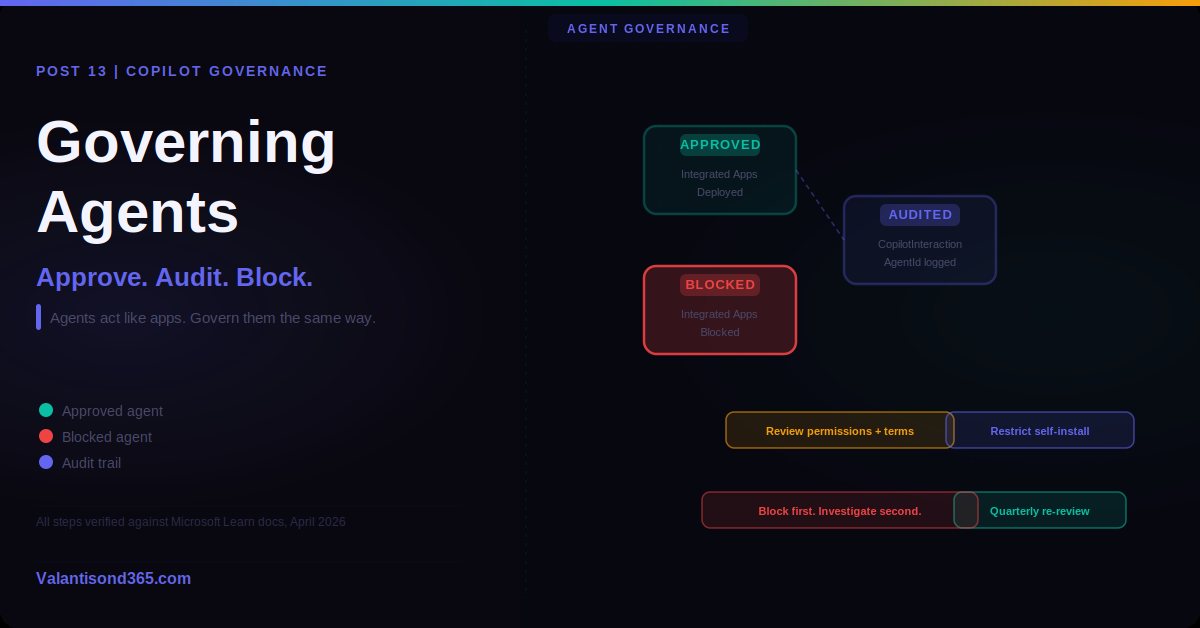
- To block an agent, select Block app.
- To approve an agent for your organisation, select Deploy.
- To restrict who can install agents, go to the Agents section > User permissions and set policies that limit installation to specific groups or require admin approval.
| Document your approval process before agents go live. An agent approval process that exists only in someone’s head is not a governance control. Create a simple decision record for each approved agent: what it does, what data it accesses, who approved it, and when it was last reviewed. Review the inventory monthly as part of your operations cadence from Post 12. |
| Confirmed as: documented admin path. The Agents section in the Microsoft 365 admin center is the authoritative location for managing Copilot agents. Source: Reference 1. |
Least Privilege for Agents
When reviewing an agent before approval, the most important question is: does this agent need the permissions it is requesting? Apply the same least privilege principle you would to any app.
- Check which Microsoft Graph permissions the agent requests. Read access to all mail or all files is a wide scope. Understand whether those permissions are necessary for the agent’s stated purpose.
- Check whether the agent can write or delete data, not just read it. Write access amplifies risk significantly.
- Check whether the agent can access content outside the user’s permissions. A well-governed agent should only be able to access what the user can access. Verify this claim in the agent’s terms or permission documentation.
- For custom agents built in Copilot Studio, review the knowledge sources and actions configured in the agent. Ensure they are scoped to the minimum necessary content.
Step 2: Audit Agent Interactions
Admin path
Microsoft Purview portal > Solutions > Audit
Agent interactions are logged as CopilotInteraction events in the Purview unified audit log, the same record type as base Copilot interactions. The AgentId and AgentName fields in the record identify whether an agent was involved.
- Sign in to the Microsoft Purview portal.
- Go to Solutions > Audit.
- Set the date range.
- In Activities – operations names, enter CopilotInteraction.
- Run the search.
- In the results, filter or look for records where AgentId and AgentName are populated. These are agent interactions.
- Open a record to review: AgentId (which agent), AgentName (friendly name), AccessedResources (what the agent accessed), AppHost (where the interaction happened).
- Export results to CSV if you need to filter by AgentId across a large result set.
| Confirmed as: documented behaviour. Agent interactions log under CopilotInteraction with AgentId and AgentName fields populated. AgentId for Copilot Studio declarative agents follows the format CopilotStudio.Declarative followed by the agent GUID. Source: Reference 2. |
| AppIdentity filtering requires export. If you need to filter by AppIdentity value to identify a specific agent’s interactions across all users, the Microsoft Learn documentation recommends searching and exporting all CopilotInteraction logs first, then filtering by AppIdentity in the exported CSV. The UI does not support direct AppIdentity filtering. Source: Reference 2. |
Step 3: Retention and eDiscovery for Agent Interactions
Agent interaction compliance copies are stored in the same location as base Copilot interaction copies: a hidden folder in the user’s Exchange mailbox. The governance approach is identical.
- Retention: any retention policy that covers Exchange mailboxes will cover agent interaction compliance copies. No separate configuration is needed if your Exchange mailbox retention is already in place.
- eDiscovery holds: add the custodian’s Exchange mailbox to the hold. Agent interaction content is included automatically.
- eDiscovery search: use the Type = Copilot interactions search condition in Exchange mailbox searches. This returns both base Copilot and agent interaction content.
- For content that the agent accessed (files in SharePoint or OneDrive), hold and search those locations as standard eDiscovery.
| Confirmed as: documented behaviour. Agent interaction compliance copies are stored in user mailboxes and discoverable using the Type = Copilot interactions condition. Source: Reference 3. |
Validate
- In the Agents section, confirm that only approved agents appear in the deployed list.
- Run a Copilot audit search and filter results for records where AgentId is populated. Confirm agent interactions are visible.
- Run an eDiscovery search with Type = Copilot interactions for a user who has used an agent. Confirm agent interaction content is returned.
| Expected result: Only approved agents appear in the deployed list. Agent interactions are visible in the audit log with AgentId and AgentName populated. eDiscovery search returns agent interaction content from the user’s mailbox. |
Troubleshooting
| Symptom | Most likely cause | Fix |
| Unapproved agents are appearing for users. | Users have permission to install agents themselves, or a previously approved agent was not blocked after a review decision. | Restrict self-install permissions in the Agents section > User permissions in the Microsoft 365 admin center. Block the unapproved agent and document the action. |
| Agent interactions are not visible in the audit log. | Auditing is not enabled, or the agent is not generating CopilotInteraction audit events. | Confirm auditing is on. Check whether the agent is built on Microsoft infrastructure. Agents built on non-Microsoft infrastructure may not log under CopilotInteraction. Source: Reference 2. |
| Agent appears to be accessing more data than expected. | Agent permissions were not reviewed thoroughly at approval time, or the agent has been updated since approval. | Review the agent’s current permissions in the Agents section. Check AccessedResources in recent audit records. If the scope has expanded, consider blocking and re-evaluating the agent. |
Lessons Learned
- An agent approval is not a one-time decision. Agents get updated. Their permissions can change. Build a quarterly review of all approved agents into your operations cadence from Post 12. If an agent’s permissions have expanded since approval, re-evaluate it.
- Least privilege matters more for agents than for users. A user who accesses too much content creates a compliance risk. An agent that accesses too much content can create that same risk at automation scale. Review agent permissions with the same rigour you would apply to a service account.
- Block first, investigate second. If an unapproved agent appears in your tenant and you cannot immediately determine how it got there, block it first. The investigation can happen with the agent blocked. Leaving an unapproved agent running while you investigate gives it more time to access data.
- Custom agents need governance too. Internally built Copilot Studio agents are often assumed to be safe because they were built by your own team. They still need a documented approval, a review of their knowledge sources and actions, and inclusion in your monthly agent inventory review.
References
All links verified Mai 2026.
1. Manage Microsoft 365 Copilot agents in the Microsoft 365 admin center Documents the Agents section admin path and the controls for approving, blocking, and restricting agent installation.
2. Audit logs for Copilot and AI applications Documents the CopilotInteraction schema including AgentId, AgentName, and AppIdentity fields for agent audit records.
https://learn.microsoft.com/en-us/purview/audit-copilot
3. Use Microsoft Purview to manage data security and compliance for Microsoft 365 Copilot Covers how agent interaction compliance copies are stored in Exchange mailboxes and are discoverable with the Type = Copilot interactions condition.
https://learn.microsoft.com/en-us/purview/ai-m365-copilot