Post 9: Purview Audit for Copilot
How to search the unified audit log for Copilot interactions, what the key fields mean, and how to export records.
Why this post matters
When something goes wrong with Copilot in a client tenant, the first question is always: what did the user ask, what did Copilot access, and what did it return? The unified audit log in Microsoft Purview is where those answers live. Without knowing how to search it, filter it, and read the records, you are working blind.
The audit log also proves accountability. Regulatory frameworks and internal policies increasingly require organisations to demonstrate that AI tool usage is logged and that sensitive data access is traceable. The Copilot audit records give you that evidence.
This post covers how to run a Copilot audit search, what the most important fields in a CopilotInteraction record mean, how to handle non-Microsoft AI app auditing, and how to export results.
Audience: Compliance administrators, security administrators, and consultants managing a Copilot governance programme.
TL;DR
- Admin path: Microsoft Purview portal > Solutions > Audit.
- Operation name to filter by: CopilotInteraction. Friendly name: Interacted with Copilot.
- Key fields in a record: AccessedResources (what Copilot read), AppHost (where it happened), AgentId/AgentName (if an agent was involved), PolicyDetails (if access was blocked).
- Non-Microsoft AI app auditing uses pay-as-you-go billing with 180-day retention. Microsoft AI apps including Microsoft 365 Copilot are included in Audit Standard.
- Export results to CSV from the search results page. The CSV requires formatting before use.
- Audit Standard retains logs for 180 days. Audit Premium (E5) extends this to one year.
Admin Path
Microsoft Purview portal > Solutions > Audit
If the Audit solution card is not visible on the home screen, select View all solutions and find Audit in the Core section.
Running a Copilot Audit Search
- Sign in to the Microsoft Purview portal at https://purview.microsoft.com.
- Go to Solutions > Audit.
- On the Search tab, set the Start date and End date for your search. The maximum range is 90 days per search.
- In the Activities – operations names field, enter CopilotInteraction to filter specifically for Copilot interactions. Alternatively use the Activities – friendly names field and select Interacted with Copilot.
- To also capture non-Microsoft AI app interactions in scope, add ConnectedAIAppInteraction or AIAppInteraction as additional operation names.
- In the Users field, enter specific user UPNs to narrow the results, or leave blank to return all users.
- In the Record types field, select CopilotInteraction from the dropdown.
- Select Search.
| Targeting by AppHost. If you need to filter by where the Copilot interaction happened, you cannot filter by AppHost directly in the search UI. Run a broad CopilotInteraction search, export the results to CSV, then filter the AppHost column in Excel. Common AppHost values: BizChat (Microsoft 365 Copilot Chat), Word, Teams, SharePoint, Outlook. Source: Reference 1. |
Reading a CopilotInteraction Record
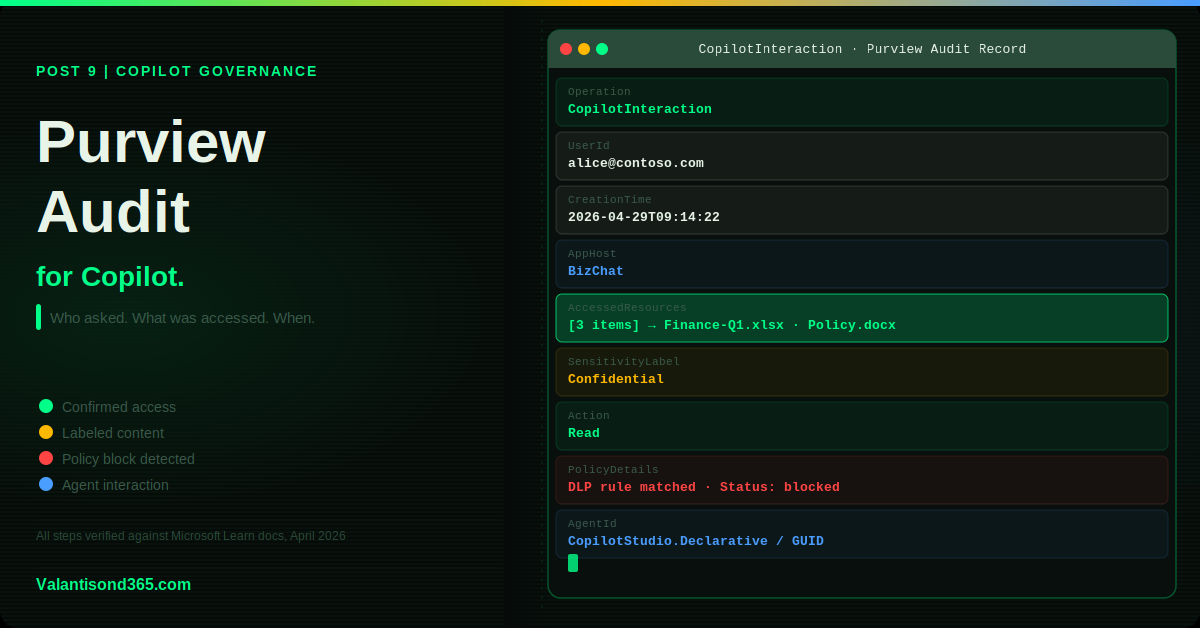
Open any result to see the full audit record. The most important fields are:
AccessedResources
This is the most important field for governance. It lists every resource Copilot accessed to generate the response. For each resource it shows:
- Name: the file name or resource name Copilot accessed.
- SiteUrl: the full URL of the resource. Use this to identify exactly which SharePoint site or OneDrive location was accessed.
- Type: the file type (docx, pptx, xlsx, etc.) or resource type.
- SensitivityLabelId: the ID of the sensitivity label on the resource, if one exists. This is how you trace whether Copilot accessed labeled content.
- Action: what Copilot did with the resource. Common values are Read, Create, and Modify.
- Status: whether the access was a success or failure.
- PolicyDetails: populated when a policy blocked or restricted Copilot’s access to a resource. Shows the PolicyId, PolicyName, and the rules that applied. If you see PolicyDetails with a failure status, it means a DLP or access policy stopped Copilot from returning that content.
| Confirmed as: documented field definitions. All AccessedResources sub-fields are documented in the Microsoft Learn audit log schema for Copilot. Source: Reference 1. |
AppHost
Identifies where the interaction happened. BizChat means the user was in Microsoft 365 Copilot Chat. Word, Teams, SharePoint, Outlook, and others indicate the host app. This is useful for understanding usage patterns and scoping investigations to specific apps.
AgentId and AgentName
Populated when the interaction involved an agent rather than base Copilot. AgentId contains a structured value that identifies the agent type and ID, for example CopilotStudio.Declarative followed by the agent GUID. AgentName is the readable name of the agent. If these fields are empty, the interaction was with base Microsoft 365 Copilot.
Messages
Contains the ThreadId and MessageId for the interaction. The audit log does not include the full text of prompts or responses. The full text is available through Microsoft Purview DSPM for AI, not through the Audit solution directly.
| Important distinction: the Audit solution shows metadata about the interaction (who, when, where, what was accessed). It does not show the full prompt or response text. For prompt and response content, use DSPM for AI or eDiscovery with the Type = Copilot interactions search condition. Source: Reference 1. |
Non-Microsoft AI App Auditing
If your organisation uses non-Microsoft AI applications and you want to audit interactions with those apps, the billing model is different from Microsoft Copilot.
- Non-Microsoft AI app audit logs use pay-as-you-go billing. They are not included in your Microsoft 365 subscription.
- These logs are retained for 180 days.
- They appear under the AIAppInteraction record type or the AIApp workload.
- Some scenarios appear under ConnectedAiAppInteraction, which is also part of pay-as-you-go billing.
- To capture these logs, pay-as-you-go features must be enabled in your tenant.
| Confirmed as: documented behaviour. “Audit logs for non-Microsoft AI applications use pay-as-you-go billing. This billing model provides user and admin interaction audit logs that the system retains for 180 days.” Microsoft AI apps including Microsoft 365 Copilot are included in Audit Standard and are not subject to pay-as-you-go charges. Source: Reference 1. |
Retention and Licensing
- Audit Standard (included with M365 E3): 180-day log retention.
- Audit Premium (requires E5 or E5 Compliance add-on): 1-year retention, plus additional audit activities not available in Standard.
- Audit log retention policies can extend retention beyond the default. Configure via Microsoft Purview portal > Audit > Audit retention policies.
| Confirm auditing is enabled before you need it. Auditing must be enabled in your tenant before any records are generated. Go to Microsoft Purview portal > Audit. If auditing is off, you will see a prompt to turn it on. Records are not retroactively created. If auditing was not enabled when the interactions happened, there are no records to find. Source: Reference 1. |
Exporting Results
- After your search completes, select Export from the search results.
- Choose Download all results.
- The file downloads as a compressed CSV.
- Open the CSV in Excel. The AuditData column contains a JSON string with all the record details including AccessedResources.
- Use Excel’s Data > Text to Columns or Power Query to parse the AuditData JSON into readable columns.
| The CSV requires post-processing. The exported CSV is not immediately readable. The key fields including AccessedResources and AppHost are nested inside the AuditData JSON column. You will need to parse that JSON to make the data usable. Source: Reference 1. |
Validate
- Run a CopilotInteraction search for a known user over the last 7 days.
- Confirm results appear and that the AccessedResources field shows file names and URLs.
- Open one record and confirm all key fields are populated: AppHost, AccessedResources, CreationTime, UserId.
- Export results and confirm the CSV opens and contains AuditData with parseable JSON.
| Expected result: Results are returned for the user. Each record shows what Copilot accessed, where the interaction happened, and when. The export produces a CSV with an AuditData column containing the interaction details. |
Troubleshooting
| Symptom | Most likely cause | Fix |
| Search returns no results. | Auditing is not enabled, or the time range does not include interactions, or filters are too narrow. | Check that auditing is on. Widen the date range. Confirm the operation name is CopilotInteraction. Remove the Users filter and try for all users first. |
| AccessedResources is empty in the record. | The interaction happened but Copilot did not access any external resources, or the record is from a Copilot experience that does not log resources. | This is expected for some interaction types. It does not mean the interaction was not logged. Check AppHost and Messages fields to confirm what happened. |
| Non-Microsoft AI app interactions are not appearing. | Pay-as-you-go auditing is not enabled, or the filters do not include AIAppInteraction. | Enable pay-as-you-go features in your tenant. Add AIAppInteraction or ConnectedAIAppInteraction to your search operation names. |
Lessons Learned
- Enable auditing before rollout, not after. You cannot backfill audit logs. If Copilot was already in use before auditing was turned on, those interactions are gone. Check auditing status as part of your pre-rollout checklist.
- AccessedResources with PolicyDetails is a signal worth investigating. When PolicyDetails is present and Status is failure, it means something tried to stop Copilot from accessing content. That could be a DLP policy working correctly, or it could reveal a gap in your policy coverage.
- Do not try to read raw JSON from the CSV in Excel. Use Power Query or a script to parse the AuditData JSON. Trying to read nested JSON in a CSV cell by hand causes errors and missed data.
- The Audit log and DSPM for AI answer different questions. The Audit log tells you what happened and what was accessed. DSPM for AI shows you prompt and response content. Use both, not one or the other.
References
All links verified Mai 2026.
1. Audit logs for Copilot and AI applications Primary reference covering all audit record fields, operation names, pay-as-you-go billing for non-Microsoft AI apps, and the AccessedResources schema.
https://learn.microsoft.com/en-us/purview/audit-copilot
2. Search the audit log in Microsoft Purview Step-by-step guidance for running audit searches, filtering, and exporting results.
https://learn.microsoft.com/en-us/purview/audit-new-search
3. Use Microsoft Purview to manage data security and compliance for Microsoft 365 Copilot Overview of all Purview capabilities for Copilot including audit, DSPM for AI, and the distinction between Audit and content search for prompt/response text.
https://learn.microsoft.com/en-us/purview/ai-m365-copilot