Why You’re Hitting OpenAIModelTokenLimit (And How to Fix It)
You’ve set up the Outlook.Read.Events connector in your Copilot Studio agent. You test it by asking the bot to find or update a specific meeting. You even tell it the attendee name and the subject. And then this lands in your chat:
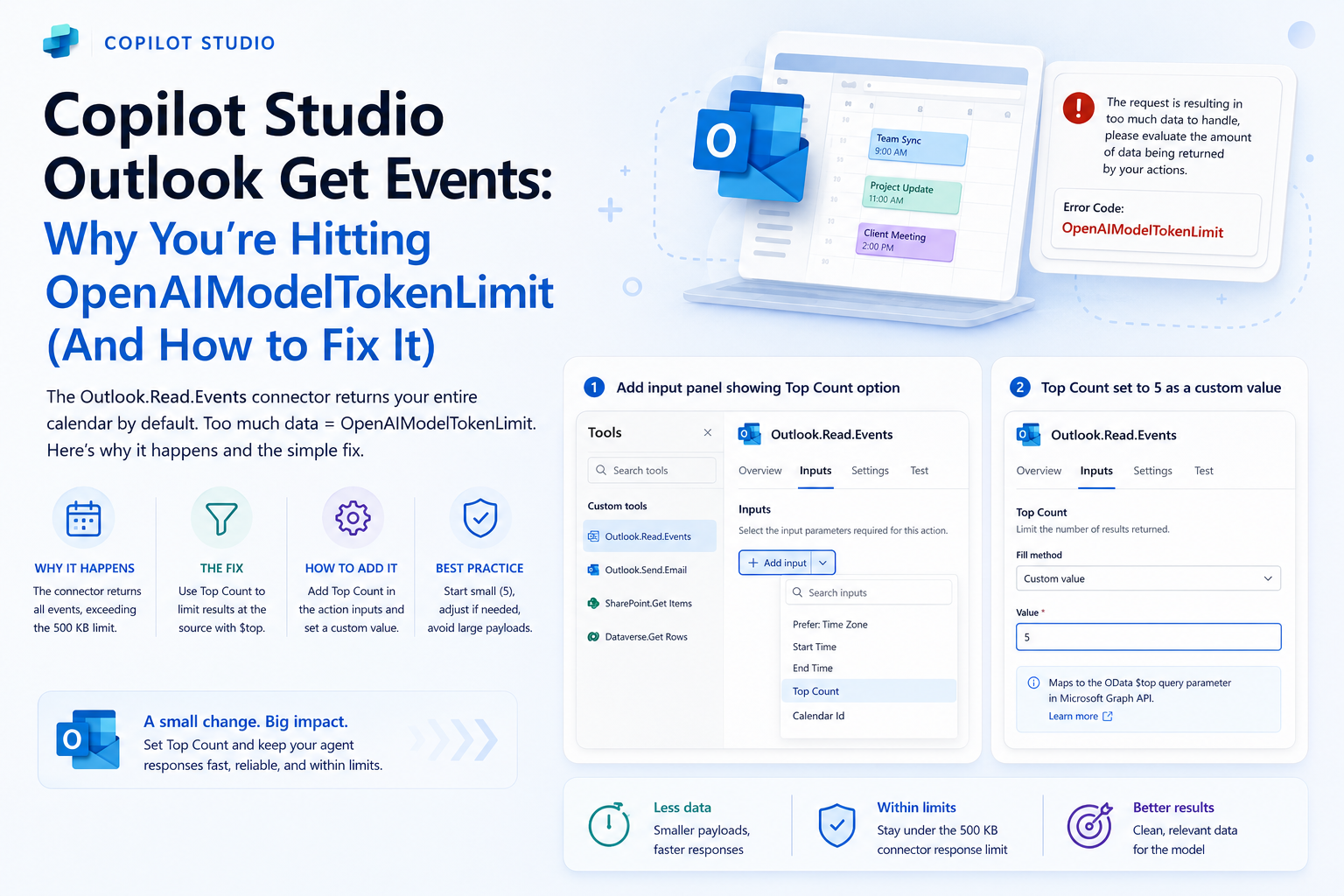
“The request is resulting in too much data to handle, please evaluate the amount of data being returned by your actions.” Error Code: OpenAIModelTokenLimit
Your first instinct is probably to be more specific in your prompt. Maybe if you describe the meeting better, the agent will narrow it down. That does not work. This post explains exactly why, and what actually fixes it.
Why the error happens
When your agent calls the Outlook.Read.Events connector, it fires a request to the Microsoft Graph API to retrieve calendar events. By default, that call returns your entire calendar. Every past and upcoming event, with all its metadata: subject, body, attendees, location, timestamps, recurrence rules, online meeting links, and more.
That full payload hits the Copilot Studio connector response limit, which Microsoft documents as 500 KB. When the response exceeds that, Copilot Studio cannot pass it to the underlying AI model for processing, and you get the token limit error.
The important thing to understand: the connector fetches all that data first, then hands it off to the model. Your prompt (“find the meeting called Tariff with bi.cz@siemens.com”) is instructions for what the model should do with the data once it has it. It has no effect on how much data the connector retrieves.
Filtering in your message to the bot is not the same as filtering the API call.
What Top Count actually does
The Outlook connector exposes a parameter called Top Count, which maps directly to the OData $top query parameter in the underlying Microsoft Graph API request. When you set Top Count to 5, the connector appends $top=5 to the Graph API call before it is sent. Microsoft’s own Graph API documentation confirms $top as a standard OData system query option that sets the page size of results, meaning the truncation happens at the source, on Microsoft’s side, before any data travels back to Copilot Studio.
Five events instead of five hundred means a fraction of the payload size, well within the 500 KB limit, and the model gets clean data it can actually work with.
How to add it
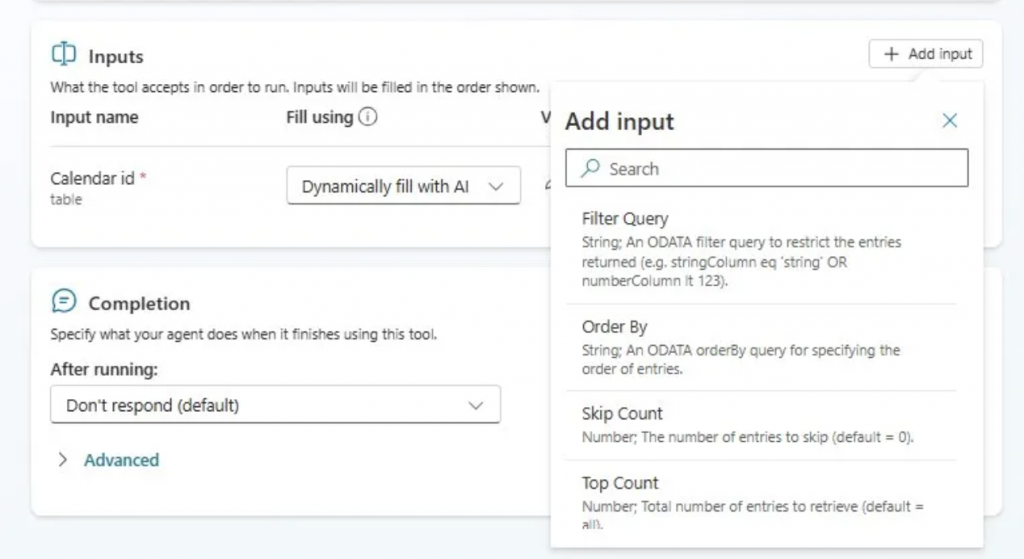
In your agent, go to Tools and open the Outlook.Read.Events action. Under Inputs, select Add input and choose Top Count from the list. Set the fill method to Custom value and enter a number. Five is a reasonable starting point for most scheduling scenarios.
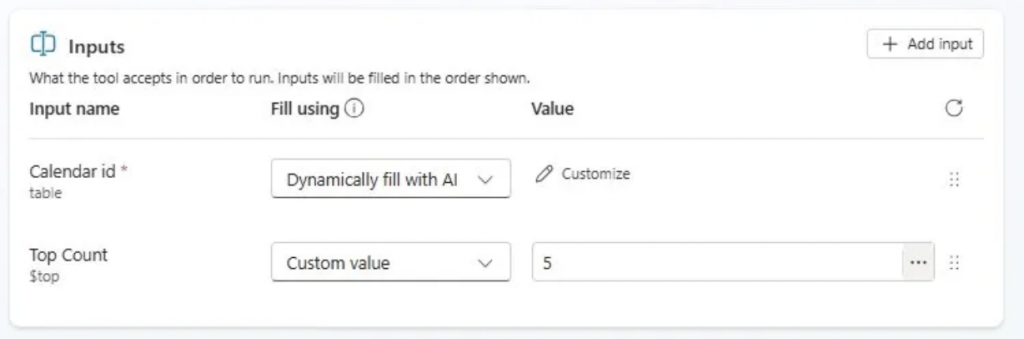
That is the entire change. Publish the agent and test again.
Choosing the right number
For most calendar tasks, the relevant event is almost always in the first few results. A Top Count of 5 works well for day-to-day queries like “reschedule this meeting” or “who is the organiser of the Tariff meeting.”
If your use case involves looking across a longer time window, for example “find all meetings with this client in the last month,” you might need to push that number to 10 or 15. Keep in mind that every event you add back to the payload is more data the model has to process. Going too high gets you back to the same problem.
Think of Top Count as a hard cap on what the connector is allowed to return. Not a limit you will hit under normal use, but a guardrail that prevents the agent from choking when someone’s calendar is unusually full or the query is ambiguous.
A broader pattern worth knowing
This same issue shows up with other list-based connectors in Copilot Studio, specifically anything that can return an unbounded collection of records. The Outlook connector is a common trigger because calendars grow over time and most people do not think to set limits on them.
If you are building agents that use connectors to retrieve lists of anything, events, emails, tasks, rows from a data source, check upfront what filtering or limiting parameters the connector exposes and set sensible defaults. Microsoft’s guidance on this is documented on the connector request failure troubleshooting page linked below.
References
- Fix Connector Request Failure in Copilot Studio https://learn.microsoft.com/en-us/troubleshoot/power-platform/copilot-studio/actions/connector-request-failure
- Understand Error Codes in Copilot Studio https://learn.microsoft.com/en-us/troubleshoot/power-platform/copilot-studio/authoring/error-codes
- OData query parameters in Microsoft Graph https://learn.microsoft.com/en-us/graph/query-parameters
- List calendar events, Microsoft Graph v1.0 https://learn.microsoft.com/en-us/graph/api/calendar-list-events?view=graph-rest-1.0