Post 10: Data Lifecycle Management for Copilot
How to build retention and deletion policies that cover SharePoint, OneDrive, Teams, and Copilot-relevant content.
Why this post matters
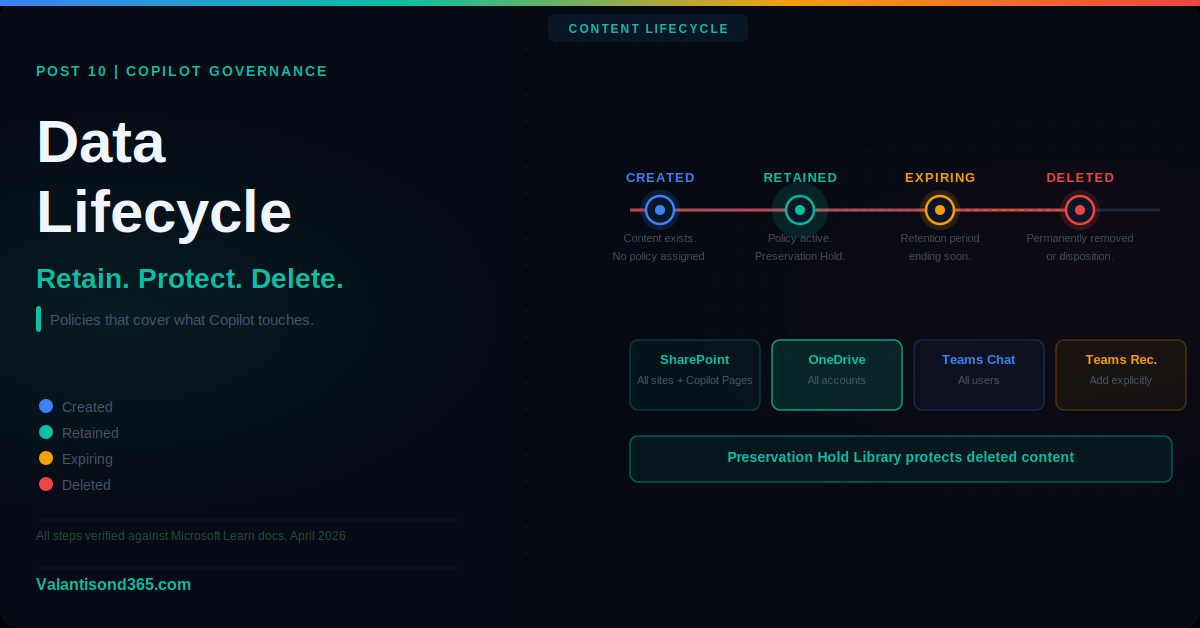
Retention and deletion policies reduce legal and regulatory risk. For Copilot specifically, the content that Copilot accesses and the interaction records it generates both need to be governed by clear retention rules. Without those rules, content accumulates indefinitely, creating unnecessary exposure, and legal holds become harder to scope.
This post covers how to create retention policies for the locations that Copilot touches most: SharePoint, OneDrive, and Teams, including recordings and transcripts where applicable. It also covers how to verify a policy is working and what the common scoping mistakes look like.
Audience: Compliance administrators and consultants designing a Copilot data governance programme.
TL;DR
- Admin path: Microsoft Purview portal > Solutions > Data lifecycle management > Retention policies.
- Create a retention policy targeting SharePoint, OneDrive, and Teams as needed.
- SharePoint and OneDrive policies cover files and Copilot Pages/Notebooks containers.
- Teams policies can include chat messages, channel messages, recordings, and transcripts separately.
- Set the retention action to Retain then delete, or Delete only, based on your requirements.
- Always verify a policy is applied by checking the locations tab and running a test content search.
Admin Path
Microsoft Purview portal > Solutions > Data lifecycle management > Retention policies > New retention policy
Creating a Retention Policy
- Sign in to the Microsoft Purview portal at https://purview.microsoft.com.
- Go to Solutions > Data lifecycle management > Retention policies.
- Select New retention policy.
- Enter a name and description for the policy.
- On the Policy scope page, choose Static or Adaptive scope. For most deployments start with Static.
- On the Locations page, select the locations to include. See the location guidance below.
- On the Retention settings page, choose whether to retain content, delete content, or retain then delete. Set the retention period and the trigger (from when content was created, last modified, or labeled).
- Review and submit.
Location guidance
SharePoint sites: covers all SharePoint sites including SharePoint Embedded containers used by Copilot Pages and Notebooks. Select All SharePoint sites to ensure Copilot Pages and Notebooks containers are in scope.
OneDrive accounts: covers personal OneDrive content for users in scope. Select All OneDrive accounts for broad coverage.
Teams chat messages: covers 1:1 and group chat messages in Teams, including Copilot responses delivered in chat. Select All users to cover all users or scope to specific users.
Teams channel messages: covers standard and private channel messages. Apply to All teams or specific teams as needed.
Teams recordings and transcripts: these are separate location options within the Teams location settings. If your organisation records meetings and you have a retention obligation for those recordings, add them explicitly. They are not automatically included in a general Teams chat or channel policy.
| Confirmed as: documented behaviour. Retention policies configured for all SharePoint sites are enforced for all Copilot Pages and Copilot Notebooks as documented in the compliance summary for Copilot Pages. Source: Reference 1. |
Retention Labels vs Retention Policies
Retention policies apply automatically to all content in a location. Retention labels must be applied to specific items, either manually or via auto-apply rules. For Copilot governance, retention policies covering the key locations provide the baseline. Labels provide more granular control for specific content types.
For Copilot Pages specifically, retention labels are supported but with limited manual application. Labels cannot be viewed or applied directly from a Copilot Page. Use auto-apply label policies to apply labels based on content type if needed.
| Retention policies do not prevent deletion during the retention period. A retention policy that retains content for 5 years does not prevent a user from deleting a file. When a user deletes a file covered by a retention policy, a copy is preserved in the Preservation Hold library behind the scenes, invisible to the user. The file appears deleted to the user but is retained for compliance purposes. Source: Reference 2. |
Validate
- In the Microsoft Purview portal, open the retention policy and go to the Locations tab.
- Confirm the correct locations are listed and the policy status is Active.
- Use Microsoft Purview content search to search for a known file in one of the targeted locations.
- Confirm the file appears in search results.
- Optionally, delete the file as a test user and then use content search to confirm the compliance copy is retained in the Preservation Hold library.
| Expected result: The policy is active and the correct locations are in scope. Content search confirms items are discoverable. Deleted items are retained in the Preservation Hold library and visible in search results. |
Troubleshooting
| Symptom | Most likely cause | Fix |
| Policy is not applying to Copilot Pages containers. | The policy does not include All SharePoint sites, or includes only specific sites. | Edit the policy location to include All SharePoint sites. Copilot Pages containers appear as SharePoint Embedded containers and are covered by the All SharePoint sites scope. Source: Reference 1. |
| Teams recordings are not in scope. | Recordings and transcripts are separate location options not included in a general Teams policy. | Edit the policy and explicitly add Teams recordings and transcripts as separate included locations. Source: Reference 2. |
| Conflicting retention periods are applying. | Multiple policies apply to the same location with different retention periods. | The principle of preservation applies: the longest retention period wins when policies conflict. Review all policies in scope for the affected location. Source: Reference 2. |
Lessons Learned
- All SharePoint sites is almost always the right scope for a Copilot deployment. Admins who scope to specific sites often discover later that Copilot Pages containers were not covered. Start broad and exclude specific sites if needed.
- Teams recordings and transcripts are easy to forget. They are separate options in the location settings. If your organisation records meetings and has a retention obligation, you must add them explicitly. Check this before the policy goes live.
- Retention periods longer than you need create legal risk. More is not always better. A policy that retains everything forever makes eDiscovery harder and increases exposure. Align retention periods to your actual regulatory obligations and business requirements.
References
All links verified Mai 2026.
1. Summary of governance, lifecycle, and compliance for Copilot Pages and Copilot Notebooks Confirms that All SharePoint sites retention policies cover Copilot Pages and Notebooks containers.
https://learn.microsoft.com/en-us/microsoft-365/loop/cpcn-compliance-summary
2. Learn about retention policies and retention labels Full documentation for retention policy creation, location options, the principle of preservation, and how Preservation Hold libraries work.
https://learn.microsoft.com/en-us/purview/retention
3. Microsoft Purview Data Lifecycle Management Overview of data lifecycle management capabilities and admin paths.
https://learn.microsoft.com/en-us/purview/data-lifecycle-management