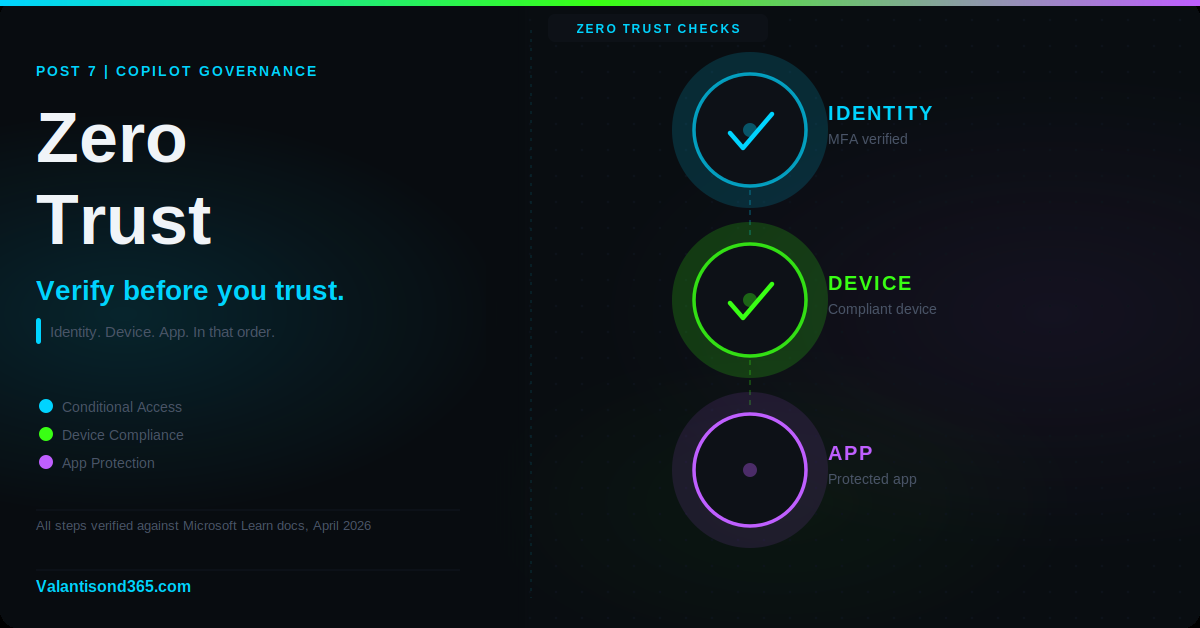
Post 7: How to make sure Copilot is only reachable from trusted identities, compliant devices, and protected apps.
Why this post matters
Posts 1 through 6 covered the data side of Copilot governance. What Copilot can access, what it surfaces, and how labels and permissions control that. This post covers the identity and device side. You can have perfectly labeled data and locked-down permissions, but if Copilot is accessible from an unmanaged personal device or a compromised account, those controls do not matter.
Zero Trust means you do not trust the network, the device, or the identity by default. Every access request is verified. Conditional Access is how you enforce that verification in Microsoft 365.
Three things this post covers:
- Conditional Access: scope Copilot access to your pilot group, require MFA, and require a compliant device.
- Device compliance: define what a compliant device looks like in Intune so Conditional Access has something to check against.
- App protection: control what users can do with Copilot data on mobile devices without requiring full device enrollment.
Audience: Microsoft 365 administrators, security administrators, and consultants configuring Copilot access controls for a client tenant.
Prerequisites
- Conditional Access Administrator, Security Administrator, or Global Administrator role in Microsoft Entra ID.
- Intune Administrator or Policy and Profile Manager role to create device compliance and app protection policies.
- Microsoft Entra ID P1 or P2 license. Conditional Access requires P1 at minimum.
- Microsoft Intune licence for device compliance enforcement. Included in Microsoft 365 E3 and above, and EMS E3/E5.
- Pilot group created in Microsoft Entra ID containing the users who should have Copilot access.
- Break-glass or emergency access accounts identified and ready to exclude from all Conditional Access policies.
| Always exclude break-glass accounts. Break-glass accounts are emergency admin accounts used to recover access if a Conditional Access policy locks out all administrators. Every Conditional Access policy you create must exclude these accounts. If you do not, a misconfigured policy can lock your entire tenant out of Microsoft 365. Source: Reference 1. |
TL;DR
Tool – What it does
Conditional Access: enforces who can access Copilot and under what conditions (MFA, compliant device, group membership).
Device compliance: defines what a compliant device looks like. Feeds the result into Conditional Access.
App protection: controls what users can do with org data in mobile apps, even on unmanaged personal devices.
Admin paths:
- Conditional Access: Microsoft Entra admin center > Entra ID > Conditional Access > Policies > New policy
- Device compliance: Microsoft Intune admin center > Devices > Manage devices > Compliance > Create policy
- App protection: Microsoft Intune admin center > Apps > Protection > Create policy
Step 1: Create a Conditional Access Policy for Copilot
What Conditional Access does
Conditional Access is Microsoft’s Zero Trust policy engine in Entra ID. A policy is a simple if-then rule. If a user in the pilot group tries to access Microsoft 365 apps, then they must complete MFA and be on a compliant device. If either condition is not met, access is blocked.
New policies created in the Microsoft Entra admin center start in Report-only mode by default. This means the policy evaluates sign-ins and logs what would have happened, without blocking anyone. Always test in Report-only mode first and check the sign-in logs before switching the policy to On.
Admin path
Microsoft Entra admin center > Entra ID > Conditional Access > Policies > New policy
Phase 1: Create the policy
- Sign in to the Microsoft Entra admin center at https://entra.microsoft.com.
- Go to Entra ID > Conditional Access > Policies.
- Select New policy.
- Give the policy a clear name. Use a naming convention that identifies the scope and purpose, for example: CA001-CopilotPilot-MFA-CompliantDevice.
Phase 2: Configure assignments
- Under Users, select Include > Select users and groups > select your Copilot pilot group.
- Under Exclude, select Users and groups and add your break-glass or emergency access accounts. This is required.
- Under Target resources, select Cloud apps > Include > Select apps. Search for and add Microsoft 365 apps. This covers the core Microsoft 365 workloads including Copilot. If your tenant shows additional Copilot-specific services in the app picker, add those as needed. Check your tenant app list rather than relying on a fixed name..
Phase 3: Configure grant controls
- Under Access controls > Grant, select Grant access.
- Select Require multifactor authentication.
- Select Require device to be marked as compliant.
- Set the requirement to Require all the selected controls so both MFA and compliance are enforced together.
- Select Select.
Phase 4: Enable the policy
- Leave the policy in Report-only mode initially.
- Review the sign-in logs under Entra ID > Monitoring and health > Sign-in logs after a few days to see which users and devices would be affected.
- Once satisfied, change the policy state to On.
| Confirmed as: documented behaviour. New Conditional Access policies default to Report-only mode. All assignments are evaluated with a logical AND, meaning all conditions must be met for access to be granted. Multiple policies can apply to the same user and all must be satisfied. Source: Reference 1. |
| Privileged accounts need a separate strategy. Do not include Global Administrators or other privileged accounts in a broad Copilot pilot policy without careful planning. Privileged accounts should have their own dedicated Conditional Access policies, typically requiring phishing-resistant MFA (such as FIDO2 or Windows Hello for Business) rather than standard MFA. Including them in a general compliant-device policy can cause issues if their admin devices are managed differently. Source: Reference 1. |
Step 2: Configure Device Compliance in Intune
What device compliance does
A device compliance policy in Intune defines the rules a device must meet to be considered compliant. The result is fed into Conditional Access. When Conditional Access checks “is this device compliant?”, it is reading the compliance state set by Intune.
Without a device compliance policy assigned to a device, Intune treats it as compliant by default. This is a permissive default. Before pairing compliance with Conditional Access, change the tenant-wide setting so that devices without a policy are treated as non-compliant.
| Change the default tenant compliance setting first. In the Intune admin center, go to Endpoint security > Device compliance > Compliance policy settings. Change “Mark devices with no compliance policy assigned as” to Not compliant. This ensures only devices that have been evaluated against a policy can pass the Conditional Access check. Do this before creating your first compliance policy. Source: Reference 3. |
Admin path
Microsoft Intune admin center > Devices > Manage devices > Compliance > Create policy
Phase 1: Create the compliance policy
- Sign in to the Microsoft Intune admin center at https://intune.microsoft.com.
- Go to Devices > Manage devices > Compliance.
- Select Create policy.
- Select the platform (Windows 10 and later, iOS/iPadOS, Android Enterprise, or macOS).
- Select Create.
Phase 2: Configure compliance settings
The exact settings available depend on the platform. For a Copilot readiness deployment, the recommended minimum settings to configure are:
- Require the device to be at or under the device threat level: set to Low or Secured.
- Require encryption: enabled.
- Minimum OS version: set to a supported version for your organisation. Blocks devices running outdated operating systems.
- Jailbroken or rooted devices: block (iOS and Android).
- Require a password or PIN to access the device.
Phase 3: Assign the policy
- On the Assignments tab, select the groups that should receive this policy.
- At minimum, assign the policy to the Copilot pilot group used in the Conditional Access policy.
- Select Review and create, then Create.
| Confirmed as: documented behaviour. Compliance policies are platform-specific. A device must be enrolled in Intune to receive and be evaluated against a compliance policy. The compliance state is reported to Microsoft Entra ID and used by Conditional Access. Source: Reference 3. |
Step 3: Configure App Protection Policies for Mobile
What app protection does
App protection policies control what users can do with corporate data inside managed apps on mobile devices, even if the device itself is not enrolled in Intune. This is Mobile Application Management (MAM) without Mobile Device Management (MDM).
For Copilot readiness the key use case is BYOD (Bring Your Own Device). A user accesses Copilot and Microsoft 365 on their personal phone. You cannot enforce device compliance on a device you do not manage. App protection fills that gap by controlling the app itself rather than the device.
What app protection can enforce on mobile:
- Block cut, copy, and paste between corporate apps and personal apps.
- Block saving corporate data to personal storage locations.
- Require a PIN or biometric to access the managed app.
- Encrypt app data when the device is locked.
- Remote wipe of corporate data from the app without wiping the personal device.
Admin path
Microsoft Intune admin center > Apps > Protection > Create policy
Phase 1: Create the app protection policy
- Sign in to the Microsoft Intune admin center.
- Go to Apps > Protection.
- Select Create policy and choose iOS/iPadOS or Android.
- Enter a name for the policy.
Phase 2: Select apps
- On the Apps page, select the apps to protect. At minimum, add Microsoft 365 (Office), Microsoft Teams, and Microsoft Edge.
- Select Next.
Phase 3: Configure data protection settings
- Under Data transfer, set “Send org data to other apps” to Policy managed apps only.
- Set “Receive data from other apps” to Policy managed apps only.
- Under Cut, copy, and paste, set restrictions to Policy managed apps with paste in.
- Under Access requirements, require a PIN or biometric to access the app.
- Select Next and complete the configuration.
Phase 4: Assign the policy
- On the Assignments tab, add the groups that should receive this policy.
- Select Create.
| Confirmed as: documented behaviour. App protection policies can be applied to devices that are not enrolled in Intune. The policy controls the app, not the device. Corporate data is separated from personal data within the app. Cut, copy, paste, and save controls are applied to corporate content only. Source: Reference 4. |
Which Control Applies When
| Scenario | Conditional Access | Device Compliance | App Protection |
| Corporate managed device, pilot user | Required | Required | Optional |
| Personal device (BYOD), pilot user | Required | Not applicable (unmanaged device) | Required |
| Non-pilot user accessing Copilot | Blocked by CA policy | N/A | N/A |
| Privileged admin account | Separate policy required | Recommended | Not primary control |
Validate
Check 1: Non-compliant device is blocked
- Sign in as a user in the Copilot pilot group from a device that is not enrolled in Intune or does not meet the compliance policy requirements.
- Attempt to open Microsoft 365 Copilot or a Microsoft 365 app covered by the Conditional Access policy.
- Confirm access is blocked.
- Check the sign-in logs in Entra ID > Monitoring and health > Sign-in logs and confirm the block is attributed to the Conditional Access policy.
| Expected result: The user sees an access blocked message. The sign-in log shows the Conditional Access policy applied and the grant control “Require device to be marked as compliant” was not satisfied. |
Check 2: Compliant device is allowed
- Sign in as the same user from a device that is enrolled in Intune and meets the compliance policy.
- Complete MFA when prompted.
- Confirm access to Microsoft 365 apps and Copilot is granted.
| Expected result: Access is granted after MFA. The sign-in log shows the Conditional Access policy applied and all grant controls were satisfied. |
Check 3: App protection enforces data controls on mobile
- On a personal mobile device (not enrolled in Intune), sign in to Microsoft Teams or the Microsoft 365 app with a corporate account in scope of the app protection policy.
- Open a corporate document and attempt to copy text and paste it into a personal app such as the native notes app.
- Confirm the paste is blocked.
- Attempt to save a corporate file to personal storage.
- Confirm the save is blocked.
| Expected result: Corporate data cannot be pasted into unmanaged apps. Corporate files cannot be saved to personal storage. The app protection policy is enforcing the data controls. |
Troubleshooting
| Symptom | Most likely cause | Fix |
| Conditional Access policy is not applying to a user. | The user is not in the assigned group, or the cloud app scope does not include the app they are accessing. | Check the policy assignments in Entra ID > Conditional Access > Policies. Confirm the user is in the assigned group and the correct cloud apps are included. Use the What If tool to simulate the policy for that user and app. Source: Reference 1. |
| Compliant device is being blocked. | The device is enrolled but the compliance policy has not yet evaluated the device, or a compliance setting is failing. | In Intune, go to Devices > All devices > select the device > Device compliance. Review which compliance settings are failing. Allow up to 8 hours after enrolment for compliance to be evaluated and reported to Entra ID. Source: Reference 3. |
| App protection policy is not applying on a mobile device. | The user is not in the assigned group, or the app does not support Intune app protection. | Confirm the user is in the group assigned to the policy. Confirm the app is on the Microsoft Intune protected apps list. The user must sign in with their corporate account inside the app for the policy to apply. Source: Reference 4. |
| All admins are locked out after enabling a CA policy. | Break-glass accounts were not excluded from the policy before it was turned on. | Use the break-glass account to sign in and either disable or modify the policy. If break-glass accounts were included in the policy and blocked, contact Microsoft Support. Going forward, always exclude break-glass accounts from every Conditional Access policy before enabling it. Source: Reference 1. |
| MFA is being required on every sign-in even from trusted devices. | Session controls or token lifetime settings are not configured, or the device is not registered with Entra ID. | Check whether the device is Entra ID joined or registered. For hybrid environments, confirm the Entra hybrid join is working correctly. Review session control settings in the Conditional Access policy. Source: Reference 1. |
Lessons Learned
These come from working with Conditional Access and Intune across client tenants.
- Start every policy in Report-only mode. Never create a new Conditional Access policy and enable it immediately in a production tenant. Report-only mode logs exactly what would happen without blocking anyone. Check the logs for a few days before switching to On. One misconfigured assignment and you can block your entire tenant.
- Name your policies consistently from day one. A tenant with 30 Conditional Access policies named “Policy 1”, “New policy”, and “Test” is unmanageable. Agree on a naming convention before you create the first policy and stick to it. A format like CA001-CopilotPilot-MFA-CompliantDevice makes it immediately clear what a policy does and who it applies to.
- Do not combine Copilot pilot users and admin accounts in the same policy. Admin accounts need stricter controls (phishing-resistant MFA) and often have different device management patterns. Keep them in separate policies.
- Compliance takes time to propagate. After you enrol a device and create a compliance policy, it can take up to 8 hours for the compliance state to be evaluated and reported to Entra ID. If a user complains they are still being blocked on a newly compliant device, wait and try again before assuming the policy is misconfigured.
- App protection without device enrolment is a practical BYOD answer. You cannot force personal devices into Intune. App protection gives you control over the corporate data inside the app without requiring device management. For most BYOD scenarios it is the right choice. Communicate to users what it does and does not control before rolling it out.
- Test the block experience before rollout. Sign in as a test user from a non-compliant device and experience exactly what the blocked user sees. Make sure the error message is informative enough for the user to understand what they need to do. A generic access denied message without guidance generates a flood of helpdesk tickets.
References
All links verified April 2026.
1. What is Conditional Access? – Microsoft Entra ID Overview of Conditional Access as the Zero Trust policy engine. Covers policy structure, common signals, grant controls, break-glass exclusions, and Report-only mode.
https://learn.microsoft.com/en-us/entra/identity/conditional-access/overview
2. Build Conditional Access policies – Microsoft Entra ID Step-by-step documentation for creating a Conditional Access policy including assignments, cloud apps, grant controls, and session controls.
3. Device compliance policies in Microsoft Intune Full documentation for Intune device compliance. Covers the tenant-wide compliance setting, policy creation, platform-specific settings, and how compliance state feeds into Conditional Access.
https://learn.microsoft.com/en-us/intune/intune-service/protect/device-compliance-get-started
4. App protection policies overview – Microsoft Intune Overview of app protection policies including what they control, how they work on unmanaged devices, and supported apps and platforms.
https://learn.microsoft.com/en-us/intune/intune-service/apps/app-protection-policy
5. Create and deploy app protection policies – Microsoft Intune Step-by-step documentation for creating an iOS or Android app protection policy including app selection, data protection settings, and assignment.
https://learn.microsoft.com/en-us/intune/app-management/protection/create-policy