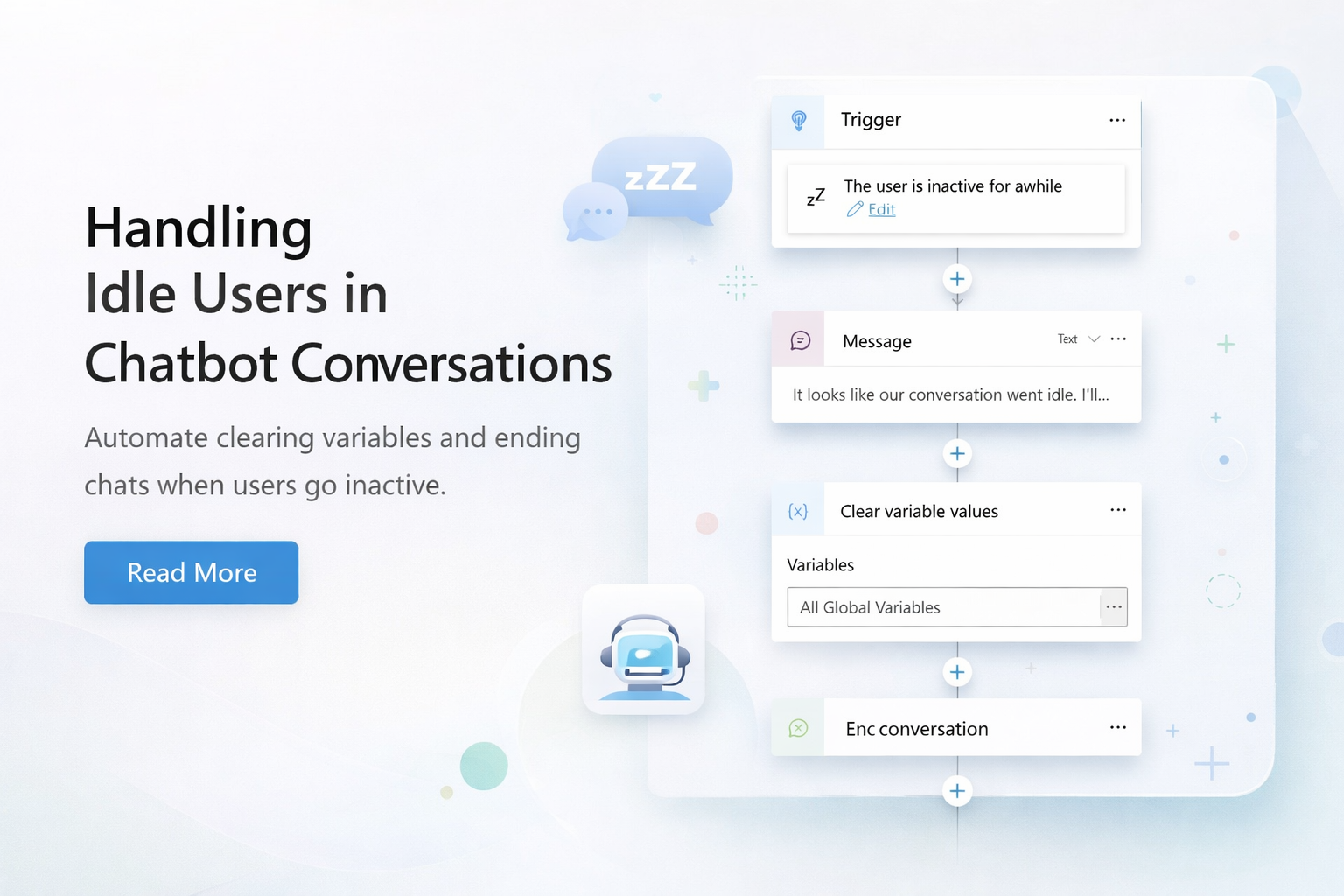
When you deploy a Copilot Studio agent to Teams, there is no automatic session reset. Users start a conversation, walk away, and come back hours or days later to an agent that is still holding onto old variables, expired tokens, and a conversation history that has nothing to do with what they need now. The fix is straightforward: an inactivity trigger topic that cleans up after idle sessions. Microsoft documents this pattern in their Teams deployment guidance, and once you set it up, every session gets handled automatically.
What you will learn
- Why Teams behaves differently from other channels when it comes to session persistence
- The five nodes that make up the inactivity reset topic
- A gap in the Reset Conversation system topic that many people do not know about or do not use it at all
- How to test and confirm the cleanup is actually working
TL;DR
Problem: Teams holds onto conversations indefinitely. Old context, expired connector tokens, and stale variables pile up between interactions.
Root cause: Teams does not reset sessions the way Web Chat does. The ConversationStart event only fires once, the very first time the agent is added. After that, every interaction happens inside the same persistent thread.
What works: A custom topic with the inactivity trigger that clears global variables, wipes the conversation history, and ends the session.
Watch out for: The Reset Conversation system topic does not touch conversation history. You need a separate Clear variable values node with the “Conversation history for the current session” option to actually clear it.
Why Teams Is Different
Most channels reset when the session ends. Teams does not. The conversation thread stays alive across days, and the agent keeps accumulating context the entire time. If a user chats with your agent on Monday morning and comes back Wednesday afternoon, the agent is still sitting on Monday’s conversation history, Monday’s variable values, and potentially expired connector tokens from Monday’s authenticated session.
Three things go wrong when this happens:
- Stale context. The agent’s planner sees the full history and tries to factor it into responses. Old questions and old answers start influencing new interactions in ways that do not make sense.
- Expired tokens. If your agent uses connectors (ServiceNow, Outlook, Graph, and so on), those tokens can expire while the session sits idle. The next interaction hits an auth wall that the user did not expect.
- Context overflow. Every message adds to the history. Eventually the accumulated context exceeds the model’s limits, and the agent stops responding reliably.
| On top of that, the ConversationStart event only fires once in Teams, the first time the agent is added. Reinstalling the app does not retrigger it. So you cannot rely on your initialization logic to run again on its own. |
Building the Inactivity Reset Topic
The pattern Microsoft recommends is a dedicated topic that fires when the user goes idle. Five nodes, in this order:
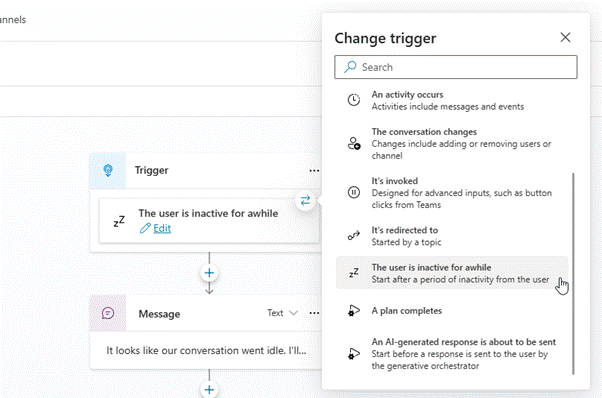
Step 1: Inactivity Trigger
Create a new topic and set the trigger to “The user is inactive for a while”. You can configure the timeout period (15 minutes is a reasonable starting point). Once this fires, the rest of the topic runs without any user input required.
Step 2: Message
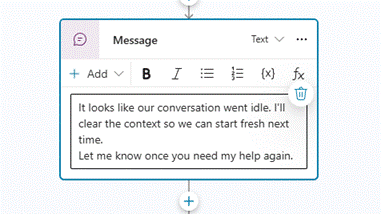
Let the user know what happened. Something like: “It looks like our conversation went idle, so I am clearing the prior context. Say ‘hello’ to restart.”
The “say hello” part is important. Since ConversationStart only fires once, the Greeting topic becomes your effective startup point in Teams. If the user does not know to trigger it manually, your initialization logic never runs after a reset.
Step 3: Clear Global Variables
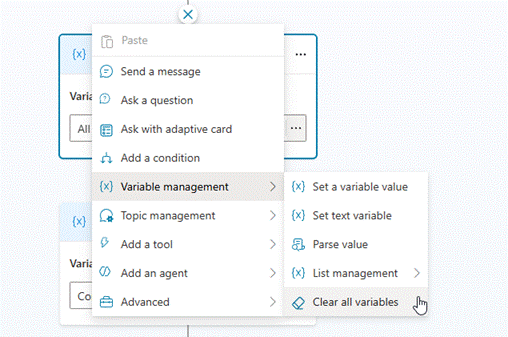
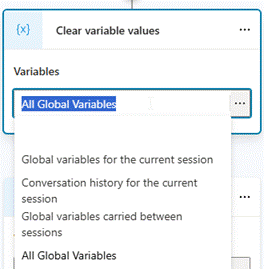
Add a Clear variable values node and target all global variables. This wipes whatever the agent collected during the previous session: user inputs, connector results, flags, anything stored in globals. If you skip this, old values carry over and can produce wrong results the next time around.
Step 4: Clear Conversation History
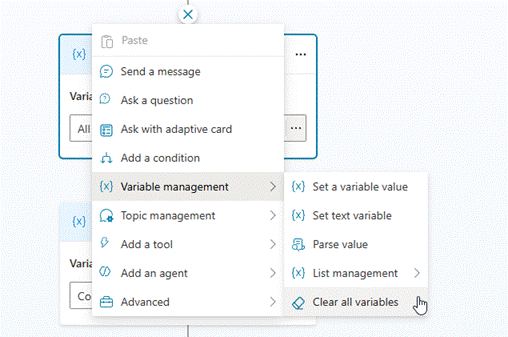
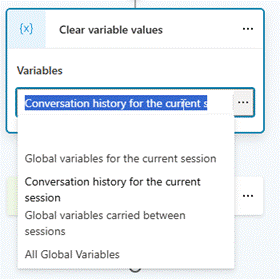
Add a second Clear variable values node. This time, select the “Conversation history for the current session” option.
This is the one people miss. The built-in Reset Conversation system topic does not clear conversation history. It only clears global variables. Microsoft documents this explicitly in both the system topics reference and the generative orchestration guide. If you leave the history intact, the planner keeps referencing every message from the old session, and that is where context overflow comes from in Teams.
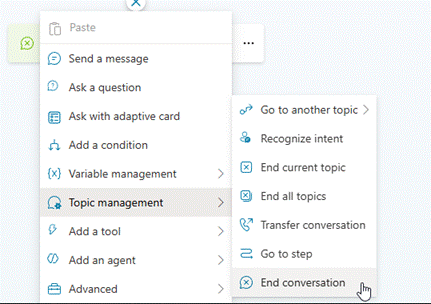
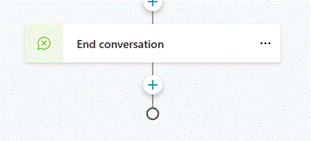
Step 5: End Conversation
Add an End conversation node. This closes the session and marks it as resolved. Without it, the session stays open even after you have cleared the variables and history.
The Complete Flow
Here is what the finished topic looks like:
| Order | Node Type | What It Does |
| 1 | Inactivity trigger | Fires after the configured idle period |
| 2 | Message | Tells the user the session is being reset |
| 3 | Clear variable values | Wipes all global variable values |
| 4 | Clear variable values | Clears the conversation history for the current session |
| 5 | End conversation | Closes the session and marks it resolved |
Why Reset Conversation Is Not Enough on Its Own
Most people assume the built-in Reset Conversation system topic already handles all of this. It does not, and there are two reasons.
First, it does not clear conversation history. It wipes global variables, but the full message history stays intact. In Teams, where that history can span days, the planner keeps referencing everything the user ever said. That accumulated context is the core problem.
Second, it only triggers from a redirect or when the user types something like “Start over.” There is no automatic firing. If a user walks away without saying anything, Reset Conversation never runs.
The inactivity trigger topic addresses both of these: it fires on its own after idle time, and you control exactly what gets cleared, including conversation history.
Testing and Troubleshooting
Confirming the reset works:
- Open your agent in Teams (not the Copilot Studio test pane) and run a multi-turn conversation.
- Wait 15min for the inactivity timeout to fire.
- Check that the reset message appears in chat.
- Send a new message and confirm the agent treats it as a fresh interaction with no reference to the old conversation.
If something is not working:
- Old context still showing up after reset? Most likely you are missing Step 4. Clearing globals is not enough on its own. You need the second Clear variable values node with the conversation history option selected.
- Connector auth failing after long idle? Tokens can expire while the session sits idle. The inactivity reset helps by closing the old session, but you can also set up a self-service command like “/debug clearstate” that forces a full reset including connector reauthentication. Microsoft documents this command in their Teams deployment guidance.
- Greeting topic not running when the user comes back? Expected behavior. ConversationStart only fires once in Teams. Your reset message should tell users to type “hello” so the Greeting topic picks up.
What I Took Away from This
- Any agent going to Teams needs an inactivity reset topic. Microsoft puts it on their deployment checklist for a reason.
- Do not trust Reset Conversation to handle history. It does not. Verify by checking the system topics reference if you want to see it in writing.
- Always test in Teams with actual idle time, not just in the Studio test pane. The test pane does not behave like a persistent Teams thread.
- Tell your users what to do after a timeout. If they do not know to say “hello,” your startup logic sits there unused.
Verified Resources
| Document | What It Confirms |
| Deploy agents in Microsoft Teams | Teams persistence behavior, inactivity trigger pattern, /debug clearstate command, deployment checklist. |
| Use system topics | Reset Conversation does not clear conversation history by default. |
| Generative orchestration | “Conversation history for the current session” clearing option. Reset Conversation only clears global variables. |
| Work with global variables | Global variable persistence and the Clear variable values node. |
| Triggers in Copilot Studio | Inactivity trigger configuration. |
Behavior confirmed as: documented and supported. Last verified: April 2026.
Bottom Line
Five nodes. One trigger, one message, two clearing steps, one end conversation. The piece that catches people off guard is Step 4: conversation history does not get cleared unless you explicitly add that node. Everything else is straightforward.
If you have hit other Teams-specific issues with Copilot Studio agents, I am curious what you have found. Click the LinkedIn icon message me and lets discuss.