Post 14: Microsoft 365 Copilot Governance Series – Incident Response for Copilot: When It Returns Data It Should Not Have
A response workflow built on the audit and eDiscovery stack from Posts 9 and 11
TL;DR
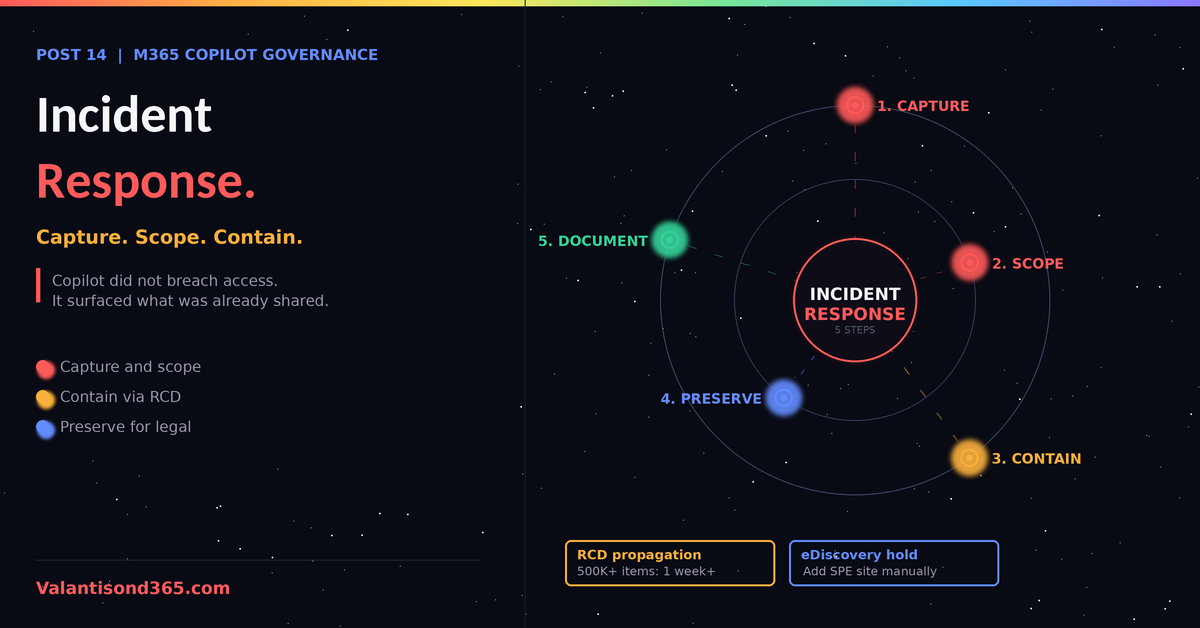
- A Copilot data exposure is an oversharing incident with an AI retrieval layer on top. The response workflow is: capture, scope, contain, remediate, document.
- The specific prompt and response are in the unified audit log as CopilotInteraction events, including references to the files accessed during the interaction and their sensitivity labels.
- Scoping who else was exposed means searching audit for every interaction that referenced the same source, not just the reported one.
- Containment options in order of speed: Restricted Content Discovery on the source site, label correction, permission remediation. RCD hides content from Copilot without changing user permissions, but propagation time depends on site size; sites with more than 500,000 items can take over a week to fully reflect the change, so do not treat it as instant for a live incident.
The scenario this post covers
A user reports that Copilot returned salary figures, a legal document, or another piece of content they did not expect to see. The user has done the right thing described in the user training: not shared it further, taken a screenshot, contacted IT. Now it is IT’s turn, and the next steps decide whether this is a documented near-miss or an uncontrolled exposure.
| First principle. Copilot did not breach permissions. It surfaced content the user technically had access to. The incident is the permission state, and the investigation must treat it that way: the fix is on the source, not on Copilot. |
Step 1: Capture the interaction
Copilot prompts and responses are captured in the unified audit log. The events include which Microsoft 365 service the activity took place in and references to the files stored in Microsoft 365 that were accessed during the interaction. If those files carry a sensitivity label, the label is captured too. Source: Reference 1.
- Path: Microsoft Purview portal > Solutions > Audit.
- Search window: the time range the user reported, plus a margin on both sides.
- Filter: the reporting user, activity type Copilot interactions (CopilotInteraction record type, covered in Post 9).
- Capture: export the matching events. The Contexts field identifies the source files that fed the response.
With E5 or Microsoft Purview Suite, the same interaction is visible in DSPM for AI Activity Explorer under the AI activities tab, with prompt and response detail visible to users who hold the required viewing permissions. Post 9 covers the setup. Source: Reference 1.
Step 2: Scope the exposure
One reported interaction is rarely the only one. The scoping question is: which other users had interactions that referenced the same source content?
- Search audit again, this time without the user filter, using the identified source file references from step 1.
- Record every user who received responses grounded in the affected content, with timestamps.
- Separately, pull the permission state of the source: who has access to the site or file today, and through which grant (direct, group, sharing link, inheritance). Post 4’s DAG reports and site permission review apply here.
- If the source site was flagged in a previous DAG report and not remediated, note that in the incident record. It changes the finding from unknown exposure to accepted risk that materialized.
Step 3: Contain
Containment stops further retrieval while remediation runs. Three options, fastest first:
| Control | Effect | Tradeoff |
| Restricted Content Discovery (RCD) | Site content stops appearing in Copilot responses and org-wide search (SharePoint home, Office.com, Bing). User permissions unchanged. Requires a Copilot licence and SharePoint Advanced Management; unavailable without both. | Applies per site. Content remains accessible by direct navigation. Propagation depends on site size and concurrent updates; large sites (500,000+ items) can take more than a week. |
| Sensitivity label correction | Label with encryption blocks Copilot from returning file content to users without EXTRACT rights. | Correct label must exist and be published. Applies per file or via automatic, service-side labeling. |
| Permission remediation | Fixes the root cause: removes the oversharing grant. | Slowest, requires owner involvement, but the only permanent fix. |
RCD is designed exactly for this situation and is covered operationally in Post 5: a temporary shield while permissions are repaired, then switched off. Source: Reference 5.
Step 4: Preserve if legal is involved
If the exposed content is subject to legal or regulatory obligations, move to the eDiscovery workflow from Post 11 before anything is deleted or modified: create a case in the new eDiscovery experience, add the affected users’ Exchange and OneDrive locations as custodial sources, apply a hold, and search with the Copilot interactions type filter. A hold placed on a custodian’s mailbox does not automatically extend to the SharePoint Embedded site storing their Copilot Pages; add that site’s URL to the hold explicitly, and expect that full-text search inside Copilot Pages is not yet available, so locate them by Subject/Title or Native File Type instead. To pull in the files a Copilot response referenced or summarized, enable the Access links (cloud attachments) option during collection, which increases export size and processing time. Source: Reference 3, Reference 6.
Step 5: Document and close
- What was exposed, to whom, over which period (from the audit scoping).
- Root cause: the permission grant or missing label that made it possible.
- Containment applied and when, remediation applied and when, and when containment was lifted.
- Follow-up: was this site pattern present elsewhere? Feed the finding back into the weekly DAG review cadence from Post 12.
Prepare before the first incident
| Audit availability is binary. The entire workflow above depends on audit having been enabled before the incident. Interactions that happened while auditing was off cannot be reconstructed. Post 9 puts audit activation first among prerequisites for exactly this reason. |
- Confirm audit is on and retention of audit records matches your investigation horizon.
- Name the incident owner role for AI data exposure before it happens.
- Ensure the user-facing reporting path communicated in end-user training actually routes to that owner.
- Run one tabletop exercise: pick a labeled file, simulate the report, walk the five steps.
Lessons Learned
- The response speed is decided months earlier, by whether audit was on and DAG findings were tracked.
- RCD is the single most useful containment control because it works without touching permissions, which means it works before the site owner answers an email.
- Scoping is where investigations go wrong. One user reporting does not mean one user exposed. Always run the second, source-based audit search.
References
- 1. Use Microsoft Purview to manage data security and compliance for Microsoft 365 Copilot, Microsoft Learn: learn.microsoft.com/en-us/purview/ai-m365-copilot
- 2. Microsoft 365 Copilot data protection architecture, Microsoft Learn: learn.microsoft.com/en-us/microsoft-365/copilot/microsoft-365-copilot-architecture-data-protection-auditing
- 3. eDiscovery overview (new experience), Microsoft Learn: learn.microsoft.com/en-us/purview/ediscovery-new-overview
- 4. Configure a secure and governed foundation for Microsoft 365 Copilot, Microsoft Learn: learn.microsoft.com/en-us/microsoft-365/copilot/configure-secure-governed-data-foundation-microsoft-365-copilot
- 5. Restrict discovery of SharePoint sites and content, Microsoft Learn: learn.microsoft.com/en-us/sharepoint/restricted-content-discovery
- 6. Collecting Microsoft 365 Copilot Data with Microsoft Purview eDiscovery, Microsoft Tech Community: techcommunity.microsoft.com/blog/microsoft-security-blog/collecting-microsoft-365-copilot-data-with-microsoft-purview-ediscovery/4516489