End-to-End Configuration for Microsoft 365 Copilot and Copilot Studio Agents
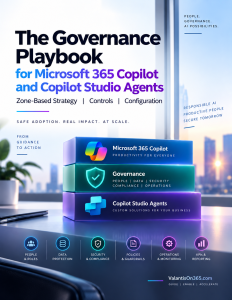
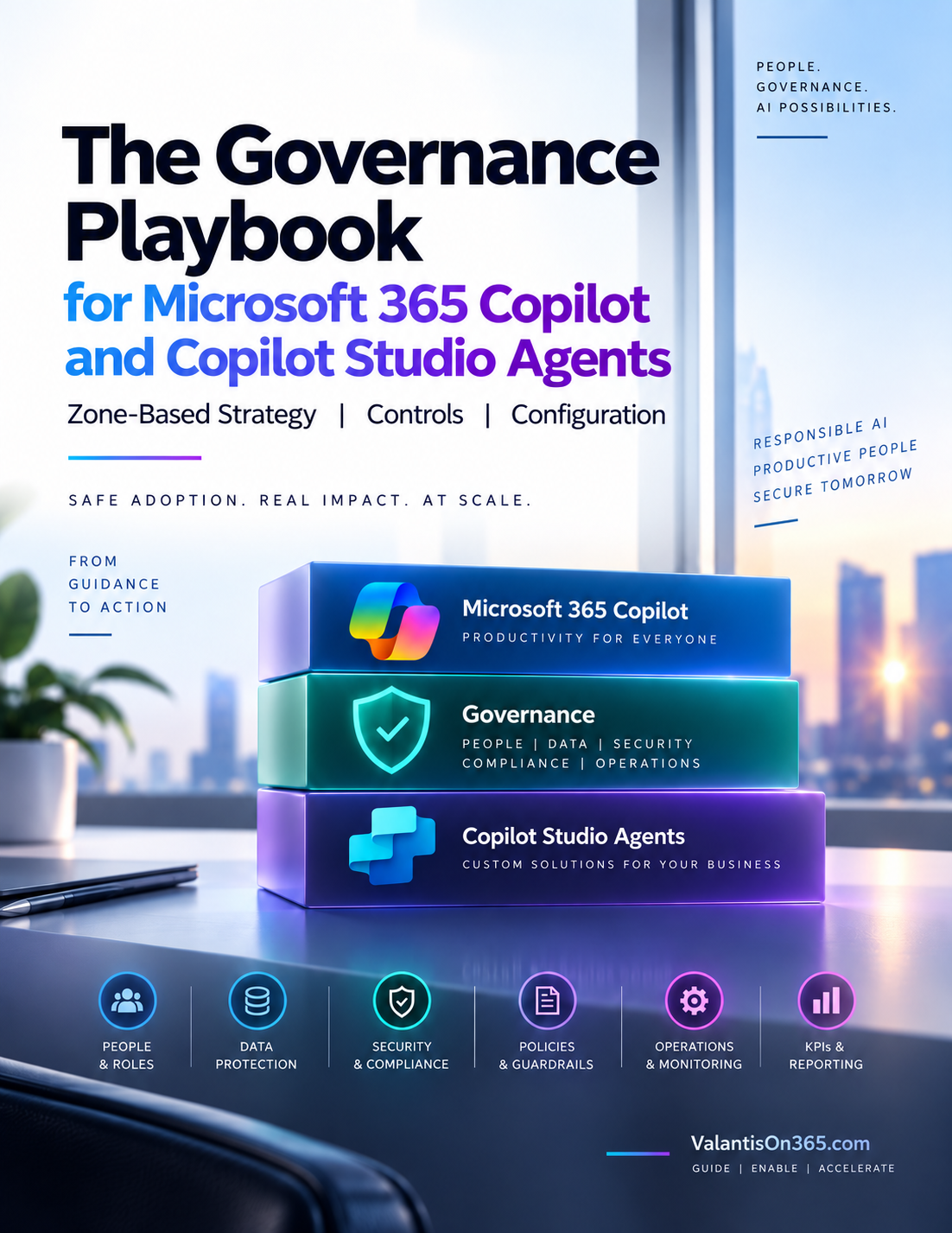
This playbook is built around a zone-based governance model: three risk tiers (Green, Yellow, Red) that scale control requirements to how an agent is actually used. The zone concept is the organizing method for everything that follows.
How to use this playbook
This playbook gives you a complete, self-contained framework for configuring and governing Microsoft 365 Copilot and Copilot Studio agents across three maturity zones. Every control includes what it does, why it matters, the admin path to configure it, and the licence it requires. Nothing is left as a reference to another document.
- As a consultant guide: use Parts 2 through 5 to structure a client engagement. Start with the prerequisites, then work through the zones that apply to the client’s current deployment. The fillable checklists at the end of each zone section are designed to be completed during the engagement and left with the client.
- As a client reference: leave this document with the IT team after the engagement. Parts 6 through 8 give the client the cadence, KPIs, licensing map, and quick reference table they need to run the programme independently, with no external document required.
Part 1: Introduction
Why zone-based governance
Not all Copilot agents carry the same risk. A maker building a personal productivity agent for their own use does not need the same controls as an IT team deploying an agent that answers HR questions for the entire organisation. Applying the same governance controls to every agent is either over-engineered for simple use cases or under-engineered for complex ones.
Zone-based governance solves this by matching the control level to the risk level. Three zones. Each zone has a clear purpose, a defined set of controls, and an ownership model. As an agent moves from personal use to team use to enterprise use, it moves through the zones and inherits the controls appropriate for its audience and data access.
The three zones
| Green Zone Personal use and experimentation with safe defaults. Who: individual makers building agents for their own productivity. What: agents run in the maker’s own context, use only M365 and approved connectors, and are not shared beyond the maker. Risk: low, the blast radius of a misconfigured agent is limited to the maker. |
| Yellow Zone Team or department agents with IT assistance and oversight. Who: makers building agents for a team or department, with formal IT review before deployment. What: agents may access shared data sources, use advanced connectors, and be shared with a defined group. IT approves before publishing. Risk: medium, a misconfigured agent can expose team or department data to the wrong users. |
| Red Zone Enterprise or high-risk agents. IT-led and pro-dev only. Who: IT teams or professional developers building agents for broad organisational use, external users, or regulated data. What: agents may access sensitive or highly confidential content, run autonomously, connect to external services, or be available tenant-wide. Full governance programme applies. Risk: high, a misconfigured or compromised agent can affect the entire organisation or create regulatory exposure. |
Part 2: Prerequisites Before Any Zone Goes Live
These controls must be in place before any zone is activated. They apply to every zone. Without them, no zone provides meaningful governance.
Data layer prerequisites
1. Enable Microsoft Purview auditing
Auditing must be on before any Copilot or agent activity is logged. If it is off when agents go live, those interactions are not recorded and cannot be recovered.
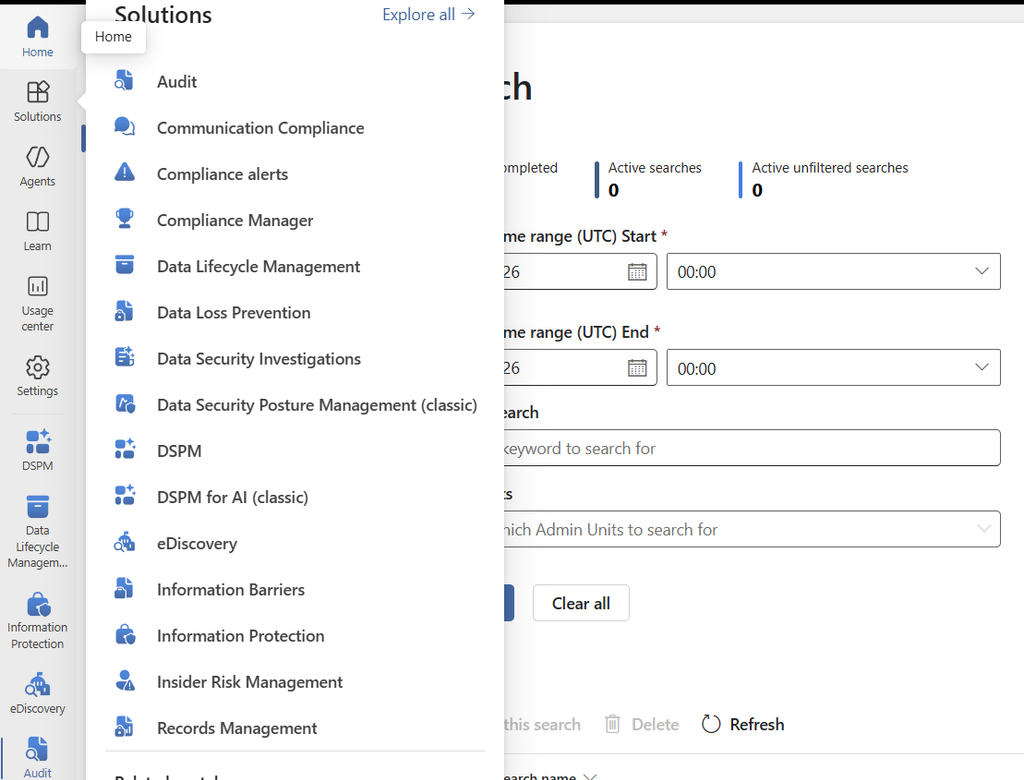
Admin path: Microsoft Purview portal > Solutions > Audit. Confirm auditing is enabled.
Licence: Included with Microsoft 365 E3 and above.
2. Run DAG oversharing reports
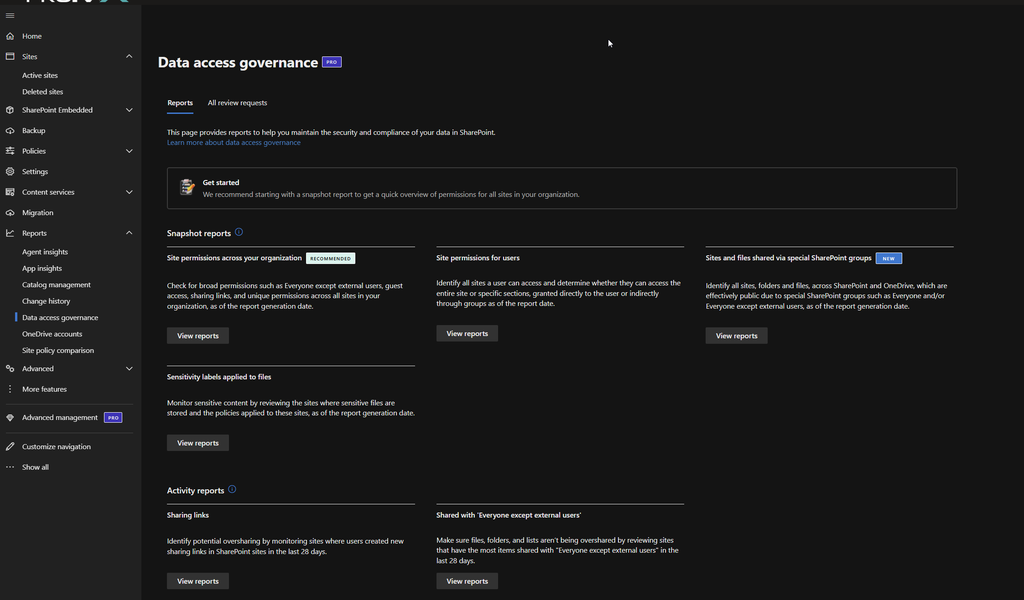
Before enabling Copilot for any user group, run the Data Access Governance reports to identify overshared SharePoint sites. Copilot surfaces content based on existing permissions. Overshared content is exposed immediately when Copilot goes live.
Admin path: SharePoint admin center > Reports > Data access governance.
Licence: Included with the Microsoft 365 Copilot licence (SharePoint Advanced Management).
3. Configure retention policies
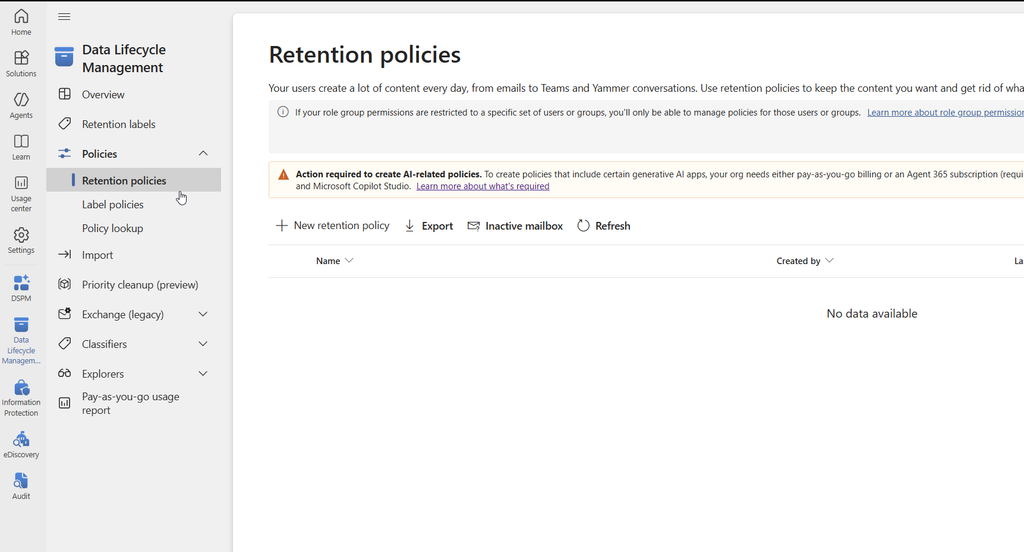
Retention policies covering all SharePoint sites, OneDrive, and Teams must be in place before Copilot is enabled. This ensures Copilot-related content is covered from day one, not added to retention scope after the fact.
Admin path: Microsoft Purview portal > Solutions > Data lifecycle management > Retention policies.
Licence: Core retention included from E3. Adaptive scopes for Copilot interaction retention require Microsoft 365 E5 or the Microsoft Purview Suite add-on.
4. Publish sensitivity labels
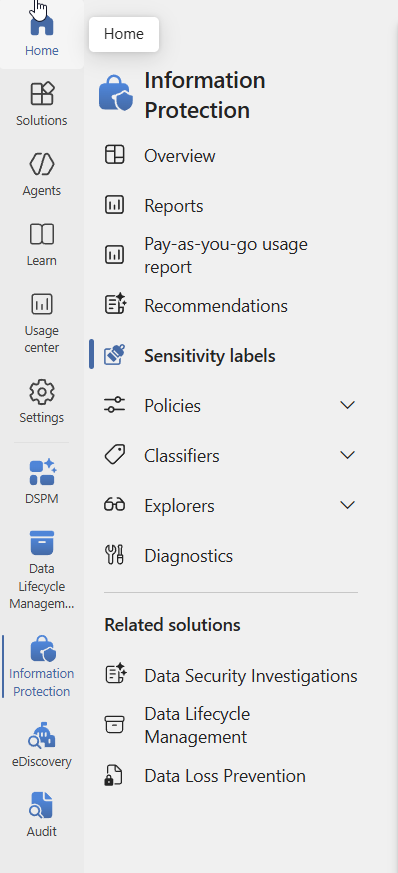
A label taxonomy must be published to users before Copilot is enabled. Labels do not need to be applied to all content immediately, but users must be able to apply them. Copilot checks label encryption when accessing content. An unlabeled sensitive file has no label-based access check.
Admin path: Microsoft Purview portal > Solutions > Information Protection > Sensitivity labels.
Licence: Manual labeling included from E3. Automatic, service-side labeling requires E5 or the Microsoft Purview Suite add-on.
| Licence note. Copilot features inside Word, Excel, PowerPoint, and OneNote are restricted to users with a Microsoft 365 Copilot licence. Users without that licence retain access to Copilot Chat only. Confirm licence assignments before enabling Copilot for any user group. |
Identity and device prerequisites
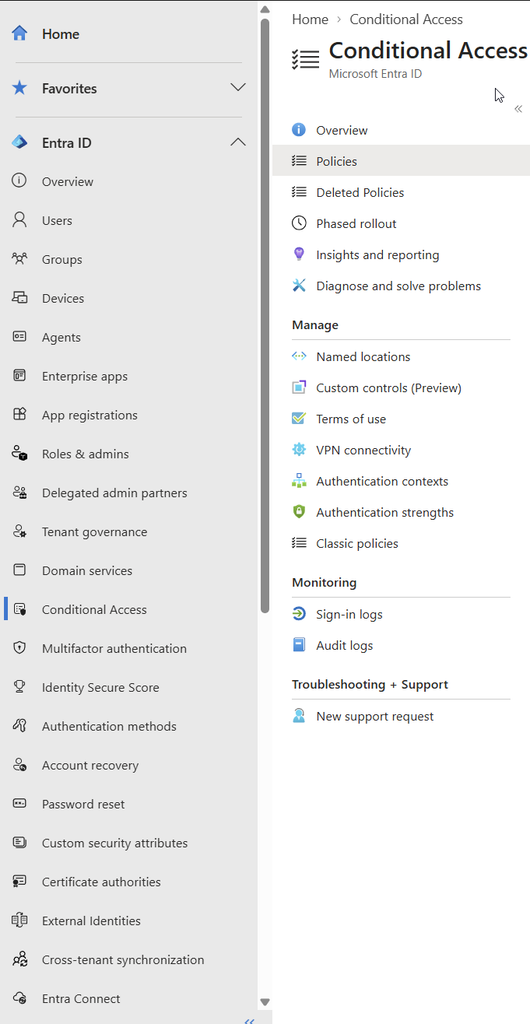
5. Configure Conditional Access for Copilot
A Conditional Access policy scoping Copilot access to your pilot group, requiring MFA and a compliant device, must be in place before broad rollout. Start in Report-only mode and test for at least one week before enabling.
Admin path: Microsoft Entra admin center > Entra ID > Conditional Access > Policies.
Licence: Microsoft Entra ID Plan 1 (included in E3) covers basic Conditional Access. Microsoft Entra ID Plan 2 (included in E5, or the full Microsoft Entra Suite in E7) is required for risk-based Conditional Access.
6. Configure data policies in Power Platform
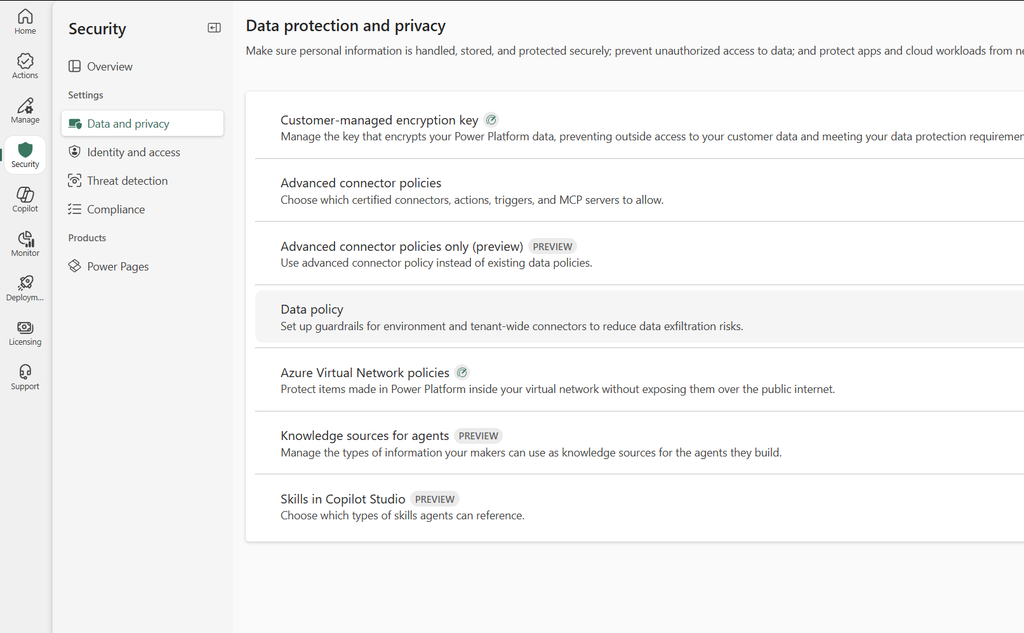
Before any maker opens Copilot Studio, data policies must be configured for the environments they will build in. Without data policies, makers can publish agents that connect to unapproved data sources, use unauthenticated channels, or send data outside the organisation.
Admin path: Power Platform admin center > Security > Data and privacy > Data policies.
Licence: Included with any Power Platform or Copilot Studio environment; no additional licence required to configure the policy itself.
7. Enable environment routing
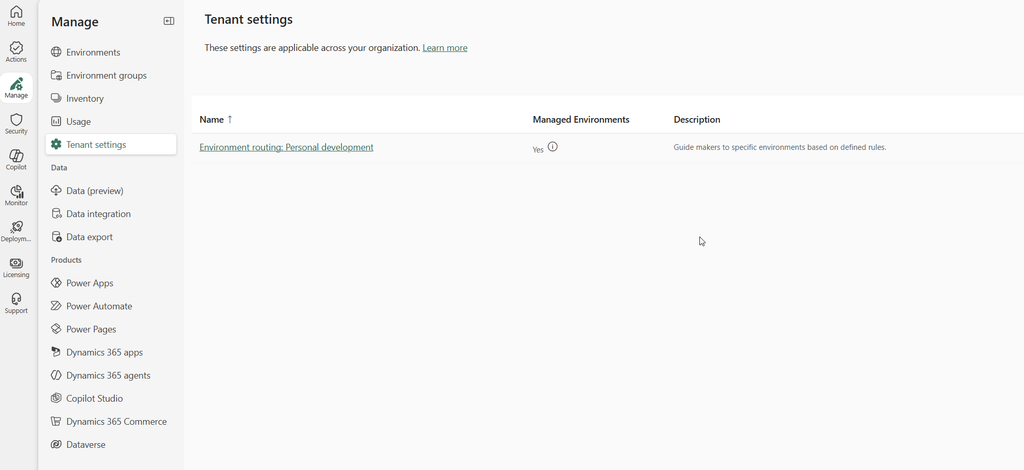
Before makers start building, environment routing must be configured to direct new makers to personal developer environments rather than the shared default environment. Once a maker has built in the default environment, moving them out is disruptive.
Admin path: Power Platform admin center > Manage > Tenant settings > Environment routing.
Licence: Included with any Power Platform tenant.
Part 3: Green Zone
| Green Zone Personal use and experimentation. Safe defaults. Maker-owned. |
Purpose
The Green Zone is for individual makers building Copilot agents for their own productivity. The agent runs in the maker’s own context, uses only approved connectors, and is not shared with other users. The governance model is lightweight because the risk is limited to the maker.
What is allowed
- M365 connectors and connectors explicitly placed in the Business group of the data policy.
- Authenticate with Microsoft (default) or Authenticate manually for user authentication.
- Agents deployed to the maker’s personal Teams or personal SharePoint pages.
- Knowledge sources the maker has permission to access personally.
What is blocked
- No authentication: the data policy must block “Chat without Microsoft Entra ID authentication in Copilot Studio.”
- HTTP connectors and external API calls without IT review.
- Sharing the agent with more than the maker themselves.
- Maker-provided credentials for tools that access sensitive organisational data.
Admin controls for Green Zone
| Control | Admin path | Licence |
| Data policy blocking unauthenticated agents | Power Platform admin center > Security > Data and privacy > Data policies | Included with any Power Platform tenant |
| Environment routing to developer environments | Power Platform admin center > Manage > Tenant settings > Environment routing | Included with any Power Platform tenant |
| Conditional Access for Copilot (pilot group) | Entra admin center > Entra ID > Conditional Access | Entra ID P1 (E3); P2 (E5/E7) for risk-based CA |
| Purview audit logging enabled | Purview portal > Solutions > Audit | Included with E3 and above |
Green Zone governance cadence
Monthly
- Check the Protection status column in Copilot Studio for any agents with Needs review status.
- Review the Purview audit log for any BotUpdateOperation-BotAuthUpdate events that indicate authentication changes.
- Confirm no Green Zone agents have been shared beyond the maker.
Green Zone setup checklist
| Complete before any Green Zone agent goes live ☐ Purview auditing enabled and confirmed ☐ DAG oversharing report run at least once for the maker’s accessible content ☐ Data policy blocks unauthenticated Copilot Studio agents ☐ Environment routing sends the maker to a personal developer environment ☐ Conditional Access pilot policy active (Report-only or enforced) covering the maker ☐ Maker briefed on the acceptable use policy (Part 6) ☐ Owner: _______________________ Date completed: _______________________ |
Part 4: Yellow Zone
| Yellow Zone Team or department agents. IT-assisted. Formal approval before publishing. |
Purpose
The Yellow Zone is for agents that serve a team or department. The maker builds the agent but IT reviews and approves it before it is shared. The agent may access shared data sources, connect to department-level SharePoint sites, or use connectors that go beyond the defaults. Yellow Zone requires all Green Zone controls plus the additional controls listed below.
What is added in Yellow Zone
- IT approval required before the agent is shared with any users beyond the maker.
- Data policies reviewed and updated to cover any new connectors the agent uses.
- Sensitivity labels applied to all SharePoint sites and key files the agent accesses.
- Site Access Review run on any SharePoint sites the agent accesses to confirm oversharing has been addressed.
- Restricted Access Control applied to sites the agent accesses if the content is sensitive.
- Agent runtime protection status reviewed and confirmed as Protected before sharing.
- Maker-provided credentials restriction enforced for environments containing Yellow Zone agents. This control reached General Availability on August 25, 2026. It is off by default and must be enabled per environment or environment group.
| New control to watch. Microsoft has announced automatic credential oversharing detection for Copilot Studio, reaching General Availability on September 30, 2026. This detects when agents or flows rely on maker or system credentials not intended for reuse and blocks at design, publish, and share stages automatically, with no admin action required to enable it. Confirm this is active in your tenant and brief makers on why previously shareable agents may be blocked once it takes effect. |
Yellow Zone agent approval workflow
Every agent moving from Green to Yellow Zone must go through an approval step before it is shared. The minimum approval record must document:
- Agent name and description.
- Which connectors and knowledge sources it uses.
- Authentication method for each tool.
- Who the agent will be shared with.
- Which SharePoint sites or data sources it accesses and their current sensitivity label and oversharing status.
- Name of the IT reviewer and date of approval.
- Protection status at time of approval (must be Protected).
| No approval, no sharing. An agent that has not completed this approval record must not be shared beyond the maker. This is the single most important control in Yellow Zone. An unapproved agent shared with a department can access data on behalf of all those users with no IT oversight of what it can do. |
Admin controls for Yellow Zone
| Control | Admin path | Licence |
| All Green Zone controls | See Part 3 | |
| Sensitivity labels on accessed SharePoint sites | Purview portal > Solutions > Information Protection | Manual: E3. Automatic/service-side: E5 or Purview Suite |
| Site Access Review on accessed sites | SharePoint admin center > Reports > Data access governance | Included with the Copilot licence (SharePoint Advanced Management) |
| Restricted Access Control on sensitive sites | SharePoint admin center > Sites > Active sites > Settings | Included with the Copilot licence (SharePoint Advanced Management) |
| Maker credential restriction at environment level | Power Platform admin center > Manage > Environments > Settings > Product > Features > Copilot Studio agents > Control maker credential options | Included with any Power Platform tenant |
| Agent approval record completed | Internal process. Minimum fields documented above. | Not applicable |
| Protection status confirmed as Protected | Copilot Studio > Agents > Protection status column | Included with Copilot Studio |
Yellow Zone governance cadence
Weekly
- Review Purview audit log for BotUpdateOperation events on Yellow Zone agents (authentication changes, sharing changes).
- Check Protection status for all Yellow Zone agents.
Monthly
- Run Site Access Review on the top oversharing sites accessed by Yellow Zone agents.
- Review the agent inventory. Confirm all shared agents have a completed approval record.
- Check DSPM for AI for any sensitive data hits in Yellow Zone agent interactions. Grant Analytics Viewer role to compliance reviewers and business owners on all Yellow Zone agents so they can monitor performance without maker access.
Yellow Zone setup checklist
| Complete before any Yellow Zone agent is shared beyond its maker ☐ All Green Zone checklist items complete ☐ Sensitivity labels applied to every SharePoint site and key file the agent accesses ☐ Site Access Review completed on all accessed sites ☐ Restricted Access Control applied where content sensitivity warrants it ☐ Maker credential restriction enabled for the agent’s environment (or documented exception) ☐ Agent approval record completed with all seven required fields ☐ Protection status confirmed as Protected on the date of approval ☐ Analytics Viewer role granted to the relevant compliance reviewer or business owner ☐ IT reviewer: _______________________ Date approved: _______________________ |
Part 5: Red Zone
| Red Zone Enterprise or high-risk agents. IT-led and pro-dev only. Full governance programme. |
Purpose
The Red Zone is for agents that serve the whole organisation, access regulated or highly confidential data, run autonomously, or are built and maintained by the IT or professional development team. Red Zone requires all Green and Yellow Zone controls plus the additional controls listed below.
What is added in Red Zone
- Agent approval via the Agents section in the Microsoft 365 admin center. No Red Zone agent is deployed without admin approval through this path.
- Restriction on who can publish or install agents. Self-install permissions removed or restricted for all users in scope.
- Restricted Content Discovery (RCD) applied to any sites the agent accesses where content should be hidden from Copilot while remediation is in progress. Note: propagation on large sites (500,000+ items) can take over a week; plan containment timing accordingly.
- DLP policies covering Copilot interactions in Microsoft Purview configured and active.
- Communication Compliance policies configured for monitoring risky prompts or outputs. This capability is licensed through Microsoft 365 E5 or the Microsoft Purview Suite add-on (the current name for what was previously sold as the standalone E5 Compliance add-on).
- Agent 365 registry: all Red Zone agents registered and monitored.
- eDiscovery holds in place for any agents used in regulated or legally sensitive workflows.
- Customer-managed keys (CMK) considered for environments hosting Red Zone agents that process regulated data.
- Autonomous agent triggers reviewed and only permitted connectors enabled for autonomous execution.
Red Zone agent deployment checklist
Every Red Zone agent must complete the following before going live:
- Yellow Zone approval record completed (all fields).
- IT admin approval via the Agents section in the Microsoft 365 admin center.
- All SharePoint knowledge sources labeled with appropriate sensitivity labels and oversharing remediated.
- Tool authentication confirmed as end-user credentials for all tools accessing sensitive data.
- Autonomous triggers (if any) reviewed against permitted connector list in the data policy.
- Agent registered in the Agent 365 registry.
- DLP policy covering agent interactions confirmed active.
- eDiscovery hold confirmed if agent is used in a regulated workflow.
- Protection status confirmed as Protected.
- Named agent owner documented. Owner must be an IT team member or pro-dev, not the original maker.
Admin controls for Red Zone
| Control | Admin path | Licence |
| All Green and Yellow Zone controls | See Parts 3 and 4 | |
| Agent approval via Agents section | Microsoft 365 admin center > Agents | Included with the Copilot licence |
| Restrict self-install of agents | Microsoft 365 admin center > Agents > User permissions | Included with the Copilot licence |
| Restricted Content Discovery | SharePoint admin center > Sites > Active sites > Settings | Included with the Copilot licence (SharePoint Advanced Management) |
| DLP policies for Copilot interactions | Purview portal > Solutions > Data loss prevention | Prompt protection: included for all Copilot users. Restricting Copilot from processing files/emails: E5 or Purview Suite |
| Communication Compliance | Purview portal > Solutions > Communication compliance | Microsoft 365 E5 or Microsoft Purview Suite add-on |
| Agent 365 registry | Microsoft 365 admin center > Agents > Overview | Standalone add-on, or included in Microsoft 365 E7 |
| eDiscovery holds | Purview portal > Solutions > eDiscovery > Cases | Standard eDiscovery: E3. Premium (advanced processing, review sets): E5 |
| CMK for Copilot Studio environment | Power Platform admin center > Environments > Settings | Requires Managed Environments (Power Platform licensing construct) |
Red Zone governance cadence
Weekly
- Review audit log highlights: CopilotInteraction records with PolicyDetails failures.
- Review DLP event alerts for Copilot interactions.
- Check Protection status for all Red Zone agents.
- Triage Copilot-related helpdesk tickets.
| Teams meeting content deletion. Teams meeting organizers can permanently delete meeting-generated content (recordings, transcripts, AI summaries, and meeting notes) directly from the Recap page without IT intervention. Deleted content cannot be restored. Confirm your Teams meeting retention policies are enforced to prevent unintended loss of governed content. |
Monthly
- Run access reviews on all SharePoint sites accessed by Red Zone agents.
- Review the Red Zone agent inventory in Agent 365. Flag any ownerless agents.
- Check DSPM for AI sensitive data trends.
- Review all autonomous agent event triggers against the permitted connector list.
Quarterly
- Full compliance assessment against the Red Zone checklist.
- Incident simulation: test your ability to hold, search, and export content from a Red Zone agent interaction.
- Executive summary: value delivered, risk managed, roadmap for next quarter.
Red Zone setup checklist
| Complete before any Red Zone agent goes live ☐ All Yellow Zone checklist items complete ☐ IT admin approval recorded via the Agents section ☐ Self-install restricted for all users in scope ☐ Restricted Content Discovery applied where remediation is in progress (propagation timing planned for) ☐ DLP policy covering Copilot interactions active ☐ Communication Compliance policy configured (licence confirmed: E5 or Purview Suite) ☐ Agent registered in the Agent 365 registry ☐ eDiscovery hold confirmed if the agent supports a regulated workflow ☐ CMK evaluated for the hosting environment if regulated data is processed ☐ Autonomous triggers reviewed against the permitted connector list ☐ Named IT or pro-dev owner documented (not the original maker) ☐ Approving admin: _______________________ Date approved: _______________________ |
Part 6: Cross-Zone Operations and Monitoring
These operations apply across all zones. They are the ongoing programme that keeps governance from drifting after initial setup.
KPIs to track across all zones
| KPI | Source | Green Zone target | Yellow/Red target |
| Overshared sites remediated (%) | DAG reports | Aware | 100% before agent deployment |
| Sites under RAC | SharePoint admin center | 0 required | All sensitive sites |
| Agents with Needs review status | Copilot Studio Protection status | 0 | 0 |
| Agents without approval record | Internal inventory | N/A for Green | 0 |
| Sensitive data hits in Copilot interactions | DSPM for AI | Monitor trend | Act on any increase |
| Ownerless agents | Agent 365 registry | N/A | 0 |
| Copilot helpdesk tickets | Helpdesk system | Monitor | Review weekly |
Acceptable use policy
Every user with access to Microsoft 365 Copilot or a Copilot Studio agent must receive the acceptable use policy before their access is enabled. The minimum policy for all zones:
- Do not paste highly confidential data into a Copilot prompt unless the content is labeled and your organisation’s policy permits it.
- Do not paste personal data or sensitive data such as financial account numbers or health information into prompts unless a specific business process permits it.
- Verify and curate Copilot responses before sharing them externally.
- Report suspicious prompts or unexpected outputs to your IT or compliance team.
- Do not attempt to use Copilot to access content in systems or sites you are not authorised to use.
Part 7: Zone Decision Guide
Use this guide to determine which zone an agent belongs in. Work through the questions in order. Stop at the first question that assigns a zone.
| Question | If Yes | Notes |
| Is the agent used only by the maker who built it? | Green Zone | Personal productivity agents stay in Green. |
| Is the agent shared with a team or department? | Yellow Zone minimum | Any shared agent moves to Yellow or above. |
| Does the agent access sensitive or labeled content? | Yellow Zone minimum | Any labeled content requires Yellow controls. |
| Does the agent use external connectors or HTTP calls? | Yellow Zone minimum | External connections require IT review. |
| Is the agent available to the whole organisation or external users? | Red Zone | Broad audience requires full Red Zone controls. |
| Does the agent run autonomously without user interaction? | Red Zone minimum | Autonomous execution requires Red Zone controls. |
| Does the agent access highly confidential or regulated data? | Red Zone | Regulated data requires maximum controls. |
| Is the agent built and maintained by the IT or pro-dev team? | Red Zone | IT-led development belongs in Red Zone. |
| The highest zone always wins. If an agent answers Yes to any question that assigns a higher zone, it must be governed at that zone level even if earlier questions assigned a lower zone. |
Part 8: Quick Reference
Master controls table: zone applicability and licensing.
| Control | Green | Yellow | Red | Licence |
| Sensitivity labels on SharePoint | Recommended | Required | Required | Manual: E3. Auto: E5/Purview Suite |
| DAG oversharing reports | Recommended | Required | Required | Included with Copilot licence |
| Site Access Review (SAR) | Optional | Required | Required | Included with Copilot licence |
| Restricted Access Control (RAC) | Optional | Required | Required | Included with Copilot licence |
| Restricted Content Discovery (RCD) | Optional | Recommended | Required | Included with Copilot licence |
| Conditional Access (MFA + device) | Recommended | Required | Required | Entra ID P1 (E3); P2 (E5/E7) for risk-based |
| Device compliance policy (Intune) | Recommended | Required | Required | Intune Plan 1, included from E3 |
| App protection policy (mobile) | Optional | Required | Required | Intune Plan 1, included from E3 |
| Data policies (connector control) | Recommended | Required | Required | Included with any Power Platform tenant |
| Environment routing | Recommended | Required | Required | Included with any Power Platform tenant |
| Maker security warning awareness | Required | Required | Required | Included with Copilot Studio |
| End-user credentials for tools | Required | Required | Required | Included with Copilot Studio |
| Maker-provided credentials restriction | Optional | Recommended | Required | Included with any Power Platform tenant (GA Aug 25, 2026) |
| Agent runtime protection review | Recommended | Required | Required | Included with Copilot Studio |
| Agent approval via Agents section | Not applicable | Required | Required | Included with the Copilot licence |
| Purview audit log (M365 Copilot) | Recommended | Required | Required | Included with E3 and above |
| Purview audit log (Copilot Studio) | Recommended | Required | Required | Included with Copilot Studio |
| Retention policies (SharePoint/OD/Teams) | Recommended | Required | Required | Core: E3. Adaptive scopes: E5/Purview Suite |
| eDiscovery case workflow | Optional | Required | Required | Standard: E3. Premium: E5 |
| DSPM for AI monitoring | Optional | Required | Required | Basic: E3. Full prompt/response: E5 |
| Agent 365 registry | Optional | Recommended | Required | Standalone add-on, or included in E7 |
| Analytics Viewer role | Not applicable | Recommended | Required | Included with Copilot Studio |
| CMK encryption | Not applicable | Optional | Recommended | Requires Managed Environments |
| Communication Compliance | Not applicable | Optional | Required | Microsoft 365 E5 or Purview Suite add-on |
| DLP for Copilot interactions | Not applicable | Optional | Required | Prompt safeguard: all tiers. File/email restriction: E5/Purview Suite |
Licensing map at a glance
| Tier | What this tier provides in this playbook |
| Microsoft 365 E3 + Copilot add-on | The full Green Zone and most of Yellow Zone: manual labels, core audit, core retention, core DLP, standard eDiscovery, Conditional Access with Entra ID P1. |
| Microsoft 365 E5 | Everything E3 provides, plus: automatic/service-side labeling, DSPM for AI (full prompt and response detail), Insider Risk Management, Communication Compliance, eDiscovery premium, DLP restricting Copilot from processing files and email, risk-based Conditional Access (Entra ID P2). |
| Microsoft Purview Suite add-on (for E3 tenants) | An alternative path to most of the E5 compliance capabilities above without a full E5 upgrade. This is the current name for what was previously sold as the standalone E5 Compliance add-on; new purchases use the Purview Suite name. |
| Microsoft 365 E7 | A single SKU that includes E5, the Microsoft Copilot licence, the full Microsoft Entra Suite, and Microsoft Agent 365, all bundled. Agent 365 is also purchasable as a standalone add-on without moving to E7. |
| Verify per feature, not per bundle. Purview and Power Platform licensing changes more often than the rest of this playbook. Before committing a control to a client design, confirm the current licensing requirement for that specific feature rather than relying on the tier name alone. |