Post 11: eDiscovery for Copilot
How to hold, search, review, and export Copilot-related content using Microsoft Purview eDiscovery.
Why this post matters
If your organisation receives a legal hold notice or a regulatory request for information, you need to be able to hold, discover, and export content that Copilot touched. This includes the files Copilot accessed, the interaction records in user mailboxes, and the content in Copilot Pages and Notebooks containers.
Most admins know how to run a basic eDiscovery search. What they do not always know is how Copilot interaction content is stored and how to specifically target it in a search. This post covers that.
Audience: Compliance administrators, legal operations teams, and consultants supporting eDiscovery workflows in Copilot-enabled tenants.
TL;DR
- Admin path: Microsoft Purview portal > Solutions > eDiscovery > Cases.
- Copilot interaction compliance copies are stored in a hidden folder in the user’s Exchange mailbox.
- To search for Copilot interaction content, use Type = Copilot interactions as a search condition in Exchange mailbox searches.
- Copilot Pages and Notebooks containers must be added manually to holds and cases. They are not automatically included.
- Full-text search in review sets is not available for Copilot Pages content in SharePoint Embedded containers.
- eDiscovery Premium (E5) is required for review sets, advanced analysis, and targeted deletion of Copilot interactions.
Admin Path
Microsoft Purview portal > Solutions > eDiscovery > Cases > New case
How Copilot Interaction Content is Stored
Understanding the storage model is essential for scoping eDiscovery correctly.
- Copilot interaction compliance copies (prompts and responses) are stored in a hidden folder in the user’s Exchange mailbox, similar to how Teams chat messages are stored. This means they are discoverable through Exchange mailbox searches.
- Files that Copilot accessed are stored in their original locations: SharePoint sites, OneDrive, Teams channels. Adding the relevant custodians and their SharePoint/OneDrive locations covers these.
- Copilot Pages and Notebooks are stored in a SharePoint Embedded container. This container must be added manually to the case. See Post 8 for detail on this.
| Confirmed as: documented behaviour. Compliance copies of Microsoft 365 Copilot interactions are stored in a hidden folder in a user’s mailbox and are governed by the same Purview compliance solutions as other content. Source: Reference 1. |
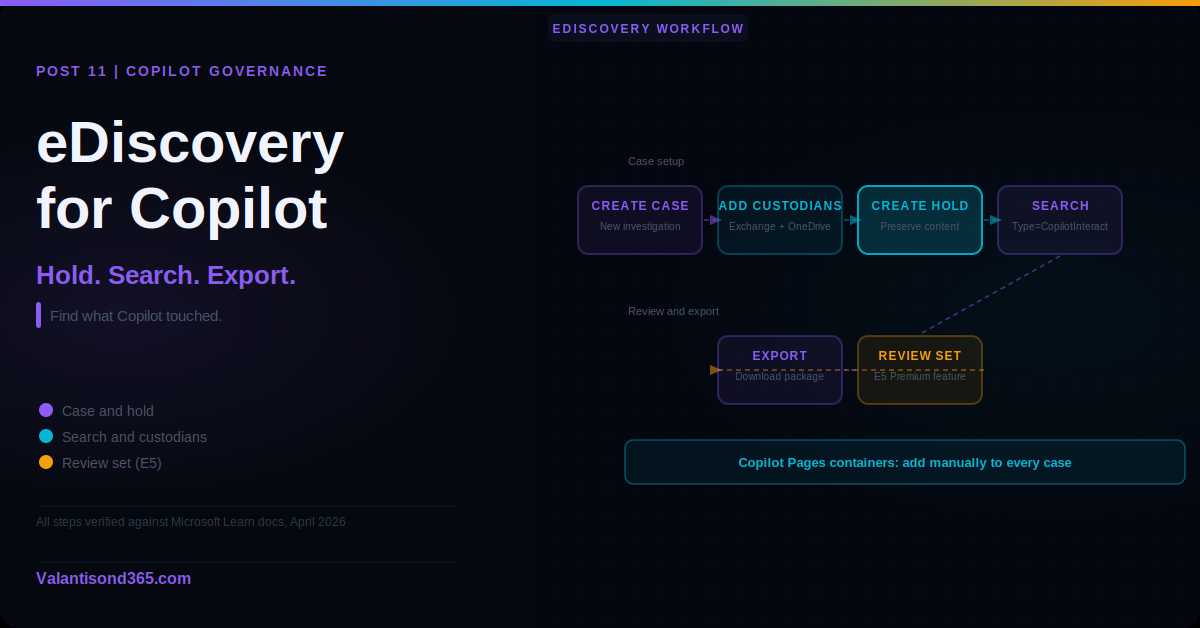
Step 1: Create a Case and Add Custodians
- Sign in to the Microsoft Purview portal.
- Go to Solutions > eDiscovery > Cases.
- Select New case.
- Enter a name and description.
- Open the case and go to the Data sources tab.
- Select Add data source > Add custodians.
- Add the users whose Copilot interactions are in scope.
- For each custodian, confirm that Exchange mailbox and OneDrive are selected as data locations. These are the primary locations for Copilot interaction content.
- If the case requires Copilot Pages or Notebooks containers, add those separately via Add data locations using the container URL.
Step 2: Create a Hold
- On the Data sources tab, select the custodians or locations to hold.
- Select Create hold.
- Enter a name for the hold.
- Choose whether to apply a query-based hold (to hold only content matching specific criteria) or hold all content in the data source.
- Enable the hold.
| Copilot Pages containers are not held automatically. When you add a custodian and select their Exchange and OneDrive, Copilot Pages and Notebooks content is not automatically included. The SharePoint Embedded container must be added as a separate data location and held explicitly. This is a documented limitation. Source: Reference 2. |
Step 3: Search for Copilot Interaction Content
- In the case, go to the Searches tab.
- Select New search.
- Add Exchange mailboxes as the search location. Select the custodian mailboxes in scope.
- Under Conditions, select Add condition > Type.
- Select Copilot interactions from the Type values.
- Add any other conditions such as date range.
- Run the search.
| Confirmed as: documented behaviour. Copilot interaction content in user mailboxes is searchable using the Type = Copilot interactions condition. Source: Reference 1. |
Step 4: Add to Review Set and Export
- From the search results, select Add to review set.
- Choose an existing review set or create a new one.
- Once the content is added, open the review set.
- Use filters and search within the review set to narrow down relevant items.
- Select items for export.
- Configure the export settings (format, metadata, redactions if applicable).
- Download the export package.
| eDiscovery Premium required for review sets. Review sets are an eDiscovery Premium feature. They require Microsoft 365 E5 or the E5 Compliance add-on. Standard eDiscovery supports search and export directly without a review set. Source: Reference 3. |
Validate
- Create a test case with a known user as a custodian.
- Run a search with Type = Copilot interactions for that user.
- Confirm results appear and contain Copilot interaction content.
- Add results to a review set and confirm the items are visible.
- Run an export and confirm the package downloads correctly.
| Expected result: Copilot interaction content appears in the search results. Items are addable to a review set. Export completes and contains the expected interaction records. |
Troubleshooting
| Symptom | Most likely cause | Fix |
| Copilot interactions not appearing in search results. | The Type = Copilot interactions condition is missing, or the mailbox was not included in the search scope. | Add the Type condition and confirm Exchange mailboxes are selected. Ensure the user has Copilot interactions in the date range selected. |
| Copilot Pages content is missing from the case. | The container was not added manually as a data location. | Go to Data sources > Add data locations and add the SharePoint Embedded container for the user. Source: Reference 2. |
| Review set option is not available. | The licence does not include eDiscovery Premium. | Upgrade to E5 or the E5 Compliance add-on for review set access. Standard eDiscovery supports direct export without a review set. Source: Reference 3. |
Lessons Learned
- Test your eDiscovery workflow before you have a legal hold. The worst time to discover that Copilot Pages containers need to be added manually is during an active hold response. Run a test case, go through the full workflow, and document the steps.
- Type = Copilot interactions is the key search condition. Without it you will not find Copilot prompt and response content in Exchange mailboxes. It is not a default condition and it is easy to miss.
- Review sets slow down exports for large data sets. If the volume of Copilot interaction content is large, factor in the time for processing and ingestion into the review set before committing to a deadline.
References
All links verified Mai 2026.
1. Use Microsoft Purview to manage data security and compliance for Microsoft 365 Copilot Covers how Copilot interaction content is stored in Exchange mailboxes and how to search for it using the Type condition.
https://learn.microsoft.com/en-us/purview/ai-m365-copilot
2. Summary of governance, lifecycle, and compliance capabilities for Copilot Pages and Copilot Notebooks Documents the manual hold requirement for Copilot Pages and Notebooks containers and the full-text search limitation.
https://learn.microsoft.com/en-us/microsoft-365/loop/cpcn-compliance-summary
3. Learn about eDiscovery solutions in Microsoft Purview Overview of Standard vs Premium eDiscovery, review sets, and licensing requirements.
https://learn.microsoft.com/en-us/purview/ediscovery