Post 6: Agent Accounts, What They Are and How to Turn Them On
Frontier enrollment, template activation, environment settings, identity planning, tool authentication, and licensing for Copilot Studio agents with their own account (Frontier preview)
Audience: makers who want to build an agent with an account, and the Microsoft 365, Entra, and Power Platform admins who have to switch it on.
Preview note. Agent accounts are part of the Microsoft Frontier program and can change. Treat everything here as pilot guidance, not a production standard.
TL;DR
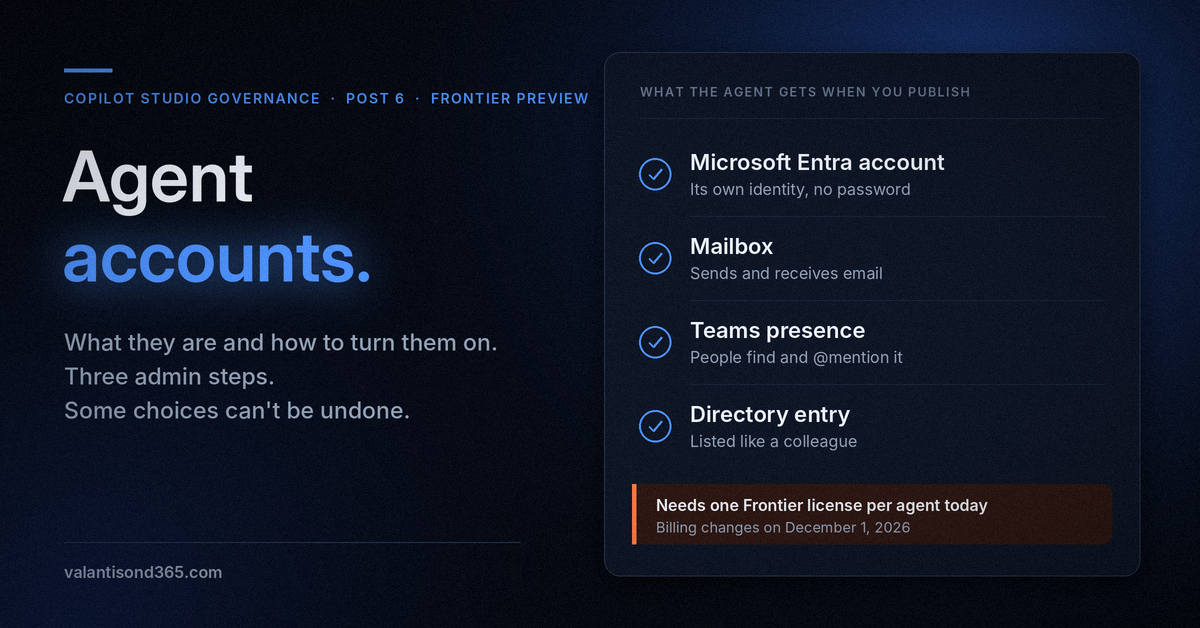
- An agent with an account gets its own Microsoft Entra account, mailbox, Teams presence, and directory entry. It is provisioned when you publish, and it uses one Microsoft 365 Frontier for AI Teammates license. Copilot Studio also creates a separate Microsoft Entra Agent ID for it.
- It’s off by default and takes three steps: a global admin enrolls the tenant in Agent 365 Frontier, an admin activates the Copilot Studio (Frontier) template in the Microsoft 365 admin center, and an admin turns on Agent accounts per environment in the Power Platform admin center. The environment must be on the Early release cycle.
- The maker adds the account before the first publish. The alias prefix of the email address, the reporting line to the maker, and the email address after publishing can’t be changed in the preview.
- Tools that support it default to the Agent account authentication mode. The account does not grant every tool permission. Decide per tool which identity it runs as.
- Today Frontier enrollment gives you 25 licenses, one per agent, and publishing fails when none is free. From December 1, 2026, the public preview bills each agent account in Copilot Credits instead (100 per agent per month plus usage), so the 25-license pool may go away. In the EEA, the agent shows up in Teams only if your tenant licenses Teams separately.
Why this setup deserves some planning
Posts 1 to 5 of this series treated Copilot Studio agents like apps: admin controls before makers start, agent-level security, audit and monitoring, knowledge sources, and ALM. Agent accounts change that picture, and several choices in the setup can’t be undone later.
A recent Microsoft session on agent accounts made one thing clear to me: once an agent has an account, the app mindset stops working. The agent has a mailbox. People @mention it in Teams. It gets added to distribution lists. It works as a member of your organization.
This post covers what an agent account is and how to turn it on. The governance side, meaning Conditional Access, Agent Map, policy templates, and shared memory, is in the next post: Governing Agent Accounts, the Risks Your Controls Miss.
What the agent can do as a teammate
After you publish an agent with an account, it behaves like a colleague.
- Its own mailbox. It sends and receives email and can be added to distribution lists.
- It appears in Teams and the directory, where people find and @mention it like a colleague.
- People in the tenant reach it through supported email, Teams, and Office-comment scenarios.
- Supported operations use the agent’s own scoped access rights.
- It has its own Entra account, so admins can govern and audit it like any other identity.
You give it access the same way you give a person access, through group membership and the permissions those groups carry. The limits matter before you design a process around it.
| Limit | What it means for you |
|---|---|
| External users | The agent doesn’t respond to anyone outside the tenant. No workaround in the preview. |
| Email audience | It responds only in email conversations with up to 250 people. Error reference MCS-4043 can also mean access verification failed. |
| Documents | It can generate new documents. Editing existing documents through co-authoring isn’t supported yet. |
| Protected files | It can’t read documents protected with labels like Confidential or Internal Only. |
| Graph scopes | Not all Microsoft Graph operations and permission scopes are supported. |
On the Entra side, the agent’s user account has no password or passkey. It can only use credentials from its parent agent identity, it can’t be assigned privileged admin roles, and it can’t be added to role-assignable groups. It can join normal and dynamic groups and inherit their permissions.
Agent identity is not only a Copilot Studio topic
On November 17, 2026, Microsoft announced Agentic Users (public preview) in Microsoft Teams. Developers build them with the Teams SDK. The idea is the same: an agent that acts as itself gets its own Microsoft Entra account. Its messages and actions show up under its own name, people add it to chats, channels, and meetings, and its profile shows its owner. Actions are attributed to the agent in audit logs. Admins approve the agent, define what it can access, review its activity in Agent 365 down to individual tool calls, and can disable it. Not every agent needs its own identity, since application-style agents and personal assistants can use other identity models.
My takeaway: agent identities are becoming a tenant-wide category, not one feature in one product.
Admin setup in three steps
Two admin centers decide who gets this capability, and a global admin has to enroll the tenant in Frontier first.
Step 1: Enroll the tenant in Agent 365 Frontier
Only a global admin can do this. Open Microsoft 365 admin center > Agents > Overview, select Try now in the banner, and select I agree to accept the Agent 365 terms. If you don’t see the banner, go to Home, switch to Dashboard View, and select Try now on the Agent 365 card. Enrollment needs at least one Microsoft E7 license in the tenant. For the public preview from December 1, 2026, Frontier needs at least one Microsoft 365 Copilot or E7 license. Then check Billing > Licenses. Today you should see 25 active Microsoft 365 Frontier for AI Teammates licenses. From December 1 this pool may go away, so check what your tenant shows.
Step 2: Activate the Copilot Studio agent template
This step decides who can create agents with accounts. The template defines the agent’s capabilities, identity, and compliance settings.
- Go to Microsoft 365 admin center > Agents > All agents, open the Registry tab, filter Agent template: Yes, select Copilot Studio (Frontier) > Activate.
- At the Users step, choose the users or groups that can create agents with accounts. Only they can.
- Pick a security policy template. The default one is fine for a test. For production, your security team should build a custom template together with your IT admins.
- Review the permissions and finish activation.
Step 3: Turn on Agent accounts per environment
In the Power Platform admin center, select Copilot in the left navigation, then Settings. Under Copilot Studio, select Agent accounts. In the panel, pick your environment, select Edit setting, turn it on, and save. If it’s off, the Agent account button isn’t available for agents in that environment.
Check the release cycle
The environment must be on the Early release cycle. You can see it in the Release cycle column of the environment list. To move an existing environment, create a new sandbox on the Early release cycle in the same region, then copy your environment into it. Only some regions offer Get new features early (today the United States, Europe – Default, Australia, and Canada), so pick a supported region. For a preview feature, I’d use a dedicated test environment anyway. Makers then build in Copilot Studio Preview.
Tradeoff: the template’s user list is your maker allow-list, and the environment toggle is your blast radius. Keep both small during a pilot. Try the whole setup in a test environment before you switch it on anywhere that matters.
If a maker doesn’t see the Agent account button, check these five things in order: they use Copilot Studio Preview, the environment is on the Early release cycle, an admin turned on Agent accounts for the environment, they’re in the users or groups selected at template activation, and a valid license exists for their account.
Create the agent with an account
You add the account while you create the agent, before the first publish. The account isn’t active until you publish. Then the agent gets its mailbox, Teams presence, directory entry, and Entra Agent IDs, and it takes one license.
- Open Copilot Studio Preview and switch to your Early release environment.
- Create a new agent with a name, description, and instructions. Don’t save or publish it yet.
- On the agent’s Build page, under its name, select Agent account, then Add account in the panel.
- Review the summary. Agent account becomes the default authentication mode for tools that support it. You can change that per tool.
- Select Continue. On Create an agent identity, set the name and the configurable part of the email address, and optionally a job title.
- Select Create account, then Publish.
Plan the identity before you publish
- The agent’s email address uses the maker’s own alias as a fixed prefix, and the agent reports to the maker.
- In the preview you can’t change the alias prefix or the reporting relationship. You also can’t change the email address after you publish.
- If no Frontier for AI Teammates license is free when you publish, publishing fails. An admin has to remove a license from another agent or buy more. That’s the rule today. From December 1, 2026, agent accounts are billed in Copilot Credits instead, so check what your tenant shows.
So decide who the maker is before anyone clicks Add account. That person’s alias ends up in the agent’s address for good, and the agent reports to them. The maker also matters for ownership later. I cover that in the governance post.
Choose how each tool runs
When you add an account, Agent account becomes the default authentication mode for tools that support it. You can change the mode per tool, now or later. Combined with the general Copilot Studio tool authentication options, that gives you three ways a tool can run.
| Mode | Runs as | Use it when | Tradeoff |
|---|---|---|---|
| Agent account | The agent’s own account and its scoped access | The agent owns the process end to end (its mailbox, a team site it was added to) | Everything it can reach is reachable for anyone who can ask it |
| End user (user authentication) | Each person’s own connection and consent | Data must stay limited to what each person can access | Each person has to complete the connection and consent. For agents with an account, this is set up under Go to Agent Management |
| Maker-provided (agent author authentication) | One set of credentials provided by the maker | Low-risk, implicit access, for example a public lookup | Every user effectively borrows the maker’s access |
The agent account does not automatically grant every tool permission. Check which identity each tool uses and grant only the access the job needs. Not every tool supports every mode, so make this a per-tool decision in your pilot, not a global setting.
Check that the account actually works
After the first publish, I run four checks before I tell anyone the agent is ready.
- In Copilot Studio, open the agent’s Settings > Advanced > Metadata and copy the Entra Agent ID. Look it up in the Microsoft Entra admin center to confirm the identity exists. Copilot Studio creates one automatically for each new agent, and it attaches an API permission for each connector the agent uses. That gives Entra admins a view of what the agent can call without opening the Power Platform admin center.
- Search for the agent by name in Teams. It should show up with its own people card.
- Email it from an internal account and check that it answers.
- In the Microsoft 365 admin center, check under Billing > Licenses that one Microsoft 365 Frontier for AI Teammates license is now assigned. Check this on screen, and keep in mind that from December 1, 2026 billing moves to Copilot Credits.
Licensing and cost
| Item | Detail |
|---|---|
| Agent account today | One Microsoft 365 Frontier for AI Teammates license per agent. If none is free, publishing fails |
| License pool today | Frontier enrollment gives you 25 of these licenses, one per agent. Free one up by removing it from another agent |
| Agent account from December 1, 2026 | The public preview bills it as Microsoft 365 Resources for Agents: 100 Copilot Credits per agent per month for the account, mailbox, and resources, plus all activity by usage. It’s not a user license, the maker needs consumption billing turned on, and the 25-license pool may go away |
| Frontier enrollment | For the public preview, at least one Microsoft 365 Copilot or E7 license in the tenant |
| Maker | Microsoft 365 E5 with the Agent 365 add-on, or Microsoft 365 E7 |
| Agent 365 at general availability | Licensed per user, not per agent. Agents owned or managed by a licensed user are covered by that user’s license. List price is $15 per user per month standalone (annual), and Microsoft 365 E7 at $99 includes it. US list prices, check yours |
| Usage | The harness uses usage-based billing. Using, building, testing, and evaluating can consume Copilot Credits. Account licensing and usage charges are separate |
| Teams in the EEA | Teams is licensed separately in the EEA. The agent still gets its account, mailbox, and directory presence, but it shows up in Teams only if your tenant licenses Teams |
While the 25-license pool exists, it goes fast in a pilot, so take the license back from abandoned test agents. With credit billing, every agent account costs 100 Copilot Credits a month, so I’d clean up test agents either way.
Lessons Learned
- Three places, in order. Frontier enrollment and template activation in the Microsoft 365 admin center, the Agent accounts toggle in the Power Platform admin center, and an Early release environment. Miss one and the button isn’t there.
- Add the account before the first publish. After that, the email address is fixed.
- Decide the maker first. The alias in the email address and the reporting line are locked in the preview.
- Pick an identity per tool. The security side of that choice is in the next post.
- Watch what each agent account costs. Today 25 licenses go fast in a pilot, and publishing fails when none is free. From December 1, 2026, each account costs 100 Copilot Credits a month plus usage.
Once the agent is live, the real work starts. Your Conditional Access baseline, your policy templates, and shared memory all behave differently for agents with an account. I cover those in Governing Agent Accounts, the Risks Your Controls Miss.
Sources
All links verified November 22, 2026.
- Give your agent an account (Frontier), Microsoft Learn: https://learn.microsoft.com/en-us/microsoft-copilot-studio/agents-experience/authoring-agent-account
- FAQ for agent accounts (Frontier), Microsoft Learn: https://learn.microsoft.com/en-us/microsoft-copilot-studio/faq-agent-accounts
- Preview Microsoft Agent 365 features through the Frontier program, Microsoft Learn: https://learn.microsoft.com/en-us/microsoft-agent-365/frontier
- Microsoft 365 Resources for Agents (service description), Microsoft Learn: https://learn.microsoft.com/en-us/office365/servicedescriptions/office-365-platform-service-description/microsoft-365-resources-for-agents
- Manage Copilot in the Power Platform admin center, Microsoft Learn: https://learn.microsoft.com/en-us/power-platform/admin/copilot/copilot-hub
- Discover, create, and onboard agents with their own identity, Microsoft Learn: https://learn.microsoft.com/en-us/microsoft-agent-365/onboard
- Policy templates (Agent 365), Microsoft Learn: https://learn.microsoft.com/en-us/microsoft-agent-365/admin/policy-template
- Early release cycle environments, Microsoft Learn: https://learn.microsoft.com/en-us/power-platform/admin/early-release
- Learn about the agent's user account in Microsoft Entra Agent ID, Microsoft Learn: https://learn.microsoft.com/en-us/entra/agent-id/agent-users
- Microsoft Entra Agent IDs for Copilot Studio agents, Microsoft Learn: https://learn.microsoft.com/en-us/microsoft-copilot-studio/admin-use-entra-agent-identities
- View and filter agent identities in your tenant, Microsoft Learn: https://learn.microsoft.com/en-us/entra/agent-id/agent-lists
- Configure user authentication for tools, Microsoft Learn: https://learn.microsoft.com/en-us/microsoft-copilot-studio/configure-enduser-authentication
- Add tools to custom agents, Microsoft Learn: https://learn.microsoft.com/en-us/microsoft-copilot-studio/add-tools-custom-agent
- Manage agents in the Microsoft 365 admin center registry, Microsoft Learn: https://learn.microsoft.com/en-us/microsoft-365/admin/manage/agent-registry
- Microsoft Agent 365 pricing, Microsoft: https://www.microsoft.com/en-us/microsoft-agent-365
- Microsoft licensing FAQ: Agent 365 and Microsoft 365 E7, Microsoft: https://www.microsoft.com/licensing/faqs/122
- New Capabilities for Building Digital Teammates in Microsoft Teams (November 17, 2026), Microsoft 365 Developer Blog: https://devblogs.microsoft.com/microsoft365dev/new-capabilities-for-building-digital-teammates-in-microsoft-teams/